iPhone Security Key: Apple Account Key or Wi-Fi Password?
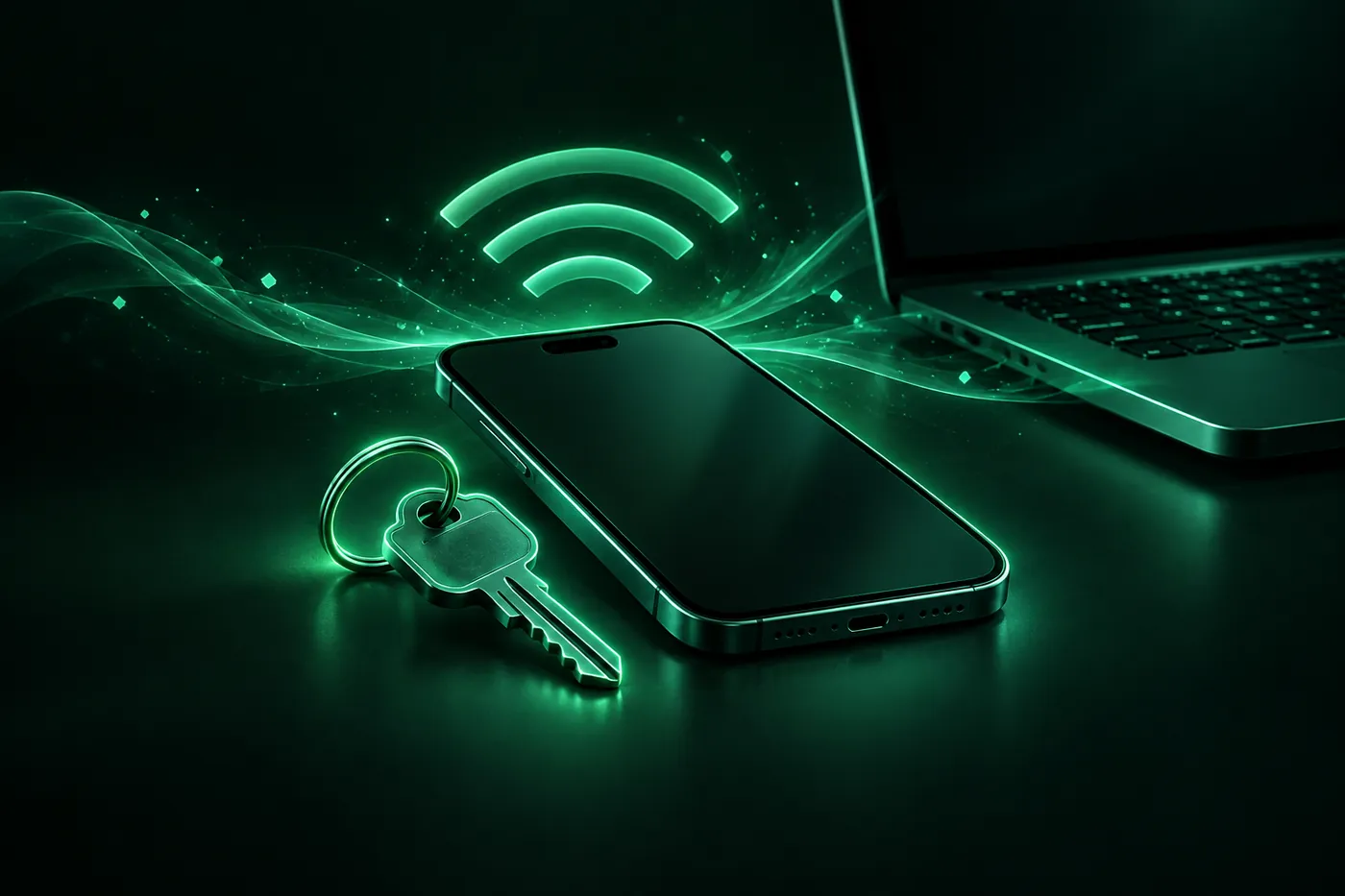
On iPhone, a security key is either a FIDO key that protects your Apple Account or the Wi-Fi password a laptop asks for. Here's how to set up or find each.
 Marco Lee
“Security key” means two things on an iPhone. For your Apple Account, it’s a small FIDO Certified hardware key that replaces the six-digit verification code. You add at least two in Settings > [your name] > Sign-In & Security. For a Personal Hotspot or Wi-Fi network, the “network security key” a laptop asks for is just the Wi-Fi password.
Laptop asking for a network security key? Start with the first section. Thinking about hardware keys? Skip to the second.
The network security key is your Wi-Fi password
“Network security key” is Windows wording for a Wi-Fi password. Microsoft’s own help calls it a “security key (password)” for your network (Microsoft Support), and Windows shows a saved Wi-Fi password in a box labeled Network security key (Microsoft Support). So when a laptop asks for one while joining your hotspot or your Wi-Fi, it wants the password.
Joining your iPhone’s Personal Hotspot
On the iPhone that’s sharing its connection (Apple Support):
- Open Settings and tap Personal Hotspot. If it isn’t on the main list, tap Cellular, then Personal Hotspot.
- Turn on Allow Others to Join.
- Read the password under Wi-Fi Password. That’s the network security key. Type it on the laptop exactly as shown.
- Stay on this screen until the laptop connects.
The hotspot’s network name is your iPhone’s name, which you can change in Settings > General > About > Name (iPhone User Guide).
To set a new password, tap Wi-Fi Password. It must be at least eight characters, using only ASCII characters: English letters, the numbers 0 through 9 and some punctuation (Apple Support). A Mac, iPad or another iPhone signed in to the same Apple Account doesn’t need the password at all (iPhone User Guide).
Getting a password error? Check the password again on the Personal Hotspot screen. On iPhone 12 or later, you can also turn on Maximize Compatibility there. It may reduce internet performance and Wi-Fi security for connected devices (Apple Support), so I’d turn it back off once the laptop no longer needs it.
If Personal Hotspot is dimmed or missing, make sure Cellular Data is on in Settings > Cellular. Your carrier also has to support Personal Hotspot, and it may charge for it (Apple Support).
The password for a Wi-Fi network your iPhone already uses
Your iPhone can also show the password of a Wi-Fi network it has joined. On iOS 16 and later, you unlock it with Face ID, Touch ID or your passcode (Apple Support).
- The network you’re on now: open Settings > Wi-Fi, tap the Info button next to the network, then tap the Password field.
- Any network you’ve joined before (iOS 18 and later): open the Passwords app, tap Wi-Fi, tap the network, then tap the Password field. Tap Copy Password to paste it somewhere else (iPhone User Guide).
iPhone security keys for your Apple Account
The other kind of security key is a small device that looks like a thumb drive or a tag (Apple Support). Security Keys for Apple Account is an optional feature for people who want extra protection from targeted attacks, such as phishing and social engineering scams. The key replaces the six-digit verification code of two-factor authentication, which keeps that code from being intercepted or requested by an attacker (iPhone User Guide).
Once it’s on, signing in to your Apple Account on a new device or on the web takes your password plus one of two things: a security key, or another Apple device that’s already signed in, held nearby. Those become the only ways in. You also need a key or a trusted device to reset your password, unlock your account, or add and remove keys (Apple Support).
That’s the protection, and it’s also the risk. If you lose all of your trusted devices and all of your keys, you could be locked out of your account permanently (Apple Support).
What you need
Before you start, you need (Apple Support):
- At least two FIDO Certified security keys. You can add up to six.
- iOS 16.3, iPadOS 16.3 or macOS Ventura 13.2 or later on every device signed in to your Apple Account.
- Two-factor authentication turned on.
- A passcode on the iPhone you use to add the keys.
- A modern web browser for signing in on the web, and iCloud for Windows 15 or later if you use a PC.
- For Apple Watch, Apple TV or HomePod, an iPhone or iPad with software that supports security keys.
Pick keys that fit your iPhone
Any FIDO Certified key works, as long as its connector fits the devices you use every day (Apple Support):
| Connector | Works with |
|---|---|
| NFC | iPhone only, with a tap |
| USB-C | iPhone 15 or later, and most Macs |
| Lightning | iPhone 14 and most earlier iPhones |
| USB-A | Older Macs, or newer Macs with a USB-C-to-USB-A adapter |
A key with both NFC and USB-C works with most Apple devices. Apple’s examples include the YubiKey 5C NFC, the YubiKey 5Ci and the FEITIAN ePass K9 NFC USB-A.
What stops working
- Old devices. You can’t sign in on a device that can’t update to a version that supports security keys.
- Devices you haven’t touched in a while. Setup signs you out of devices you haven’t used or unlocked in more than 90 days. To get back in, update them and sign in with a key.
- Some account types. Child accounts and Managed Apple Accounts aren’t supported.
- A family-paired Apple Watch. A watch paired with a family member’s iPhone isn’t supported. Set it up with your own iPhone first (Apple Support).
How to add security keys to your Apple ID
Apple ID is now called Apple Account. Same sign-in, new name (Apple Support). With both keys in hand (Apple Support):
- Open Settings and tap your name.
- Tap Sign-In & Security, then Two-Factor Authentication.
- Tap Security Keys, then Add Security Keys, and follow the onscreen steps.
- Review the devices signed in to your account. Stay signed in to all active devices, or choose the ones to sign out of.
When a sign-in asks for your key, insert it. For an NFC key, hold it near the top of your iPhone (iPhone User Guide).
To remove keys, go back to Security Keys. Tap one key, then Remove Key, or use the option to remove all keys (iPhone User Guide). With no keys left, your account goes back to six-digit verification codes (Apple Support).
Keep the keys in different places, like one at home and one at work, and leave one at home when you travel (Apple Support).
Should you bother with hardware keys?
Apple’s guide names the people it built this for: celebrities, journalists and members of government (iPhone User Guide). If that’s you, or someone has already tried to phish your Apple Account, I’d set up keys.
For most people, I wouldn’t rush. I think two-factor authentication with a strong, unique password is a sensible baseline, and the lockout risk is the bigger worry. My test is simple: if you can keep two small keys safe, in two places, for years, go ahead. If you lose your car keys twice a year, skip it. And if you do buy keys, I’d pick ones with both NFC and USB-C, so one key covers most of your devices.
Keys protect sign-ins on new devices and the web. Someone who steals your iPhone and knows your passcode is a different threat. That’s what Stolen Device Protection is for: it helps stop a thief with your passcode from making critical changes to your account (Apple Support). Our guide to iPhone Security Delay explains how it works.
What Mistero can and can’t do here
Mistero doesn’t add, remove or manage security keys, and it doesn’t show your hotspot or Wi-Fi password. Both live in Settings, as above.
Where it overlaps: security keys exist to stop phishing, and in Safari, Mistero Adblock can “Help block known phishing pages and malicious domains” (App Store listing, read Oct 31, 2026). It’s a Safari content blocker, so it doesn’t work in other browsers or inside apps. On a Wi-Fi network you’re unsure about, the security checks can “Check Wi-Fi for visible connection or DNS anomalies” (App Store listing, read Oct 31, 2026). Neither replaces a security key or a good Wi-Fi password. The full feature list is on Mistero security.
Sources
- Apple Support, About Security Keys for Apple Account: https://support.apple.com/en-us/102637 (read Oct 31, 2026)
- Apple Support, Use security keys to sign in to your Apple Account on iPhone (iPhone User Guide): https://support.apple.com/guide/iphone/use-security-keys-iph5acc5b28c/ios (read Oct 31, 2026)
- Apple Support, Manage and use your Apple Account: https://support.apple.com/en-us/105023 (read Oct 31, 2026)
- Apple Support, Connect to the Personal Hotspot of an iPhone or iPad: https://support.apple.com/en-us/111785 (read Oct 31, 2026)
- Apple Support, Share your internet connection from your iPhone (iPhone User Guide): https://support.apple.com/guide/iphone/share-your-internet-connection-iph45447ca6/ios (read Oct 31, 2026)
- Apple Support, If Personal Hotspot is not working on your iPhone or iPad (Wi-Fi + Cellular): https://support.apple.com/en-us/119837 (read Oct 31, 2026)
- Apple Support, Find your saved Wi-Fi passwords on iPhone or iPad: https://support.apple.com/en-us/104961 (read Oct 31, 2026)
- Apple Support, Find and share your Wi-Fi password on iPhone (iPhone User Guide): https://support.apple.com/guide/iphone/find-and-share-your-wi-fi-password-iph96e6aa9bb/ios (read Oct 31, 2026)
- Apple Support, About Stolen Device Protection for iPhone: https://support.apple.com/en-us/120340 (read Oct 31, 2026)
- Microsoft Support, Connect to a Wi-Fi network in Windows: https://support.microsoft.com/en-us/windows/experience/connectivity-networking/connect-to-a-wi-fi-network-in-windows (read Oct 31, 2026)
- Microsoft Support, Setting up a wireless network in Windows: https://support.microsoft.com/en-us/windows/experience/connectivity-networking/setting-up-a-wireless-network-in-windows (read Oct 31, 2026)
- App Store, Mistero VPN: Privacy & Proxy: https://apps.apple.com/app/id1583175414 (read Oct 31, 2026)
Pricing New subscribers can start a 3-day free trial. After the trial, the subscription renews automatically at $12.99 per week unless you cancel at least 24 hours before the trial ends, in Settings > [your name] > Subscriptions (Apple Support). There's also a one-time Lifetime purchase for $99.99. These are US App Store prices as of October 2026; the purchase screen shows the current price before you confirm.
Frequently asked questions
What is the network security key for my iPhone hotspot?
How do I add security keys to my Apple Account?
What happens if I lose my Apple Account security key?
Do I need a security key for my iPhone?
 iPhone Lockdown Mode: What It Does and Who Needs ItLockdown Mode is Apple's extreme iPhone setting for people targeted by spyware. See what it blocks, how to turn it on or off, and whether you need it.
 iPhone Security Lockout or Unavailable? How to Get Back InStuck on iPhone Unavailable or Security Lockout? Try your old passcode, erase from the Lock Screen with Forgot Passcode?, or restore with a computer.
 iPhone Security Delay: What It Is and How to Turn It OffSecurity Delay in Progress on your iPhone? It's Stolen Device Protection making you wait an hour. Here's what triggers it, and how to turn it off.