Orange Dot on iPhone and Green Dot: What They Mean
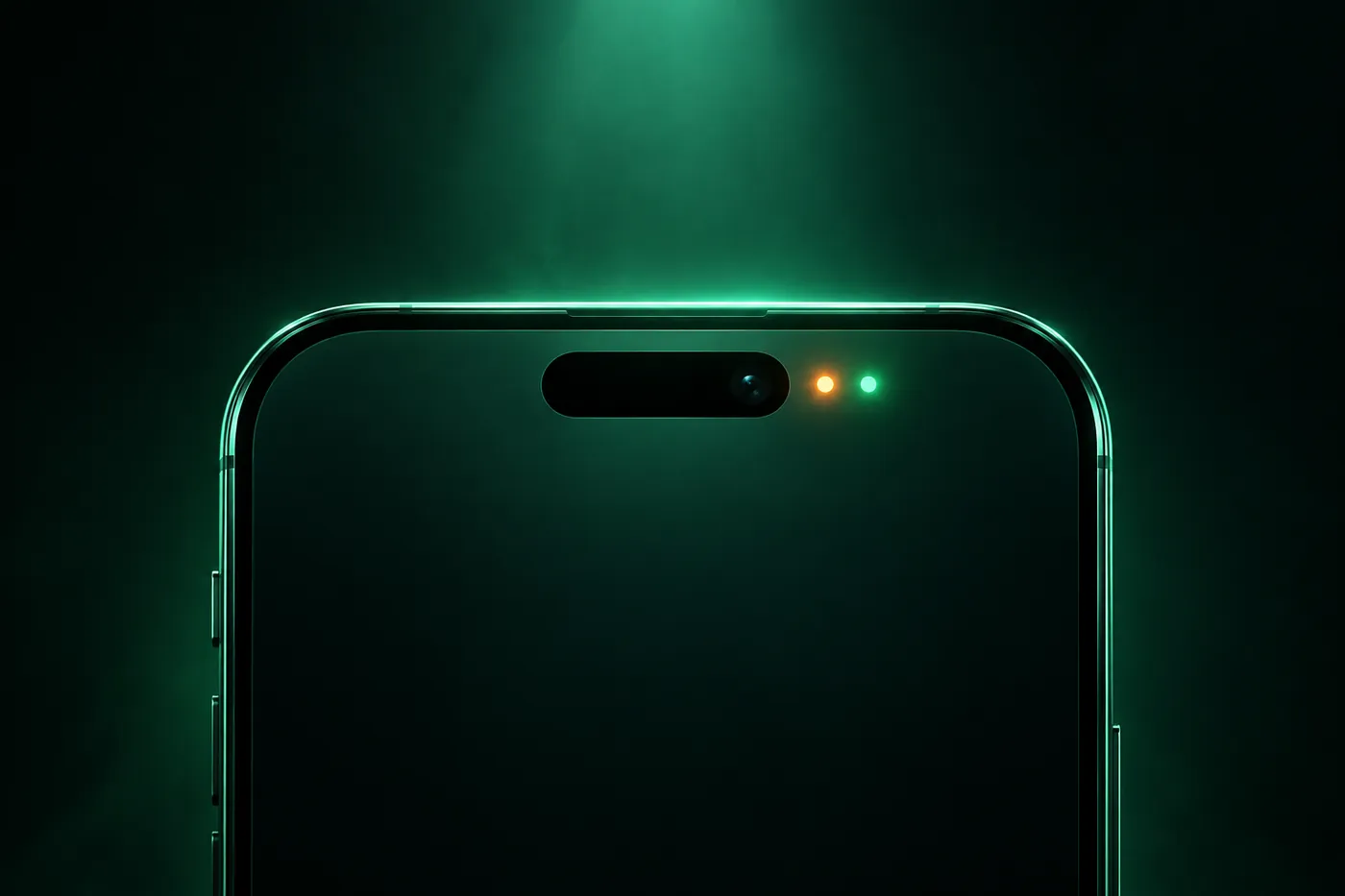
An orange dot on iPhone means an app is using the microphone. Green means the camera. Find out which app it was, what's normal and how to cut off access.
 Marco Lee
An orange dot on iPhone means an app is using your microphone. A green dot means an app is using the camera, or the camera and microphone together. Seeing one doesn’t mean you’ve been hacked. Open Control Center to see which app recently used it, and switch off its access in Settings > Privacy & Security if it looks wrong.
You noticed a small colored dot at the top of the screen and wondered whether someone is listening. Here’s how to read it, and what to do if the answer isn’t an app you opened.
What the orange dot on iPhone means
Since iOS 14, iPhone shows a small indicator in the status bar whenever an app is using the microphone or camera (Apple Support). There are three versions:
- Orange dot: an app is using the microphone.
- Orange square: same meaning. You see a square instead of a dot when Differentiate Without Color is turned on in Settings > Accessibility > Display & Text Size.
- Green dot: an app is using the camera, either alone or together with the microphone.
The colors don’t stack. When an app uses the camera and microphone together, the indicator is green. Orange appears only when the microphone is in use without the camera (iPhone User Guide).
One more green thing can show up at the top of the screen. If you’re on a phone call and switch to another app, iPhone shows a green call indicator, and tapping it takes you back to the call (Apple Support). That one is your call, not the camera.
Which app is using it? Check Control Center
This takes a few seconds, so do it first.
- Open Control Center. On an iPhone with Face ID, swipe down from the top-right corner of the screen. On iPhone SE, swipe up from the bottom (Apple Support).
- Look at the top. When an app has recently used the microphone or camera, a message appears at the top of Control Center to tell you (iPhone User Guide).
If the app named there is one you’re using, you’re done. If you weren’t expecting any app to use the microphone or camera, check which app is running (Apple Support).
For a history, use App Privacy Report
Control Center only covers recent use. App Privacy Report goes back 7 days: it shows how many times and when each app accessed privacy-sensitive data and sensors, including the camera and microphone (Apple Support).
To turn it on, open Settings > Privacy & Security, scroll down, tap App Privacy Report, then tap Turn On App Privacy Report. It only starts collecting after you switch it on, so it can’t show what happened before today. The report is encrypted and stays on your iPhone.
I’d turn it on now if the dot made you nervous. Next time, you’ll have a record to look at instead of a guess.
Usually it’s something you started
Most of the time, the dot belongs to something you did a moment ago. These are the common ones.
Orange dot on iPhone during a call
A phone call uses your microphone, so an orange dot during a call is expected. A video call uses the camera as well, so you’ll see green instead.
Siri, Dictation and voice memos
Anything that listens to you uses the microphone: asking Siri something, dictating a message instead of typing it, or recording a voice memo. Dictation works anywhere you can type text (Apple Support). On models with the Dynamic Island, a Voice Memo recording in progress can show there as a Live Activity, which is an easy way to spot that a recording is still going (Apple Support).
An app you opened
Voice notes in a messaging app, a video chat, recording a story in a social app, scanning a document or a QR code. Before any app can use the camera or microphone, it has to ask your permission and explain why (iPhone User Guide). So an app that shows up in Control Center was allowed access at some point. Often that’s a pop-up you tapped through long ago.
Orange dot on iPhone with no apps open
Leaving an app doesn’t always stop it. Apps you’ve used recently can still perform specific background tasks or services (Apple Support). So “nothing is open” isn’t the same as “nothing is running.”
Don’t guess. Open Control Center and read the name at the top. If the name means nothing to you, move on to the next section.
If the app looks wrong, cut off its access
If Control Center or App Privacy Report names an app you didn’t expect, or one with no business hearing or seeing you, work through these in order.
- Turn off its access. Go to Settings > Privacy & Security, then tap Microphone. The list shows every app that asked for access. Turn the switch off for the app. Then do the same under Camera (iPhone User Guide).
- Delete the app if you don’t need it. Touch and hold it on the Home Screen or in App Library, tap Remove App, then Delete App, then Delete. That removes the app and its data from your iPhone. Anything it saved to iCloud isn’t deleted (Apple Support).
- Look for other changes you didn’t make. An app you don’t remember installing, a device you don’t own on your Apple Account, a profile you didn’t add. If any of that turns up, go through how to check if your iPhone is hacked.
Even if the dot turns out to be innocent, I’d scroll through the Microphone and Camera lists once. Any app with no clear reason to hear or see you can lose access. If a feature you need stops working, you can turn the switch back on in the same list.
What Mistero can and can’t do here
Mistero doesn’t monitor your microphone or camera, and it can’t tell you which app used them. For that, use what’s built into iOS: the dot itself, Control Center and App Privacy Report.
The app’s security check does something narrower. It can “Review iOS version, passcode, and Face ID status” (App Store listing, read Nov 1, 2026). That’s a quick look at basic phone settings, not a recording detector. The full feature list is on Mistero security.
Sources
- Apple Support, About the orange and green indicators in your iPhone status bar: https://support.apple.com/en-us/108331 (read Nov 1, 2026)
- Apple Support, Control access to hardware features on iPhone (iPhone User Guide, iOS 27): https://support.apple.com/guide/iphone/control-access-to-hardware-features-iph168c4bbd5/ios (read Nov 1, 2026)
- Apple Support, Learn the meaning of iPhone status icons (iPhone User Guide): https://support.apple.com/guide/iphone/learn-the-meaning-of-iphone-status-icons-iphef7bb57dc/ios (read Nov 1, 2026)
- Apple Support, While on a call on iPhone (iPhone User Guide): https://support.apple.com/guide/iphone/while-on-a-call-iph3c9951d7/ios (read Nov 1, 2026)
- Apple Support, Use and customize Control Center on iPhone (iPhone User Guide): https://support.apple.com/guide/iphone/use-and-customize-control-center-iph59095ec58/ios (read Nov 1, 2026)
- Apple Support, About App Privacy Report: https://support.apple.com/en-us/102188 (read Nov 1, 2026)
- Apple Support, Dictate text on iPhone (iPhone User Guide): https://support.apple.com/guide/iphone/dictate-text-iph2c0651d2/ios (read Nov 1, 2026)
- Apple Support, View Live Activities in the Dynamic Island on iPhone (iPhone User Guide): https://support.apple.com/guide/iphone/view-live-activities-in-the-dynamic-island-iph28f50d10d/ios (read Nov 1, 2026)
- Apple Support, Close an app on your iPhone or iPod touch: https://support.apple.com/en-us/109359 (read Nov 1, 2026)
- Apple Support, Remove or delete apps from iPhone (iPhone User Guide): https://support.apple.com/guide/iphone/remove-or-delete-apps-iph248b543ca/ios (read Nov 1, 2026)
- App Store, Mistero VPN: Privacy & Proxy: https://apps.apple.com/app/id1583175414 (read Nov 1, 2026)
Pricing New subscribers can start a 3-day free trial. After the trial, the subscription renews automatically at $12.99 per week unless you cancel at least 24 hours before the trial ends, in Settings > [your name] > Subscriptions (Apple Support). There's also a one-time Lifetime purchase for $99.99. These are US App Store prices as of October 2026; the purchase screen shows the current price before you confirm.
Frequently asked questions
What does the orange dot on my iPhone mean?
What does the green dot on my iPhone mean?
Is the orange dot normal during a phone call?
How do I find out which app turned on the dot?
 Apple Account Locked? How to Tell If It's Real and Unlock ItApple Account locked for security reasons? Check it yourself instead of tapping the link, then unlock it at iforgot.apple.com or start account recovery.
 Unknown Accessory Detected Near You: What to Do on iPhoneGot an Unknown Accessory Detected or AirTag Found Moving With You alert? Find, identify and disable the tracker, and check who can see your iPhone's location.
 iPhone Lockdown Mode: What It Does and Who Needs ItLockdown Mode is Apple's extreme iPhone setting for people targeted by spyware. See what it blocks, how to turn it on or off, and whether you need it.