What Is a VPN Configuration on iPhone, and Is It Safe?
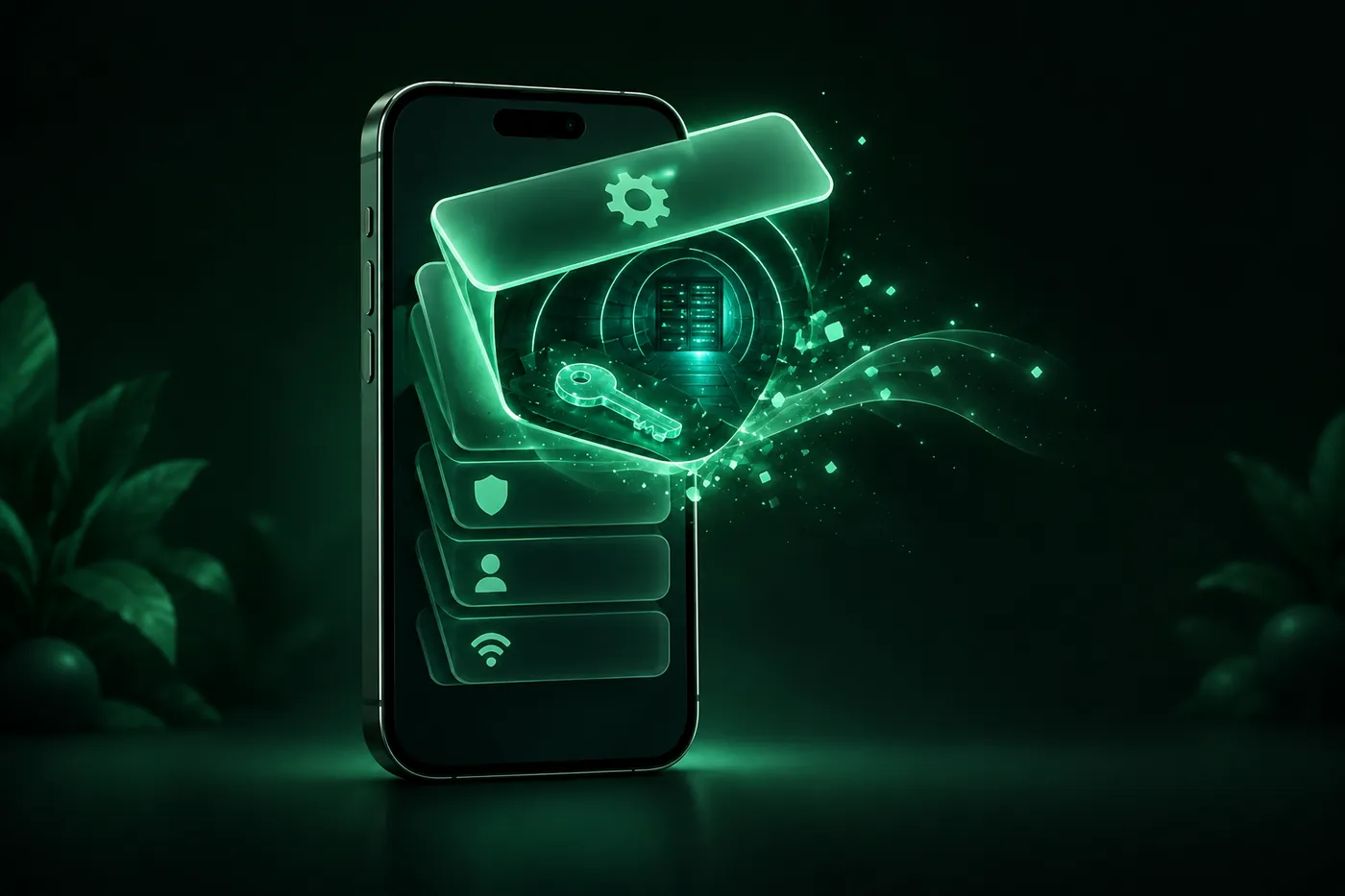
A VPN configuration is the saved setup your iPhone uses to connect to a VPN. Learn where yours came from, whether it's safe, and when to delete it.
 Marco Lee
A VPN configuration is the saved setup your iPhone uses to connect to a VPN: the server, connection type and sign-in details. A VPN app, some ad blockers and security apps, or your school or employer can add one. It’s as safe as whoever runs that server. Find yours in Settings > General > VPN & Device Management.
Maybe you opened Settings and found a VPN entry, or a profile, that you don’t remember adding. Here’s what it is, where it likely came from, and whether to keep it. If what caught your eye was the small VPN badge at the top of the screen, start with why there’s a VPN icon on your iPhone. This post is about the entry behind it.
What is a VPN configuration on iPhone?
It’s the saved settings for one VPN connection: the connection type, the server address, the account name and the sign-in method, such as a password or a certificate. iPhone has built-in support for L2TP, IKEv2 and IPSec connections, and you set those up in Settings by adding a VPN configuration (Apple Support). Apps can also bring their own VPN protocols (Apple Developer).
Having a configuration doesn’t mean you’re connected. Each entry can be switched on or off, and it shows its connection status (Apple Support). It can sit in Settings, switched off, for months.
Two terms sound alike but aren’t the same:
- A VPN configuration is one entry in your VPN list.
- A configuration profile, often just called a profile, is a file that sets things up for you. It can add a VPN, but it can also manage accounts and other device settings (Apple Support).
Both are listed under Settings > General > VPN & Device Management.
Where did this VPN configuration come from?
There are three usual sources.
An app added it
App Store rules require VPN apps to use Apple’s VPN framework, and they allow approved parental control, content blocking and security apps to use it too (Apple Developer). So an ad blocker or a security app can add a VPN entry, even if you never thought of it as a VPN.
The first time an app saves a VPN configuration, you have to approve it (Apple Developer). That’s the system pop-up asking whether to let the app add VPN configurations. If you approved it once, maybe weeks ago, that app is the likely source.
Each entry is tied to the app that created it, and an app can see only the configurations it created (Apple Developer). One VPN app can’t read another’s settings.
Someone typed it in
You can add one by hand. Open Settings > General > VPN & Device Management, tap Add VPN Configuration (on recent iOS versions it may be under VPN), and pick a type: L2TP, IPSec or IKEv2. Then fill in a description, the server, the account details and the authentication. IKEv2 also asks for a Remote ID and a Local ID (Apple Support). People usually do this with settings from an employer’s IT team or a VPN provider. If you never did this, the entry most likely came from an app or a profile.
A profile or device management installed it
When you download a profile from a website or an email, it doesn’t install itself. You have to open Settings, tap Profile Downloaded or Enroll in [organization name], and tap Install. If you don’t install it within 8 minutes, it’s deleted. The exception is a device enrolled in device management: there, an administrator can install profiles without any action from you (Apple Support).
Schools and businesses use profiles and device management to run their devices, and these tools may allow access to data or location information on the device (Apple Support). A supervised iPhone, one that an organization owns and controls more tightly, shows a supervision message at the top of the main Settings page (Apple Support). An organization can also turn on Always On VPN for supervised devices. That sends all traffic back through the organization, which “can monitor and filter traffic to and from its devices” (Apple Platform Security).
If a managed VPN from a profile and an app’s VPN both try to carry all your traffic, the managed one wins (Apple Developer).
How to see which VPN configurations you have
- Open Settings > General > VPN & Device Management.
- Look at the VPN entries. Each one shows a name and whether it’s connected. Tap the (i) next to one to see its settings (Apple Support).
- Look for profiles on the same screen. If none are listed, no device management profiles are installed (Apple Support). Tap a profile to see what it changes (Apple Support).
- Can’t place a name? Check your Home Screen for VPN, firewall, antivirus and parental control apps, and content blockers. Their names often include words like Anti, Firewall, Protection, Security, Shield or VPN. You can also swipe down in Settings and search for VPN, profile, firewall and filter (Apple Support).
Should you delete it?
It depends on where it came from.
- An app you still use: keep it. Deleting the entry breaks that app’s VPN, and while the app is still in use, the setting might return later (Apple Support).
- An app you’ve stopped using: delete the app, then check the list again. If the entry is still there, tap the (i) next to it, tap Delete VPN and confirm (Apple Support).
- A profile you don’t recognize, on your own iPhone: select it, tap Delete Profile, follow the steps and restart. This deletes all of the settings, apps and data that came with the profile. If it set up a VPN for a school network, for example, that VPN stops connecting (Apple Support).
- A work or school iPhone: ask your IT team first. Depending on how the device was set up, some profiles can be removed only by the organization’s device management service or by erasing the device (Apple Support).
If I couldn’t trace a profile on my own iPhone to an app or an organization I trust, I’d delete it.
Is a VPN configuration on iPhone safe?
The entry itself is just settings. What matters is who runs the server it points to. When a VPN is on, your iPhone connects to that server over the internet and sends your traffic through it (Apple Developer). So the trust question is about the company or organization running that server, not the entry.
Here’s how I’d weigh each kind:
- From a VPN or security app you chose: as trustworthy as the company behind it. Read is a VPN safe? for how to check one.
- From your employer or school: expected on their device. I’d assume they can see and filter the traffic that goes through it.
- A profile nobody can explain: treat it as a red flag, and remove it using the steps above.
One side effect if you pay for iCloud+: while a VPN configuration is active, connections use the VPN instead of iCloud Private Relay (Apple Developer).
Mistero VPN adds one too
Mistero VPN works like every other VPN app on iPhone. When you first connect, it adds a VPN configuration, and iOS asks you to approve it. After that, you’ll see it in Settings > General > VPN & Device Management, and you can delete it there or by deleting the app.
In the app you can “Choose WireGuard, OpenVPN, or IKEv2” (App Store listing, read Oct 31, 2026). When you’re connected to Mistero VPN, we don’t store your browsing activity or DNS queries, and we keep no record linking your real IP to the IP you appear as (no-logs policy).
What it can’t do: iOS shows each VPN app only the configurations it created (Apple Developer), so Mistero can’t check or remove anyone else’s. It doesn’t manage profiles, and it doesn’t change what a school or employer can see on a device they manage. For those, use the checks above. More on the VPN itself is on Mistero VPN.
Sources
- Apple Support, Set up a VPN on iPhone and iPad: https://support.apple.com/guide/platform-support/sup7e57396ba/web (read Oct 31, 2026)
- Apple Support, Review and delete configuration profiles: https://support.apple.com/guide/personal-safety/review-and-delete-configuration-profiles-ips327569a75/web (read Oct 31, 2026)
- Apple Support, Install a configuration profile on your iPhone, iPad, or Apple Vision Pro: https://support.apple.com/en-us/102400 (read Oct 31, 2026)
- Apple Support, If you have a supervised iPhone, iPad, Mac, or Apple Vision Pro: https://support.apple.com/en-us/102291 (read Oct 31, 2026)
- Apple Support, If your device has network connectivity issues, check for VPN and other third-party security software: https://support.apple.com/en-us/102281 (read Oct 31, 2026)
- Apple Support, Intro to device management: https://support.apple.com/guide/deployment/depc0aadd3fe/web (read Oct 31, 2026)
- Apple Platform Security, VPN security: https://support.apple.com/guide/security/sec802e8ab55/web (read Oct 31, 2026)
- Apple Developer, App Review Guidelines, 5.4 VPN Apps: https://developer.apple.com/app-store/review/guidelines/ (read Oct 31, 2026)
- Apple Developer, Personal VPN: https://developer.apple.com/documentation/networkextension/personal-vpn (read Oct 31, 2026)
- Apple Developer, NETunnelProviderManager: https://developer.apple.com/documentation/networkextension/netunnelprovidermanager (read Oct 31, 2026)
- Apple Developer, Packet tunnel provider: https://developer.apple.com/documentation/networkextension/packet-tunnel-provider (read Oct 31, 2026)
- App Store, Mistero VPN: Privacy & Proxy: https://apps.apple.com/app/id1583175414 (read Oct 31, 2026)
Pricing New subscribers can start a 3-day free trial. After the trial, the subscription renews automatically at $12.99 per week unless you cancel at least 24 hours before the trial ends, in Settings > [your name] > Subscriptions (Apple Support). There's also a one-time Lifetime purchase for $99.99. These are US App Store prices as of October 2026; the purchase screen shows the current price before you confirm.
Frequently asked questions
What is a VPN profile on iPhone?
Is it safe to delete a VPN configuration?
Why did the VPN configuration come back after I deleted it?
Does Mistero VPN add a VPN configuration?
 Does a VPN Change Your Location on iPhone?A VPN changes the location websites guess from your IP address, not your iPhone's GPS. Why Find My and Snap Map still show where you are, and what to check.
 Is a VPN Safe? What to Check Before You Trust OneA VPN is usually safe to use. The real question is whether you can trust the company that runs it. Here's what a VPN can see and what to check on your iPhone.
 How to Find Your Router (Gateway) IP on iPhoneYour IP gateway is your router's local address. On iPhone, open Settings > Wi-Fi, tap the (i) next to your network and read the Router line. How it differs from your public IP, and how to open the router page.