Weak Security Wi-Fi on iPhone: What It Means, How to Fix It
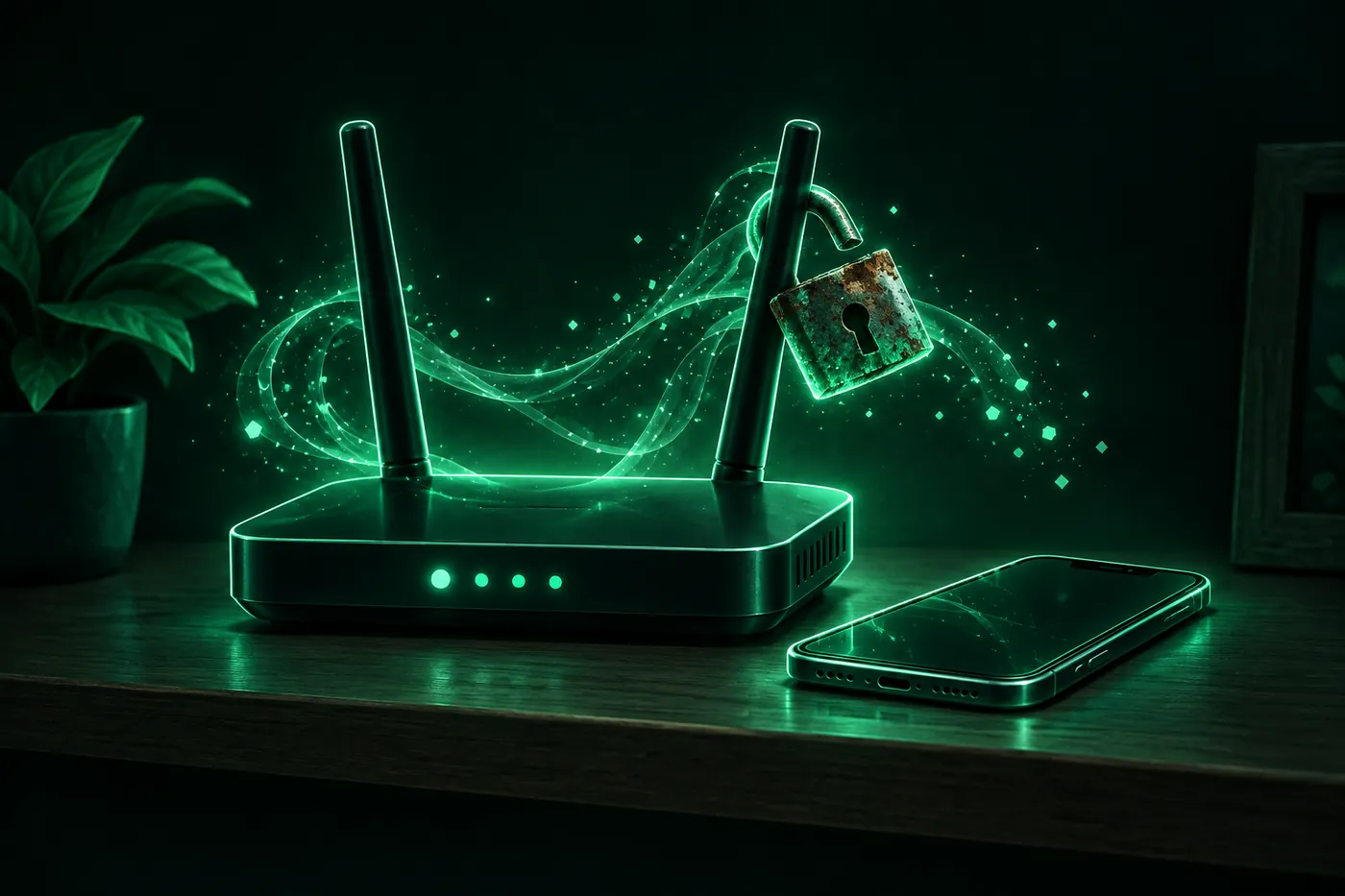
Your iPhone says Weak Security when a Wi-Fi network uses WEP, WPA or TKIP. Fix it on your router, or use cellular or a VPN on networks you don't control.
 Marco Lee
“Weak Security” under a Wi-Fi network’s name means the router uses an old security setting that Apple says is no longer secure: WEP, WPA, or WPA/WPA2 with TKIP. If it’s your network, change the router’s security to WPA3 Personal or WPA2/WPA3 Transitional, then forget and rejoin the network on your iPhone. If it isn’t yours, I’d use cellular data or a VPN for anything sensitive.
What “Weak Security” means on iPhone
You’ll see it in Settings > Wi-Fi, under the network’s name. Tap the More Info button (the i) next to the network and iOS tells you which setting it doesn’t like. In iOS 27 the reason reads “WEP is not considered secure.”, “WPA is not considered secure.” or “WPA/WPA2 (TKIP) is not considered secure.”, followed by “If this is your Wi-Fi network, configure the router to use WPA2 (AES) or WPA3 security type.”
Apple lists the router settings that trigger it. They’re “older, deprecated security protocols”, which are “no longer secure, they reduce network reliability and performance, and they cause your device to show a security warning” (Apple Support):
- WPA/WPA2 mixed modes
- WPA Personal
- WEP, in any form, including Dynamic WEP
- TKIP, “including any security setting with TKIP in the name”
So the warning is about the network, not your phone. Nothing is wrong with your iPhone, and no iPhone setting makes it go away.
Is weak security Wi-Fi dangerous?
Apple doesn’t rate how risky each old mode is. It just says not to create or join these networks (Apple Support). Here’s how I think about it.
The router’s security setting “defines the type of authentication and encryption used by your router, and the level of privacy protection for data transmitted over its network” (Apple Support). That’s the layer that’s weak.
Most of what you do has its own encryption on top. Websites that use HTTPS “help maintain the privacy and integrity of data” (NIST NCCoE). Plain HTTP “doesn’t provide a secure connection”, and Safari can warn you about it: go to Settings > Apps > Safari and, below Privacy & Security, turn on Not Secure Connection Warning (iPhone User Guide).
App encryption doesn’t hide everything, though. Writing about networks that don’t protect traffic, NIST notes: “Even if the transmitted data was encrypted by the application, an attacker would be aware of the domains, internet protocol (IP) addresses, and services” your device connects to (NIST NCCoE).
So I’d read the news on a weak-security network without much worry. I wouldn’t sign in to my bank on one I don’t control.
“Unsecured Network” is a different label
A network with no password at all shows Unsecured Network instead, with “Open networks provide no security and expose all network traffic.” Apple says an open network lets anyone join, use its shared devices and “monitor the websites you visit and other data transmitted over your network” (Apple Support). Many hotel and café networks are open with a login page. If that page won’t load, see hotel Wi-Fi login page not showing.
How to fix weak security on a network you own
The fix lives on the router. Apple’s advice: if you run the network, “update the settings of your Wi-Fi router” (Apple Support).
- Find the router’s address on your iPhone. The steps are in how to find your router IP on iPhone.
- Open the router’s configuration webpage (type that address into Safari) or the maker’s app. Menu names vary, so check the router’s documentation (Apple Support).
- Back up the current settings and update the firmware first. Firmware updates “can affect the security settings available to you” (Apple Support).
- Set security to WPA3 Personal. If you have older devices, choose WPA2/WPA3 Transitional, which lets them use WPA2 Personal (AES). Use WPA2 Personal (AES) only if neither is offered, and pick AES as the cipher (Apple Support).
- Apply it to every band and every access point, and use a strong password (Apple Support).
- On your iPhone, go to Settings > Wi-Fi, tap More Info next to the network, tap Forget This Network, then Forget. Join again with the password. Forgetting the network helps your device use the router’s new settings (Apple Support).
Forgetting a network on one device also forgets it on your other devices that use iCloud Keychain with the same Apple Account (Apple Support), so expect to rejoin there too.
Router from your internet provider and can’t find the setting? Apple’s advice is to contact your ISP if you don’t know how to make the changes yourself (Apple Support).
Weak security Wi-Fi not working on iPhone
If the network is also slow or keeps dropping, the same router fix may help, since Apple says these old protocols “reduce network reliability and performance” (Apple Support).
If you use Lockdown Mode, it changes things too. Your iPhone “won’t automatically join non-secure Wi-Fi networks, and will disconnect from a non-secure Wi-Fi network when you turn on Lockdown Mode” (Apple Support). More in iPhone Lockdown Mode.
For anything else, Apple’s checklist covers restarting the router, testing other devices and resetting network settings as a last step (Apple Support).
On a network you don’t own
Hotels, cafés and offices are where most people meet this warning, and you can’t change their router.
- Tell the people who run it. Apple says to bring these settings “to the attention of the network administrator” (Apple Support).
- Use cellular data for sensitive things. If you’d rather your iPhone not rejoin the network later, turn off Auto-Join for it under More Info. You can still join it by hand (Apple Support).
- Use a VPN. A VPN “can ensure all communication to and from their applications is encrypted prior to leaving the device” (NIST NCCoE). It’s most useful when you hop between networks like this, as in why a VPN matters when your network keeps changing.
Your iPhone already does one thing for you here. When it joins a new network with weak or no security, it uses a Rotating private Wi-Fi address by default, which changes every 2 weeks (Apple Support).
Weak Security vs. Privacy Warning
Privacy Warning is a separate label. It’s about what the network can learn about you, not the strength of its encryption. Apple names a few causes (Apple Support):
- Private address off. The device’s private Wi-Fi address is turned off for that network. To turn it back on in iOS 18 or later, go to Settings > Wi-Fi, tap More Info, tap Private Wi-Fi Address and choose Fixed or Rotating. On earlier iOS it’s a single switch (Apple Support).
- Encrypted DNS blocked. The network blocks encrypted DNS, so the names of sites you visit “could be monitored and recorded by other devices on the network.” Apple suggests updating, restarting your device and router, and forgetting and rejoining the network (Apple Support).
- Carrier Wi-Fi. On your carrier’s public networks, your cellular identity could be exposed if your iPhone auto-joined a fake copy. Turn off Auto-Join for that network (Apple Support).
Limit IP Address Tracking sits on the same screen but is its own switch. It hides your IP address from known trackers (iPhone User Guide). It doesn’t change the network’s encryption either.
What Mistero can and can’t do here
Mistero can’t change your router’s security setting, and it won’t make the Weak Security label go away. That label describes the network, and only the router fix above changes it. On a network you own, I’d fix the router first.
What a VPN adds is encryption that starts on your iPhone, whatever the network’s own security is (NIST NCCoE). Mistero VPN lets you “Connect with one tap on public Wi-Fi”, “Mask your IP address while the VPN is active”, “Choose WireGuard, OpenVPN, or IKEv2” and “Turn on Kill Switch to help stop network traffic if the VPN disconnects” (App Store listing, read Nov 2, 2026). More on Mistero VPN.
Sources
- Apple Support, Recommended settings for Wi-Fi routers and access points: https://support.apple.com/en-us/102766 (read Nov 2, 2026)
- Apple Support, Use private Wi-Fi addresses on Apple devices: https://support.apple.com/en-us/102509 (read Nov 2, 2026)
- Apple Support, Forget a Wi-Fi network or prevent your device from automatically joining it: https://support.apple.com/en-us/102480 (read Nov 2, 2026)
- Apple Support, If you can’t connect to Wi-Fi on your iPhone or iPad: https://support.apple.com/en-us/111786 (read Nov 2, 2026)
- Apple Support, About Lockdown Mode: https://support.apple.com/en-us/105120 (read Nov 2, 2026)
- Apple Support, Get a warning when you visit websites that use HTTP on iPhone (iPhone User Guide): https://support.apple.com/guide/iphone/get-http-website-warnings-iphfba2ed790/ios (read Nov 2, 2026)
- Apple Support, Manage Wi-Fi settings on iPhone (iPhone User Guide): https://support.apple.com/guide/iphone/manage-wi-fi-settings-iphw5gjwl8k2/ios (read Nov 2, 2026)
- NIST National Cybersecurity Center of Excellence, Holiday Travel Tip: Use Public Wi-Fi Safely: https://www.nccoe.nist.gov/sites/default/files/2022-11/HolidayTravelTip-UsePublicWiFiSafely.pdf (read Nov 2, 2026)
- App Store, Mistero VPN: Privacy & Proxy: https://apps.apple.com/app/id1583175414 (read Nov 2, 2026)
Pricing New subscribers can start a 3-day free trial. After the trial, the subscription renews automatically at $12.99 per week unless you cancel at least 24 hours before the trial ends, in Settings > [your name] > Subscriptions (Apple Support). There's also a one-time Lifetime purchase for $99.99. These are US App Store prices as of October 2026; the purchase screen shows the current price before you confirm.
Frequently asked questions
Is it safe to use Wi-Fi with weak security?
How do I fix weak security on my iPhone Wi-Fi?
Why does my home Wi-Fi say weak security?
Does a VPN fix weak security Wi-Fi?
 Should I Keep VPN On All the Time on iPhone?Mostly yes, especially on Wi-Fi you don't control. When to turn your iPhone VPN off, whether it drains battery, and why it keeps turning back on.
 Does a VPN Change Your Location on iPhone?A VPN changes the location websites guess from your IP address, not your iPhone's GPS. Why Find My and Snap Map still show where you are, and what to check.
 What Is a VPN Configuration on iPhone, and Is It Safe?A VPN configuration is the saved setup your iPhone uses to connect to a VPN. Learn where yours came from, whether it's safe, and when to delete it.