Ad Blocker for iPhone Games and Apps: What Works

No App Store ad blocker can remove ads inside other iPhone apps or games. What helps: paying to remove ads, playing offline, tracking settings and DNS filters.
 Marco Lee
No App Store app can reach inside another app or game and remove its ads. Ad blockers built as Safari extensions work only in Safari. What does cut in-app ads: paying for the app’s ad-free option, playing offline when the game allows it, or Apple Arcade. A DNS filter can block some ad servers, with trade-offs.
Is there an ad blocker for iPhone games?
Not one that works inside the game. The kind of ad blocker Safari supports is a content blocker: an extension that lets Safari block cookies, images, resources, pop-ups and other content (Apple Support). The word that matters is Safari. A content blocker filters web pages in Safari. It has no say over what a game draws on its own screen.
That’s by design. Every third-party app on iPhone runs in a sandbox, which is designed to stop apps from gathering or modifying information stored by other apps, or from making changes to the device (Apple Platform Security). An ad blocker is just another app. It can’t open up a game and take out the banner at the bottom.
So when you look for an ad blocker for iPhone apps, read what the listing says it blocks. If it says Safari, it means Safari. Ads in the YouTube app are their own case, covered in how to block YouTube ads on iPhone. If you browse in Chrome, read ad blockers for Chrome on iPhone.
Here’s what does work, starting with what I’d try first.
Pay to remove the ads, if the app offers it
This is the cleanest fix, because the developer turns the ads off for you. “Remove ads” is one of Apple’s own examples of a non-consumable in-app purchase, the kind you buy once (Apple Support).
- Before you download, look for “In-App Purchases” near the price or Get button in the App Store.
- Inside the app, look for a “Remove Ads” option in its store or settings. Some apps sell an ad-free subscription instead. Subscriptions renew automatically until you cancel.
- If you change phones, a one-time purchase comes with you. You can use it on any device signed in with your Apple Account, and if it goes missing you may be able to restore it for free (Apple Support).
No in-app option? Check whether the same developer lists a paid edition of the app in the App Store. For a game you open every day, I’d pay the one-time fee before trying anything else on this page.
Apple Arcade: a catalog of games without ads
If you want ad-free games in general, Apple Arcade is Apple’s game subscription. It gives you and up to five family members access to 200+ games without ads or in-app purchases, and you can play them online or offline. To sign up, open the Arcade tab in the App Store and look for the subscription offer (Apple Support). It only covers Arcade games, though, not the free game you already play.
Play offline when the game doesn’t need the internet
An ad that has to come from the internet can’t load while your iPhone is offline. If the game itself runs without a connection, that’s an easy fix.
- Open Control Center and tap the Airplane Mode button. This turns off cellular and Wi-Fi (Apple Support).
- Open the game and play.
Know the limits:
- Some games need a connection to start or to unlock parts of the game. For those, this doesn’t help.
- Wi-Fi can come back on. You can still use Wi-Fi in Airplane Mode, and if you turn it on, the game is online again, ads included.
- Reward ads go too. Ads you choose to watch for an extra life or coins need the internet as well, so those rewards won’t be available.
- Calls and texts stop too, since cellular is off. Don’t do this while you’re waiting for a call.
A lighter version for when you’re out: open Settings > Cellular, scroll down to the game and turn it off. When cellular data is off for an app, it uses only Wi-Fi (Apple Support). Away from Wi-Fi, the game is offline; at home, it’s back to normal.
For a puzzle game on a flight or a commute, Airplane Mode is the quickest thing to try.
Make ads less personal (not fewer)
Two settings change how much apps and Apple can use about you for ads. Neither one lowers the number of ads you see.
App tracking. Open Settings > Privacy & Security > Tracking and turn off Allow Apps to Request to Track. Apps stop asking, and each app that asks is treated as if you chose Ask App Not to Track. With that choice, an app can’t access your device’s advertising identifier or track you with other identifying information, like your email address. You can still use all of the app’s features (Apple Support).
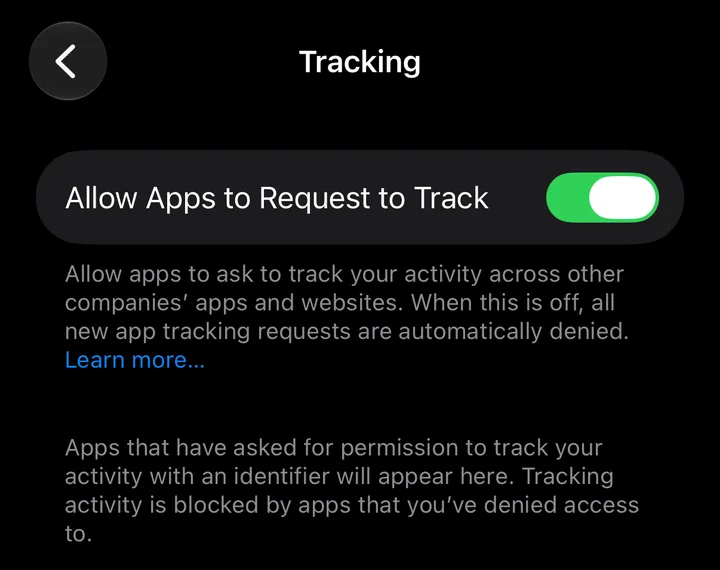
Tracking here means linking what one app knows about you with data from other companies’ apps, websites or locations, for targeted advertising or advertising measurement. Turning it off limits that. The game still shows its ads; they’re just harder to aim at you.
For parents: on a child account, or for anyone under 18 signed in with an Apple Account, this switch can’t be turned on, so apps on that iPhone can’t ask to track (Apple Support).
Apple’s own ads. Open Settings > Privacy & Security > Apple Advertising and turn off Personalized Ads if you see it. This covers the ads Apple shows in the App Store, Apple News and Stocks, not ads inside games. Apple says turning it off “may not decrease the number of ads you receive, but the ads may be less relevant to you” (Apple Support).
Don’t see the switch? On iOS 27 in Apple’s simulator, the page had no Personalized Ads switch at first. It says the setting appears after the App Store, Apple News or Stocks asks your permission to show personalized ads, so until one of them asks, there’s nothing to turn off.
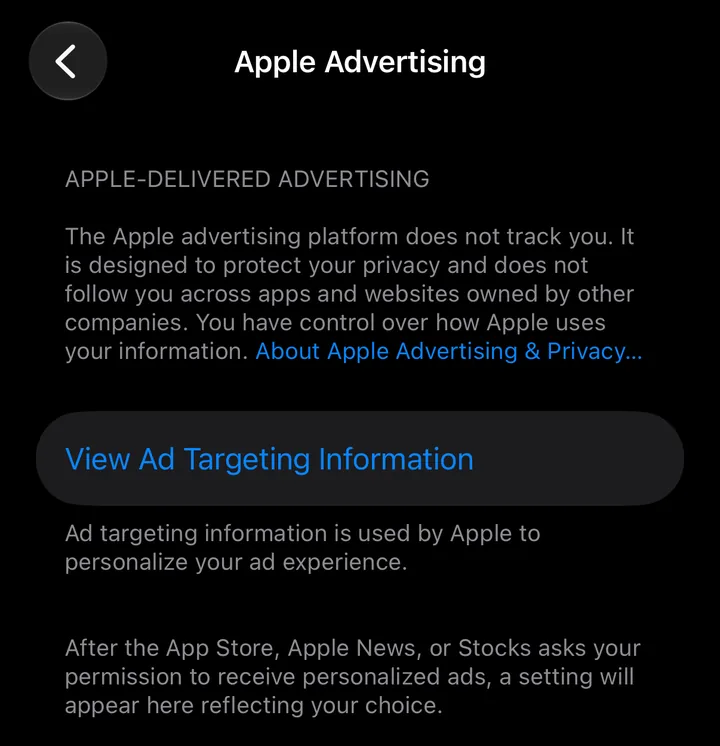
I’d turn both off anyway. Just don’t expect a quieter game.
DNS filtering: some ad servers blocked, at a cost
Before an app connects to a server, your iPhone looks up that server’s name through DNS. A DNS filter checks each lookup against a list and refuses the ones on it. Security services work this way: CISA’s Protective DNS checks queries against threat intelligence and blocks the ones that match (CISA). Ad-blocking DNS services do the same with lists of ad servers, so an app can’t reach those servers to fetch an ad.
That can work across apps, which content blockers can’t. The trade-offs:
- It’s hit and miss. It only blocks servers on its list. An ad that comes from the same server as the game’s own content gets through.
- It can break things. A game that can’t reach a server it expects may stall or misbehave. Ads you watch for a reward may never load, so you don’t get the reward.
- You have to trust the provider. Normally your network provider can see your DNS records (Apple Support). With a DNS filter, the company running it handles every server name your iPhone looks up. Read its privacy policy before you hand that over.
If a game starts acting up after you set one up, turn the filter off first. I wouldn’t set one up for a single annoying game; paying or going offline is simpler.
Report an app that turns out to be a scam
Sometimes an ad leads you to an app that isn’t what it promised. If you suspect suspicious activity in an app you downloaded from the App Store, report it at reportaproblem.apple.com, and Apple will investigate (Apple Support).
- Go to reportaproblem.apple.com and sign in with your Apple Account.
- Tap I’d like to, then choose the option that fits.
- Follow the onscreen instructions.
Apple’s own steps are written for a Mac, but it’s the same website on iPhone (Apple Support). If you paid for the app, the same site has a Request a refund option (Apple Support).
If an ad in a game opened a scam page or pop-up in Safari instead, see how to stop pop-up ads on iPhone.
Where Mistero fits
Mistero Adblock won’t touch ads inside apps or games. It’s a Safari content blocker, so it works only in Safari: not in Chrome or other browsers, not in the YouTube app, not inside games. The App Store listing says it can “Reduce ads, pop-ups, and common tracking content in Safari” (App Store listing, read Oct 30, 2026). You turn it on in Settings > Apps > Safari > Extensions. Tracker Blocking is a separate switch in the app.
The VPN doesn’t block in-app ads either. The listing says it can “Mask your IP address while the VPN is active” (App Store listing, read Oct 30, 2026). That’s about your IP address, not about the ads a game shows.
To see which ads and trackers your browser blocks, run our ad blocker test in Safari.
Sources
- Apple Support, Delete your Safari history, cache, and cookies on iPhone (content blockers section): https://support.apple.com/en-us/105082 (read Oct 30, 2026)
- Apple Platform Security, Security of runtime process: https://support.apple.com/guide/security/security-of-runtime-process-sec15bfe098e/web (read Oct 30, 2026)
- Apple Support, Buy additional app features with in-app purchases and subscriptions: https://support.apple.com/en-us/102383 (read Oct 30, 2026)
- Apple Support, Join Apple Arcade: https://support.apple.com/en-us/102206 (read Oct 30, 2026)
- Apple Support, Use Airplane Mode on your iPhone, iPad, Apple Watch, and Apple Vision Pro: https://support.apple.com/en-us/108785 (read Oct 30, 2026)
- Apple Support, Use cellular data on your iPhone or iPad: https://support.apple.com/en-us/109323 (read Oct 30, 2026)
- Apple Support, If an app asks to track your activity: https://support.apple.com/en-us/102420 (read Oct 30, 2026)
- Apple Support, Control personalized ads on the App Store, Apple News, and Stocks: https://support.apple.com/en-us/105131 (read Oct 30, 2026)
- CISA, Protective Domain Name System Resolver: https://www.cisa.gov/resources-tools/services/protective-domain-name-system-resolver (read Oct 30, 2026)
- Apple Support, About iCloud Private Relay: https://support.apple.com/en-us/102602 (read Oct 30, 2026)
- Apple Support, Maintaining a safe App Store experience: https://support.apple.com/en-us/122712 (read Oct 30, 2026)
- Apple Support, Report a problem with an app in the App Store on Mac: https://support.apple.com/guide/app-store/report-a-problem-with-an-app-fir52b1849e1/mac (read Oct 30, 2026)
- Apple Support, Request a refund for apps or content that you bought from Apple: https://support.apple.com/en-us/118223 (read Oct 30, 2026)
- App Store, Mistero VPN: Privacy & Proxy: https://apps.apple.com/app/id1583175414 (read Oct 30, 2026)
Pricing New subscribers can start a 3-day free trial. After the trial, the subscription renews automatically at $12.99 per week unless you cancel at least 24 hours before the trial ends, in Settings > [your name] > Subscriptions (Apple Support). There's also a one-time Lifetime purchase for $99.99. These are US App Store prices as of October 2026; the purchase screen shows the current price before you confirm.
Frequently asked questions
Is there an ad blocker for iPhone games?
Does Airplane Mode stop ads in iPhone games?
Will turning off app tracking stop ads?
Does Mistero Adblock block ads in apps?
 Ad Blocker for iPhone Chrome: What Actually WorksSafari ad blockers don't work in Chrome on iPhone, and Chrome there takes no extensions. See what Chrome can block, and the two options that do work.
 YouTube Ad Blocker for iPhone: What It Can and Can't DoNo Safari ad blocker can reach the YouTube app, and results on youtube.com vary. What a blocker can do for YouTube on iPhone, and the tweaked apps to avoid.
 How to Stop Pop-Up Ads on iPhoneA pop-up on your iPhone right now? Close it without tapping it, switch on two Safari settings, then track down where the ads come from: the site, a Home Screen web app, a calendar or a free app.