How to Stop Pop-Up Ads on iPhone

A pop-up on your iPhone right now? Close it without tapping it, switch on two Safari settings, then track down where the ads come from: the site, a Home Screen web app, a calendar or a free app.
 Marco Lee
Don’t tap the pop-up, not even its Close button. Close the whole tab, then turn on Block Pop-ups and Fraudulent Website Warning in Settings > Apps > Safari. If pop-ups keep coming back, clear Safari’s history and website data, and look for calendar subscriptions, Home Screen web apps or profiles you didn’t add.
Deal with the pop-up in front of you first. Once it’s gone, work out where it came from, because the fix depends on the source.
Right now: get rid of the pop-up
It might be an ordinary ad. It might be a fake warning built to make you tap. You handle both the same way.
- Don’t tap inside it. Not even on its own “Close” button. Some pop-ups and ads have fake buttons that look like a close button (Apple Support).
- Close the whole tab. Tap the tabs button, then the X on that tab. If the page keeps reopening, close Safari: swipe up from the bottom of the screen and pause, then swipe Safari’s preview up.
- Say no to whatever it asks for. Don’t call a number, don’t pay, don’t install anything.
Already tapped something? Clear Safari’s history and website data (steps below). Typed a password into it? Change that password.
How to tell it’s a fake warning
Some pop-ups aren’t selling anything. They’re traps, and the common ones read like this:
- Your iPhone has a virus, or “is damaged”
- Your storage is full and you must install a cleaner now
- You won a prize, or have been selected for a gift
- Your Apple Account is locked
Real iPhone alerts come from iOS, not from a web page, and they don’t ask you to install an app from a website. Apple’s own advice is blunt: if a pop-up warns you about security problems or viruses on your device, don’t believe it (Apple Support). My rule of thumb: if a warning about your iPhone shows up inside a web page, treat it as fake.
Then switch on Safari’s two defenses
Safari can stop websites from opening new windows by themselves, and warn you before you open a site it suspects of phishing (Apple Support).
- Open Settings > Apps > Safari. On older iOS versions, Safari’s settings are directly in the main Settings list instead of under Apps.
- Make sure Block Pop-ups is on. It’s in the General section, and it’s on by default.
- Scroll down to Privacy & Security and make sure Fraudulent Website Warning is on too. It’s also on by default, so if either is off, turn it back on.
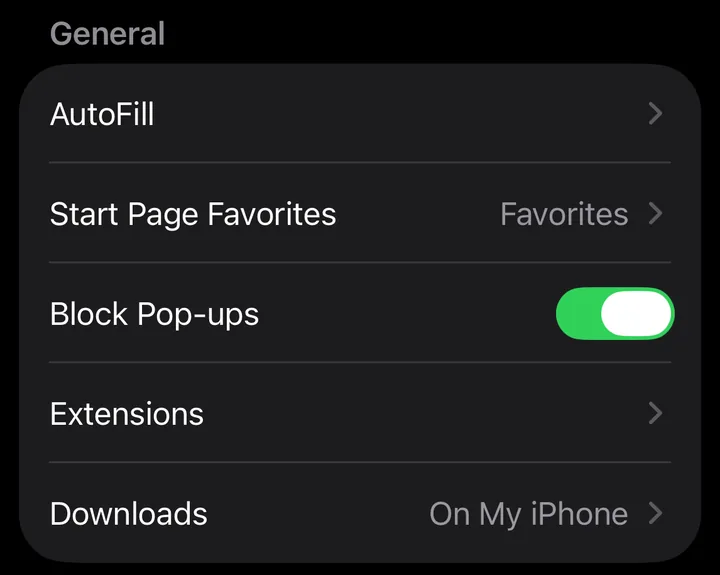
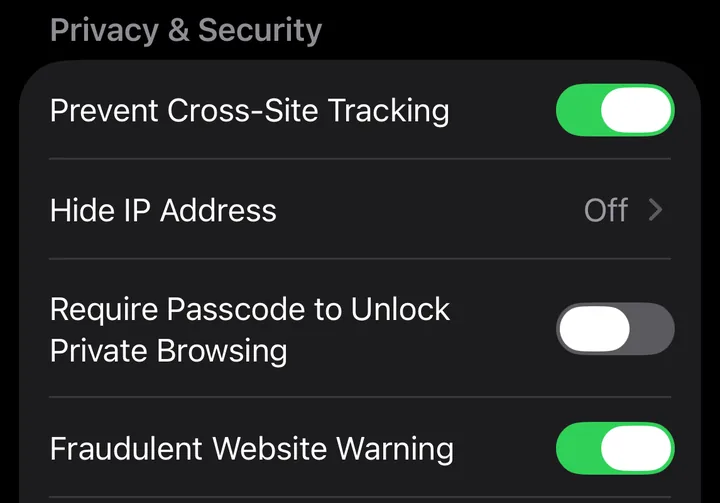
I’d turn both on even if this pop-up was a one-off.
Know the limit, though. Block Pop-ups only stops new windows. Ads that are part of the page, including boxes that slide over the text, still show. That’s a job for a content blocker, further down.
Why do I keep getting pop-up ads? Find the source
If the pop-ups keep coming back, something is still letting them in. Start with one question: is Safari open? If pop-ups appear when Safari is closed, they aren’t coming from the page you’re reading, so skip to the Home Screen and calendar suspects below.
For each suspect: the sign that gives it away, and the fix.
The website you have open
The sign: ads and new windows only while that site is open.
The fix: close the tab, keep Block Pop-ups on, and use a content blocker for the ads inside the page (more on that below).
The same pop-up on every site
The sign: the same pop-up keeps coming back on different pages.
The fix: clear what websites stored on your iPhone.
- Open Settings > Apps > Safari.
- Scroll down and tap Clear History and Website Data.
- Choose a timeframe, then tap Clear History.
This also removes the data websites use to keep you logged in, so you may need to sign in again (Apple Support).
A website you added to your Home Screen
The sign: notifications from a site’s icon on your Home Screen, even when Safari is closed. Websites opened as web apps from the Home Screen can send notifications (Apple Support).
The fix: remove that icon from your Home Screen if you don’t use it.
A calendar subscription you didn’t add
The sign: “events” with ad text or links appear in Calendar and as alerts.
The fix: in Calendar, tap Calendars, tap the info button next to the unknown calendar, then Delete Calendar or Unsubscribe. For a single junk event from an unknown sender, tap it, then Report Junk (Apple Support).
A free app or game
The sign: full-screen ads inside that one app only.
The fix: these are the app’s own ads, and Safari settings don’t affect them. Check for a paid version or delete the app. I wouldn’t spend any time in Safari’s settings on this one.
A configuration profile you don’t recognize
The sign: a profile you don’t recognize listed in Settings > General > VPN & Device Management.
The fix: if you don’t recognize it, tap the profile, tap Delete Profile, follow the prompts and restart your iPhone. If the iPhone belongs to a school or business, check with the administrator first (Apple Support).
Block the ads inside the page
Block Pop-ups does nothing about the ads inside a page. A content blocker does: it’s a Safari extension that hides ads and trackers before they load.
- Install a content blocker from the App Store.
- Open Settings > Apps > Safari > Extensions and turn the content blocker on. You can use more than one (Apple Support).
- Reload the page in Safari.
Content blockers work in Safari, not inside other apps or other browsers. For a closer look at Safari ad blocking, read how to clear browser ads in Safari.
In Chrome and other browsers
Safari’s settings don’t follow you to other browsers. In Chrome on iPhone, tap the More button, then Settings > Content Settings > Block Pop-ups, and turn it on (Google Chrome Help). Other browsers have their own setting, usually under privacy or content settings.
Where Mistero Adblock fits
Of the suspects above, Mistero Adblock only deals with the ones inside Safari. It’s a Safari extension that comes with the Mistero VPN app. The App Store listing says it can “Reduce ads, pop-ups, and common tracking content in Safari” and “Help block known phishing pages and malicious domains,” and that you turn it on through Safari Extensions (App Store listing, read Oct 29, 2026).
It can’t reach the rest of the list. It doesn’t work in Chrome or inside other apps, and it doesn’t stop website notifications or calendar spam, so the fixes above still apply. More about the feature: Mistero Adblock for Safari.
Sources
- Apple Support, Block pop-up ads and windows in Safari: https://support.apple.com/en-us/102524 (read Oct 29, 2026)
- Apple Support, Delete your Safari history, cache, and cookies on iPhone: https://support.apple.com/en-us/105082 (read Oct 29, 2026)
- Apple Support, Recognize and avoid social engineering schemes: https://support.apple.com/en-us/102568 (read Oct 29, 2026)
- Apple Support, How to delete calendars and remove events on your iPhone: https://support.apple.com/en-us/102444 (read Oct 29, 2026)
- Apple Support, Turn a website into an app in Safari on iPhone: https://support.apple.com/guide/iphone/open-as-web-app-iphea86e5236/ios (read Oct 29, 2026)
- Apple Support, Review and delete configuration profiles: https://support.apple.com/guide/personal-safety/review-and-delete-configuration-profiles-ips327569a75/web (read Oct 29, 2026)
- Google Chrome Help, Block or allow pop-ups in Chrome (iPhone & iPad): https://support.google.com/chrome/answer/95472?co=GENIE.Platform%3DiOS (read Oct 29, 2026)
- App Store, Mistero VPN: Privacy & Proxy: https://apps.apple.com/app/id1583175414 (read Oct 29, 2026)
Pricing New subscribers can start a 3-day free trial. After the trial, the subscription renews automatically at $12.99 per week unless you cancel at least 24 hours before the trial ends, in Settings > [your name] > Subscriptions (Apple Support). There's also a one-time Lifetime purchase for $99.99. These are US App Store prices as of October 2026; the purchase screen shows the current price before you confirm.
Frequently asked questions
Why do I keep getting pop-up ads on my iPhone?
Does Block Pop-ups stop all ads in Safari?
A pop-up says my iPhone has a virus. Is it real?
How do I stop pop-ups in Chrome on iPhone?
Can Mistero Adblock stop pop-up ads?
 Clear Browser Ads in Safari with Mistero AdblockMistero Adblock clears browser ads from webpages in Safari, helping articles stay readable, instructions remain connected, and everyday browsing feel less cluttered.
 Why Safari Ads Keep Interrupting Your BrowsingBrowser ads do not interrupt only once. They reappear across articles, guides, and research tabs. Mistero Adblock clears webpage ads in Safari so the content can stay at the center of your browsing.
 How to Find Your Router (Gateway) IP on iPhoneYour IP gateway is your router's local address. On iPhone, open Settings > Wi-Fi, tap the (i) next to your network and read the Router line. How it differs from your public IP, and how to open the router page.