iPhone Lockdown Mode: What It Does and Who Needs It
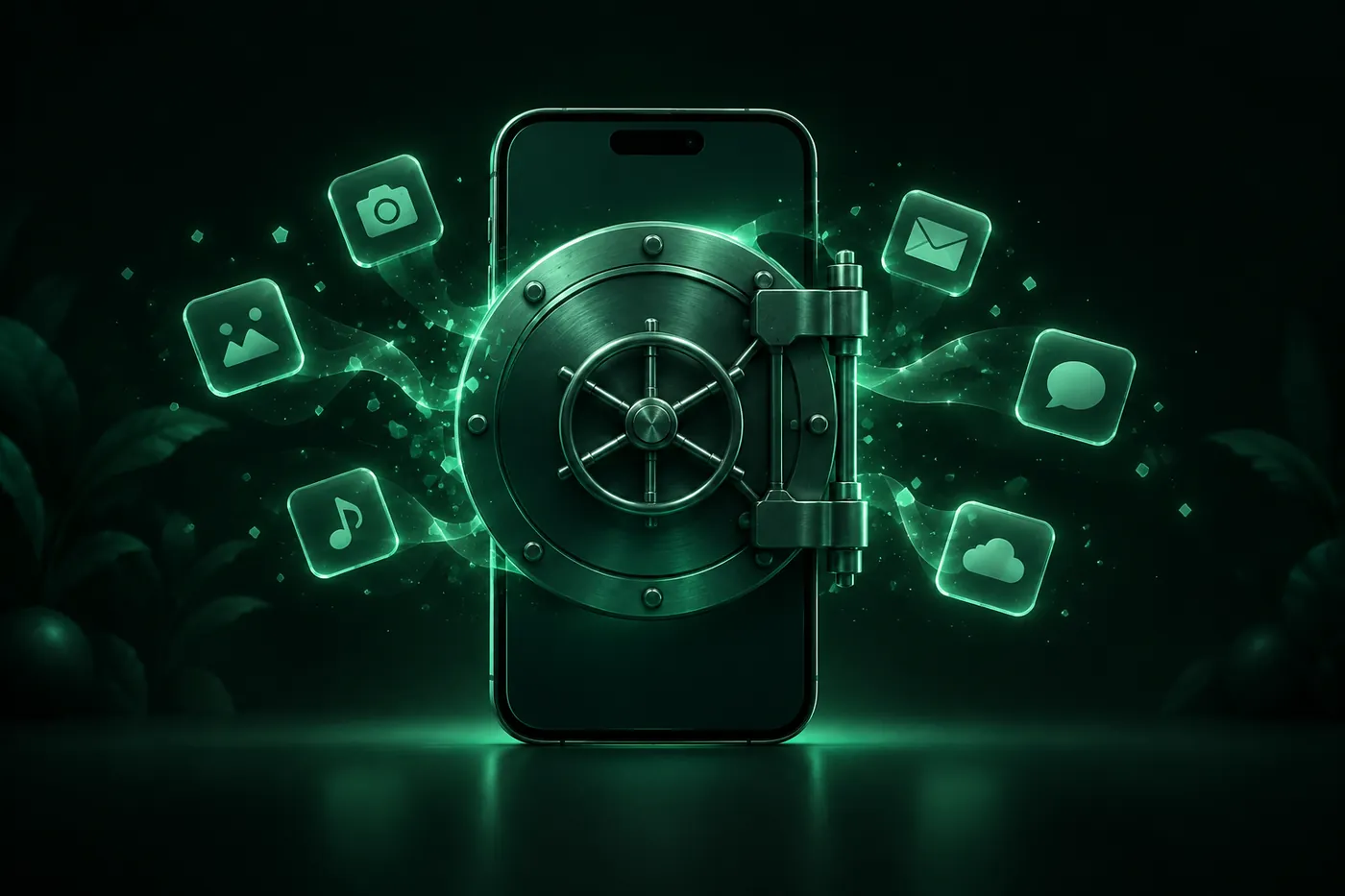
Lockdown Mode is Apple's extreme iPhone setting for people targeted by spyware. See what it blocks, how to turn it on or off, and whether you need it.
 Marco Lee
Lockdown Mode is an optional, extreme iPhone setting for the very few people who might be personally targeted by mercenary spyware. It blocks most Messages attachments, some web technologies, FaceTime calls from people you haven’t called recently and new configuration profiles. Most people don’t need it. Turn it on or off in Settings > Privacy & Security > Lockdown Mode.
What is Lockdown Mode on iPhone?
Lockdown Mode makes your iPhone harder to attack by making it do less. It’s designed for people who, “because of who they are or what they do, might be personally targeted by some of the most sophisticated digital threats.” Most people are never targeted by attacks like these (Apple Support).
The threat it’s built for is mercenary spyware. These attacks have historically been linked to state actors, including private companies that build spyware for them. They cost millions of dollars, go after a very small number of specific people, and those people are often journalists, activists, politicians and diplomats (Apple Support).
It works by shrinking what that spyware could exploit, so certain apps, websites and features are strictly limited and some don’t work at all. That’s the point, and it’s also the cost.
It has been around since iOS 16, with more protections added in iOS 17. Update to the latest iOS before you turn it on, so you get the full set (Apple Support).
What iPhone Lockdown Mode does to your phone
This is Apple’s list as of its September 2026 update. Protections have been added over time (contact exclusions arrived with iOS 27), so the list may change (Apple Support).
- Messages: most attachment types are blocked. Certain images, video and audio still come through. Links and link previews are unavailable.
- Safari and the web: certain complex web technologies are blocked, such as just-in-time (JIT) JavaScript compilation (Apple Support). Some websites may load more slowly or not work correctly, web fonts may not show, and images can turn into a missing-image icon.
- FaceTime: incoming calls are blocked unless you’ve called that person in the past 30 days. SharePlay and FaceTime Live Photos are unavailable, and so is FaceTime Continuity Handoff (Apple Support).
- Apple services: invitations, like one to manage a home in the Home app, are blocked unless you’ve invited that person before. Focus may not work as expected, and Game Center is turned off.
- Photos: location is left out of photos you share. Shared albums are removed from the Photos app, and new Shared Album invitations are blocked. You can still see those albums on devices that don’t have Lockdown Mode on.
- Wired connections: your iPhone has to be unlocked to connect to an accessory or a computer.
- Wi-Fi and cellular: your iPhone won’t join non-secure Wi-Fi networks automatically, and it disconnects from one when you turn Lockdown Mode on. 2G and 3G are turned off.
- Configuration profiles: they can’t be installed, and the iPhone can’t be enrolled in Mobile Device Management (MDM) or device supervision.
What keeps working: phone calls, plain text messages and emergency features like SOS. One catch: incoming calls won’t ring on a paired Apple Watch. While Lockdown Mode is on, a banner in Safari shows it, and you may get notifications when an app or feature is limited (Apple Support).
Work or school iPhone? If it was enrolled in MDM before you turned Lockdown Mode on, it stays managed, and your administrator can still install and remove profiles. Administrators can’t switch Lockdown Mode on through MDM. To install a new profile yourself, you have to turn Lockdown Mode off, install the profile, then turn it back on (Apple Support).
Should you turn on Lockdown Mode?
My short answer: probably not. Here’s who I think should.
Turn it on if:
- Apple sent you a threat notification. Apple describes these as “high-confidence alerts that a user has been individually targeted by a mercenary spyware attack.” One appears on your Lock Screen and in Settings, arrives by email, and shows as a banner at account.apple.com after you sign in. The notification recommends steps that include Lockdown Mode, and Apple strongly suggests getting expert help, such as the Digital Security Helpline run by the nonprofit Access Now (Apple Support). I’d turn Lockdown Mode on that same day, on every Apple device you own.
- You have good reason to believe you’re being individually targeted. You don’t need a notification to turn it on (Apple Support). If your work makes you a likely target, I’d turn it on before anything happens, not after.
A real threat notification never asks you to click links, open files, install apps or profiles, or give your Apple Account password or a verification code. To check one, sign in to account.apple.com yourself (Apple Support).
Leave it off if:
- Your iPhone feels slow, runs hot, or a pop-up told you it was hacked. Nothing on Apple’s Lockdown Mode page describes it checking for or removing anything. Start with how to check if your iPhone is hacked instead.
- You just want to be “more secure” in general. For most people the trade is lopsided. You give up shared albums, link previews, Game Center and FaceTime calls from new people to defend against an attack almost no one faces.
What I’d do instead is the boring list Apple gives everyone: update your iPhone, use a passcode with Face ID or Touch ID, use two-factor authentication and a strong Apple Account password, turn on Stolen Device Protection, install apps from the App Store, use strong unique passwords or passkeys, and don’t open links or attachments from unknown senders (Apple Support). If Stolen Device Protection’s one-hour wait ever surprises you, here’s what iPhone Security Delay is.
How to turn on Lockdown Mode
- Open Settings and tap Privacy & Security.
- Scroll down, tap Lockdown Mode, then tap Turn On Lockdown Mode.
- Tap Turn On Lockdown Mode again.
- Tap Turn On & Restart, then enter your passcode (Apple Support).
Want Apple’s explanation on the phone before you commit? Tap Learn More on the Lockdown Mode screen (Apple Support).
Two things to know. Lockdown Mode has to be turned on separately for your iPhone, iPad and Mac, and turning it on for one device prompts you about your other supported devices (Apple Support). A paired Apple Watch with watchOS 10 or later follows your iPhone automatically, and you can’t turn Lockdown Mode on or off on the watch itself (Apple Support).
How to turn off Lockdown Mode
Go back to Settings > Privacy & Security > Lockdown Mode, the same screen where you turned it on (Apple Support). Tap Turn Off Lockdown Mode and follow the prompts.
Exclude one website, app or contact instead
If one site or app is the problem, you can exclude just that one. Each exclusion weakens the protection, so exclude only things you trust, and only when you need to. These options appear only while Lockdown Mode is on (Apple Support).
- A website: in Safari, tap the Page Menu button, scroll down, tap Website Settings, then turn off Lockdown Mode for that site. To review your exclusions later, go to Settings > Privacy & Security > Lockdown Mode > Customize Web Sites > Excluded Safari Websites.
- An app: go to Settings > Privacy & Security > Lockdown Mode > Customize Web Sites and turn off the app. This removes the web content limits for that app. Only apps you’ve opened since turning on Lockdown Mode, and that have limited features, appear in the list.
- A contact (iOS 27 or later): go to Settings > Privacy & Security > Lockdown Mode > Customize Contacts > Add Contact. That turns off messaging limits for that person. If you remove them, or their phone number or email address changes, the limits come back automatically.
I’d try an exclusion before turning the whole mode off. If you turned it on for a good reason, that reason hasn’t gone away because one website broke.
Where Mistero fits
Mistero isn’t a defense against mercenary spyware, and it doesn’t replace Lockdown Mode. What it does overlaps with a few of the everyday basics above.
Apple’s Lockdown Mode page doesn’t mention VPN apps or Safari content blockers, so I won’t guess how they behave with it on.
In the App Store listing’s words, the security checks can “Review iOS version, passcode, and Face ID status” and “Check Wi-Fi for visible connection or DNS anomalies.” Mistero Adblock, a Safari content blocker that works only in Safari, can “Help block known phishing pages and malicious domains” (App Store listing, read Oct 31, 2026). None of that can tell you whether you’ve been targeted by spyware. The full feature list is on Mistero security.
Sources
- Apple Support, About Lockdown Mode: https://support.apple.com/en-us/105120 (read Oct 31, 2026)
- Apple Support, About Apple threat notifications and protecting against mercenary spyware: https://support.apple.com/en-us/102174 (read Oct 31, 2026)
- Apple Support, Harden your iPhone from a cyberattack with Lockdown Mode (iPhone User Guide): https://support.apple.com/guide/iphone/use-lockdown-mode-iph845f6f40c/ios (read Oct 31, 2026)
- Apple Support, Harden your devices with Lockdown Mode (Personal Safety User Guide): https://support.apple.com/guide/personal-safety/harden-your-devices-with-lockdown-mode-ipsd5baf79d0/web (read Oct 31, 2026)
- App Store, Mistero VPN: Privacy & Proxy: https://apps.apple.com/app/id1583175414 (read Oct 31, 2026)
Pricing New subscribers can start a 3-day free trial. After the trial, the subscription renews automatically at $12.99 per week unless you cancel at least 24 hours before the trial ends, in Settings > [your name] > Subscriptions (Apple Support). There's also a one-time Lifetime purchase for $99.99. These are US App Store prices as of October 2026; the purchase screen shows the current price before you confirm.
Frequently asked questions
What does Lockdown Mode do on iPhone?
Should I turn on Lockdown Mode?
How do I turn off Lockdown Mode on iPhone?
Do phone calls and texts still work in Lockdown Mode?
 iPhone Security Key: Apple Account Key or Wi-Fi Password?On iPhone, a security key is either a FIDO key that protects your Apple Account or the Wi-Fi password a laptop asks for. Here's how to set up or find each.
 iPhone Security Lockout or Unavailable? How to Get Back InStuck on iPhone Unavailable or Security Lockout? Try your old passcode, erase from the Lock Screen with Forgot Passcode?, or restore with a computer.
 iPhone Security Delay: What It Is and How to Turn It OffSecurity Delay in Progress on your iPhone? It's Stolen Device Protection making you wait an hour. Here's what triggers it, and how to turn it off.