How to Check If Your iPhone Is Hacked
Most iPhones that feel hacked aren't. Learn to tell noise from evidence: check signed-in devices, profiles, apps and Safety Check, then act in the right order if you find something.
 Marco Lee
Most iPhones that feel hacked aren’t. Heat, battery drain and scary pop-ups usually have ordinary causes. Evidence is a change you didn’t make: a device you don’t own on your Apple Account, a profile or app you don’t recognize, a password that stopped working. Check those first, then update iOS and run Safety Check.
Symptoms are noise. Changes are evidence.
Something probably scared you into searching this: a phone that runs warm, a battery that drains faster than it used to, a pop-up announcing that your iPhone has been hacked. Lists of “10 signs” make it worse, because many of their signs are normal behavior. A warm phone, a fast-dropping battery, a slow app or one odd pop-up all have ordinary causes, like a new iOS update indexing in the background, a weak signal or an old battery.
What you want is evidence that someone else has access.
| Noise: looks scary, usually harmless | Evidence: worth checking |
|---|---|
| Battery drains faster than before | A device on your Apple Account list that you do not own |
| Phone gets warm | A configuration profile or device management entry you did not install |
| A “Your iPhone has been hacked” pop-up in Safari | An app you never installed |
| One slow app or a crash | Your Apple Account password changed, or you are signed out without reason |
| A weird text from a stranger | Sharing or access you do not remember setting up |
Here’s how I read that table: the left column is about how your phone behaves, the right column is about changes you didn’t make. Only the right column says anything about who has access.
The pop-up on the left is usually a scam page, and how to stop pop-up ads on iPhone deals with it. If your first instinct is to download a scanner app, read why no app can virus-scan an iPhone first.
How to check if your iPhone is hacked: look for evidence
Work through these in order. Each takes a few minutes.
- Devices signed in to your Apple Account. Open Settings, tap your name and scroll down to the device list. If you see one you don’t own, tap it and choose Remove from Account. A removed device loses access to iCloud and Find My and stops showing two-factor codes. The catch: a device that is still signed in can reappear, so sign out on the device itself to remove it for good (Apple Support).
- Configuration profiles. Open Settings > General > VPN & Device Management. If no profiles are listed, none are installed. To remove one you don’t recognize, select it, tap Delete Profile and restart. On a school or work iPhone, ask your administrator first (Apple Support).
- Safety Check. Open Settings > Privacy & Security > Safety Check. It needs iOS 16 or later and an Apple Account with two-factor authentication. Manage Sharing & Access takes you through people and apps one by one, and lets you review connected devices, your password and your passcode. Emergency Reset stops sharing with all people and apps at once. It can’t change non-Apple accounts, passwords or social media sharing (Apple Support).
- Apps you don’t recognize. Swipe past your last Home Screen page to open App Library and scroll the list. To delete one, touch and hold it, tap Remove App, then Delete App (Apple Support).
- Apple Account security. Make sure two-factor authentication is on in Settings > your name > Sign-In & Security (Apple Support). If you can’t sign in, or the password no longer works, you may have been locked out. Go straight to the steps below.
- iOS version. Open Settings > General > Software Update and tap Download and Install if an update is shown (Apple Support). Updates are how Apple fixes security holes, so do this even if every other check is clean.
If all six come back clean, you have found no evidence of access. That isn’t a guarantee, but it tells you more than anything in the left column of that table.
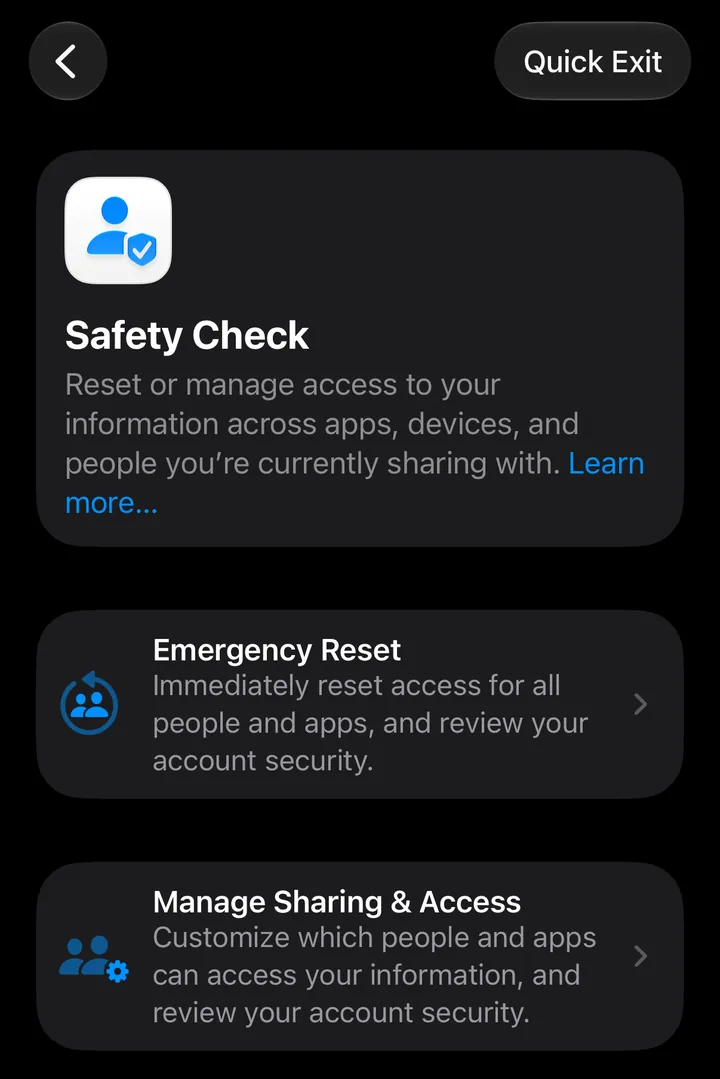
I checked the Safety Check screen on iOS 27 in Apple’s simulator. The other screens may be worded slightly differently on your phone.
Found something? Act in this order
The order matters: patch the phone, take back the account, then clean up. Don’t start deleting things at random.
- Update iOS (Settings > General > Software Update), so you aren’t fighting a known bug.
- Change your Apple Account password. Open Settings, tap your name, then Sign-In & Security > Change Password. Use a trusted device if you can. In some cases you may have to wait an hour (Apple Support).
- Remove devices you don’t own from your Apple Account, as in check 1 above.
- Delete unknown profiles and apps, as in checks 2 and 4.
- Run Safety Check, and use Emergency Reset if you think someone you know has access.
- Change the passwords for your email and other important accounts. Start with email, since it can reset the rest. Safety Check can’t do this for non-Apple accounts.
- If Apple sent you a threat notification, escalate. Apple suggests contacting the Access Now Digital Security Helpline and turning on Lockdown Mode, covered below (Apple Support). For anything else that won’t go away, Apple Support or an Apple Store can look at the device.
If you might be personally targeted
This part applies to very few people.
Apple sends threat notifications, which it describes as “high-confidence alerts that a user has been individually targeted by a mercenary spyware attack.” One shows up as an alert on the Lock Screen and in Settings, an email from [email protected], and a banner at the top of account.apple.com after you sign in. Most people will never see one: “the vast majority of users will never be targeted by such attacks” (Apple Support).
A real notification never asks you to click links, open files, install apps or profiles, or share a password or verification code. If a message like that arrives by text or email, don’t act on it. Sign in to account.apple.com directly to check.
Lockdown Mode is the defense for this group. Apple calls it “an optional, extreme protection” for the very few people who, because of who they are or what they do, might be personally targeted (Apple Support). It limits most message attachments, link previews, some web features and incoming FaceTime calls from people you haven’t contacted, and it blocks new configuration profiles. If you’re a journalist, an activist or facing a targeted threat, turn it on in Settings > Privacy & Security > Lockdown Mode > Turn On Lockdown Mode. For everyone else, it’s more restriction than you need.
What Mistero can and can’t tell you
Hold us to the same standard as everything else on this page. Mistero is not a spyware scanner. No iPhone app can scan other apps for viruses or spyware, and Mistero doesn’t claim to.
Here is what the security checks do, in the App Store listing’s words: “Run one Smart Scan across key protection settings,” “Review iOS version, passcode, and Face ID status,” “Check Wi-Fi for visible connection or DNS anomalies,” and “See whether an email address appears in known data-breach records.” The listing also mentions “Check password strength and generate stronger passwords.”
Those are settings and breach checks. A clean result means those settings looked fine, not that your iPhone is free of spyware, so the manual checks above still come first. The feature list is on Mistero security.
The Safari ad blocker works only in Safari. The listing says it can “Help block known phishing pages and malicious domains,” which can reduce your exposure to scam pages, but it doesn’t remove anything that is already on your phone. For the connection side, read what a VPN actually changes.
Sources
- Apple Support, Review devices signed in to your Apple Account: https://support.apple.com/en-us/102649 (read Oct 29, 2026)
- Apple Support, Review and delete configuration profiles (Personal Safety guide): https://support.apple.com/guide/personal-safety/review-and-delete-configuration-profiles-ips327569a75/web (read Oct 29, 2026)
- Apple Support, Safety Check for an iPhone with iOS 16 or later: https://support.apple.com/guide/personal-safety/safety-check-iphone-ios-16-ips2aad835e1/web (read Oct 29, 2026)
- Apple Support, Remove or delete apps from iPhone: https://support.apple.com/guide/iphone/remove-or-delete-apps-iph248b543ca/ios (read Oct 29, 2026)
- Apple Support, About two-factor authentication for Apple Account: https://support.apple.com/en-us/102660 (read Oct 29, 2026)
- Apple Support, Update your iPhone or iPad: https://support.apple.com/en-us/118575 (read Oct 29, 2026)
- Apple Support, Change your Apple Account password: https://support.apple.com/en-us/101567 (read Oct 29, 2026)
- Apple Support, About Apple threat notifications: https://support.apple.com/en-us/102174 (read Oct 29, 2026)
- Apple Support, About Lockdown Mode: https://support.apple.com/en-us/105120 (read Oct 29, 2026)
- Apple Support, App security overview and Security of runtime process (Apple Platform Security guide): https://support.apple.com/guide/security/app-security-overview-sec35dd877d0/web (read Oct 29, 2026)
- Mistero VPN on the App Store: https://apps.apple.com/app/id1583175414 (read Oct 29, 2026)
Pricing New subscribers can start a 3-day free trial. After the trial, the subscription renews automatically at $12.99 per week unless you cancel at least 24 hours before the trial ends, in Settings > [your name] > Subscriptions (Apple Support). There's also a one-time Lifetime purchase for $99.99. These are US App Store prices as of October 2026; the purchase screen shows the current price before you confirm.
Frequently asked questions
How can I tell if my iPhone has been hacked?
Does the iPhone tell you if you are hacked?
What is the first thing to do if you think your iPhone is hacked?
Do I need Lockdown Mode?
 iPhone Virus Scan: Why No App Can Do OneNo app can virus-scan an iPhone, because iOS walls each app off from the rest. Here's what a virus warning really is, what to check instead, and a short clean-up routine for when something looks wrong.
 How to Find Your Router (Gateway) IP on iPhoneYour IP gateway is your router's local address. On iPhone, open Settings > Wi-Fi, tap the (i) next to your network and read the Router line. How it differs from your public IP, and how to open the router page.
 Hotel Wi-Fi Login Page Not Showing on iPhone?Hotel or airport Wi-Fi sign-in page won't load on your iPhone? Turn off your VPN first, then rejoin the network or open a plain http site in Safari. A short checklist, plus the safety habits that matter.