How to Find Your Router (Gateway) IP on iPhone
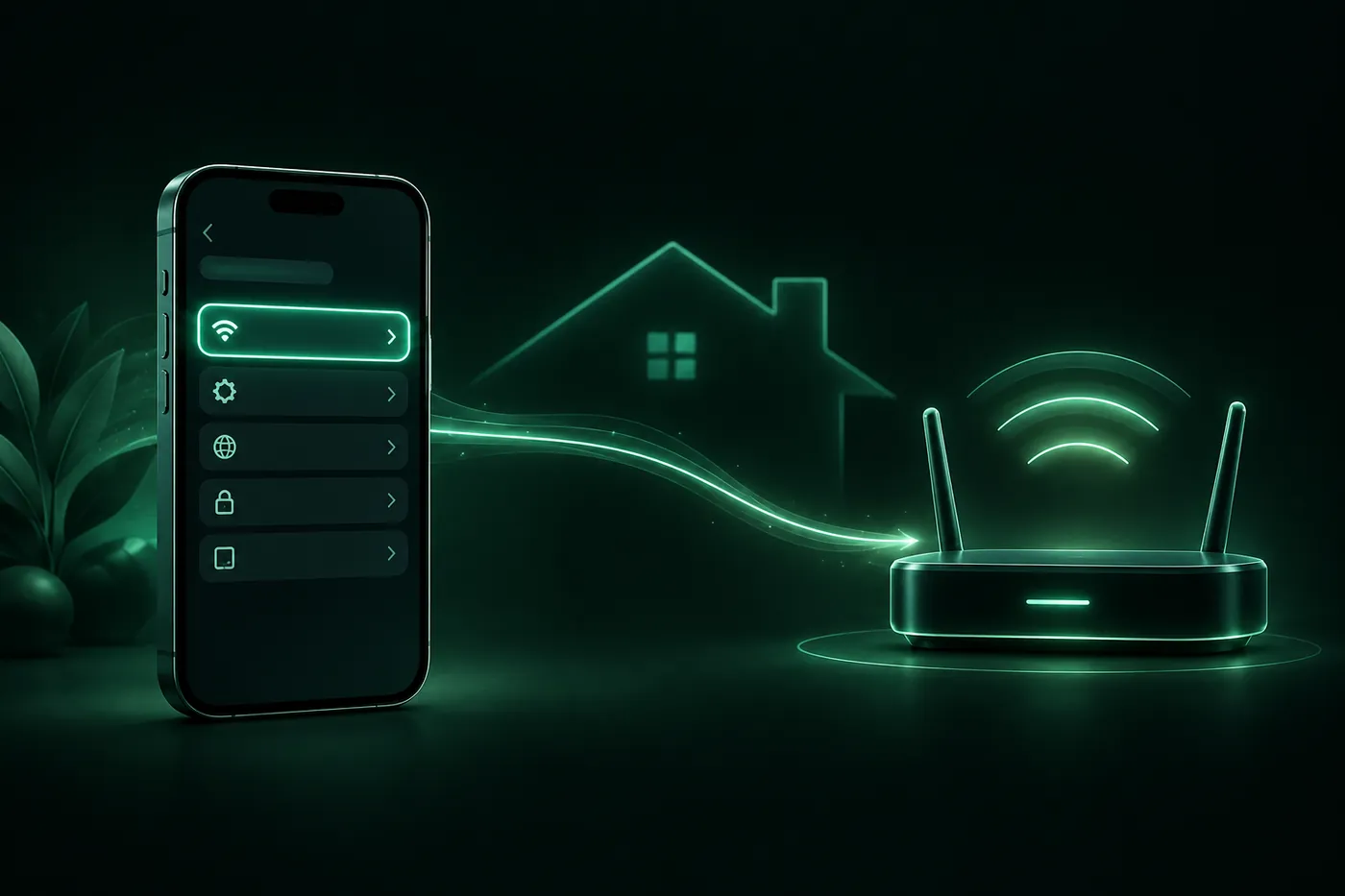
Your IP gateway is your router's local address. On iPhone, open Settings > Wi-Fi, tap the (i) next to your network and read the Router line. How it differs from your public IP, and how to open the router page.
 Marco Lee
Your gateway is your router’s local address, and your iPhone shows it in one place. Join the Wi-Fi network, open Settings > Wi-Fi, tap the (i) next to the network name and read the line labeled Router. That’s your number, often something like 192.168.1.1. It is not your public IP.
Where to find it
- Connect to the Wi-Fi network you’re asking about.
- Open Settings and tap Wi-Fi.
- Tap the (i) next to the connected network. Apple calls it the Info or More Info button (Apple Support).
- Scroll to the IPv4 Address section. The Router line is your gateway. The IP Address line is your iPhone’s own local address on this network (Apple Community, Jan 2021; Norton).
No Router line? On cellular, your iPhone isn’t connected to your router at all; your mobile carrier provides the connection, so there’s no Router line to read. The gateway address only means something while you’re on Wi-Fi.
Can’t join the network? Many routers print their address on a label, next to the default admin login. Those defaults won’t work if someone has changed them.
Gateway, local IP and public IP
A default gateway is the device a network sends traffic to when the destination is outside the local network. At home, that’s almost always your router, so “gateway IP,” “gateway address” and “router IP” usually mean the same number.
It’s a private address. Private ranges such as 192.168.x.x are reserved for internal use, and packets from or to them can’t be routed over the public internet (Wikipedia: Private network, read Oct 29, 2026). Common router defaults are 192.168.1.1 and 192.168.0.1, but yours may use something else.
| Address | What it is | Who sees it | Where to see it |
|---|---|---|---|
| Public IP | The address websites and apps see when you connect to them | Anyone you connect to online | An IP-check page, such as What is my IP |
| Local IP | The private address your iPhone gets on this Wi-Fi network | Devices on the same network | Settings > Wi-Fi > (i) > IP Address |
| Gateway IP | The private address of the router your iPhone sends traffic through | Devices on the same network | Settings > Wi-Fi > (i) > Router |
Local and gateway addresses usually look alike, for example 192.168.1.23 and 192.168.1.1. They share the first three groups of numbers because they sit on the same network. Your public IP looks different, and it can change when you switch networks. More on what it reveals: What your IP address shows.
Open the router’s admin page
That’s the most common reason to want the number.
- Stay on that router’s Wi-Fi.
- In Safari, type the gateway address into the address bar, for example
192.168.1.1. - Sign in with the router’s admin username and password. These aren’t your Wi-Fi password. They’re often printed on the router, unless someone changed them.
From there you can usually see connected devices, change the Wi-Fi name or password, or update settings. Menus differ a lot between brands, so check your router’s manual.
One thing worth doing while you’re in there: if the router still accepts the login printed on its label, give it a strong password of your own. And if you didn’t set the admin password yourself, don’t guess at logins on a network that isn’t yours.
Page won’t load? Check that you’re on Wi-Fi (not cellular), that you typed the numbers exactly as shown, and that the network you joined is the router you mean. Some mesh and ISP-provided setups use their own app instead of a web page.
Does a VPN change my gateway IP?
A VPN changes your public IP, the address websites see. It doesn’t move your router. Your router’s local address and your iPhone’s local address on that Wi-Fi are set by the local network, so I’d expect the Router line to show the same number with a VPN on. A VPN app could add its own entries elsewhere.
To see the part that does change, open What is my IP with the VPN off, then on, and compare. How that works: What a VPN actually changes.
Where Mistero VPN fits
Mistero VPN doesn’t touch your gateway, and it can’t open your router’s admin page for you. It works on the public side. The App Store listing says you can “Mask your IP address while the VPN is active” and “Choose WireGuard, OpenVPN, or IKEv2” (App Store listing, read Oct 29, 2026). And no VPN replaces a strong router password.
Sources
- Apple Support, Use private Wi-Fi addresses on Apple devices: https://support.apple.com/en-us/102509 (read Oct 29, 2026)
- Apple Community, How to find your router’s IP address (answer dated Jan 23, 2021): https://discussions.apple.com/thread/252355238 (read Oct 29, 2026)
- Norton, How to find your router IP address on every device: https://us.norton.com/blog/privacy/find-router-ip-address (read Oct 29, 2026)
- Wikipedia, Private network: https://en.wikipedia.org/wiki/Private_network (read Oct 29, 2026)
- Mistero VPN on the App Store: https://apps.apple.com/app/id1583175414 (read Oct 29, 2026)
Pricing New subscribers can start a 3-day free trial. After the trial, the subscription renews automatically at $12.99 per week unless you cancel at least 24 hours before the trial ends, in Settings > [your name] > Subscriptions (Apple Support). There's also a one-time Lifetime purchase for $99.99. These are US App Store prices as of October 2026; the purchase screen shows the current price before you confirm.
Frequently asked questions
Where do I find the gateway IP on my iPhone?
Is 192.168.1.1 a gateway?
Does a VPN change my gateway IP?
 Hotel Wi-Fi Login Page Not Showing on iPhone?Hotel or airport Wi-Fi sign-in page won't load on your iPhone? Turn off your VPN first, then rejoin the network or open a plain http site in Safari. A short checklist, plus the safety habits that matter.
 How to Hide Your IP Address on iPhoneHiding your IP address on iPhone always means handing it to someone else. Compare Safari's Hide IP Address, Limit IP Address Tracking, iCloud Private Relay and a VPN: what each hides, from whom, and what to turn on.
 Why is there a VPN icon on my iPhone?The VPN icon in your iPhone's status bar is how iOS shows a VPN connection. Learn what it means, how to find which VPN it is, and how to turn it off.