How to Tell If Someone Is Using Your Wi-Fi
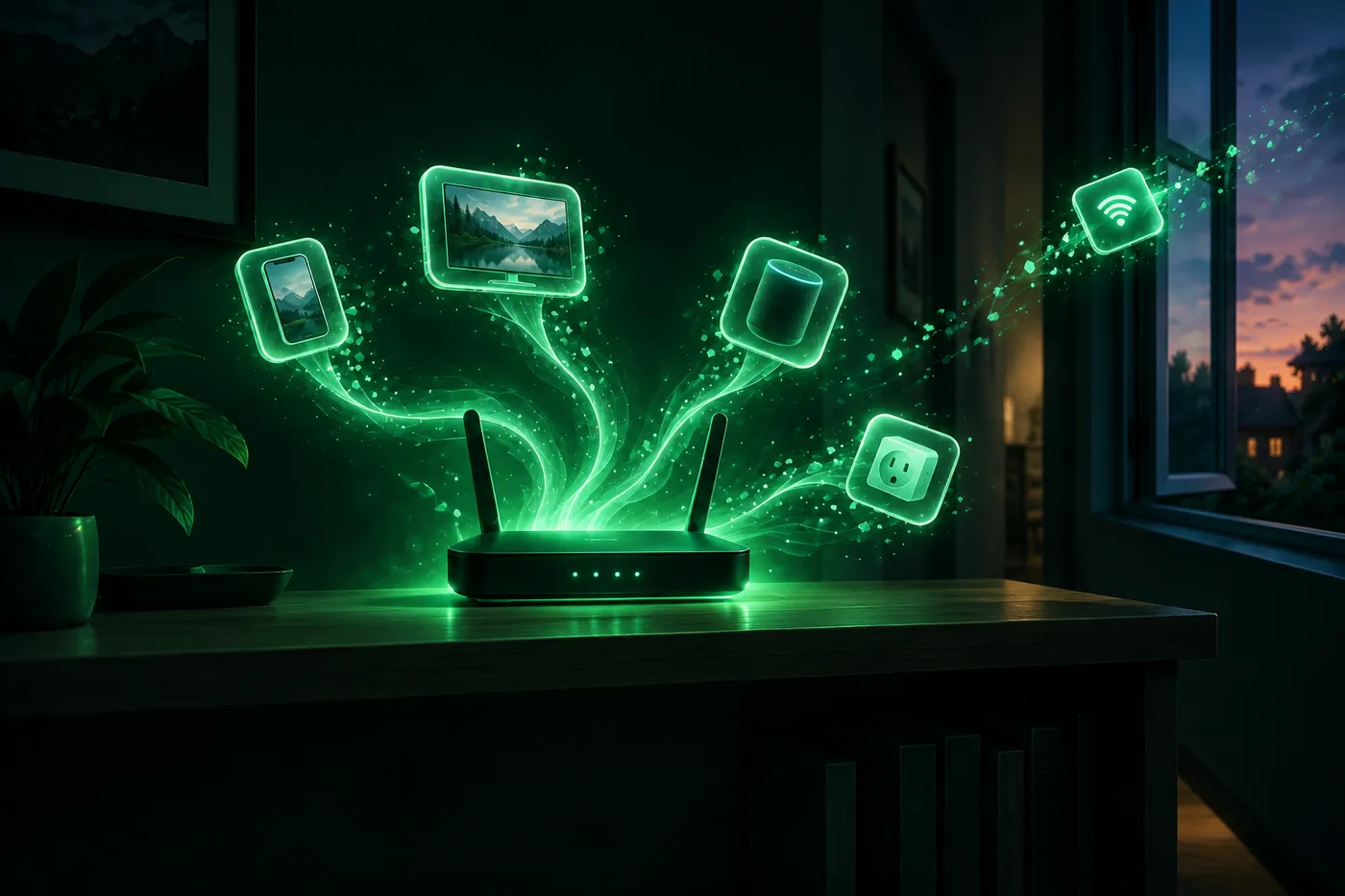
Slow internet isn't proof. Check your router's list of connected devices, look up who made each one, and match private addresses to your own phones.
 Marco Lee
Slow internet on its own doesn’t prove anyone is on your Wi-Fi. The real check is your router’s list of connected devices: open the router’s settings page or app, match every entry to something you own, and look up the ones you can’t place. If one is still left over after you’ve turned your own devices off one at a time, I’d change the Wi-Fi password.
Slow internet isn’t proof
Plenty of things slow Wi-Fi down besides a freeloader. Apple lists “Connection is slow and signal strength is low” as a symptom of wireless interference, from sources like “power cables, microwave ovens, fluorescent lights, wireless video cameras, and cordless phones.” It also suggests reducing “the number of active devices that use the same wireless frequency band” (Apple Support).
So I treat a slow connection as a reason to look, not as an answer. The answer is in the router.
Check your router’s list of connected devices
On the router’s settings page
- Find the router’s address. On iPhone, open Settings > Wi-Fi, tap the More Info button next to your network and read the Router line (how to find your router’s IP address on iPhone).
- Type that address into Safari’s address bar and sign in with the router’s admin login. That’s not your Wi-Fi password.
- Find the device list. The name depends on the brand: AT&T calls it Connected Devices (AT&T), others use something like Attached Devices or Client List. Your router’s manual has the exact name.
In the router’s, mesh system’s or internet provider’s app
Many routers are run from an app, and the app shows the same list:
- eero: the Home and Devices tabs list every connected device. Each device page shows a Manufacturer, a Hostname and the MAC address (eero).
- Google Nest Wifi and Google Wifi: in the Google Home app, tap Home > Wifi, then Devices at the top. A device’s details show “connection status, IP address, and MAC address” (Google Nest Help).
- AT&T gateways: in the Smart Home Manager app, tap Profiles & devices and choose the middle icon (AT&T).
Check what the list includes before you count. Google’s shows devices “that used the network within the last 30 days, including ones not currently connected” (Google Nest Help). eero has a Recently Online group for “Offline devices connected within the last 7 days” (eero). An entry you don’t recognize can be a visitor from last week.
Can an iPhone show the devices on your Wi-Fi?
Not by itself. The network’s screen in Settings > Wi-Fi shows your iPhone’s own addresses and the router’s, not the other devices on the network. Apps that want to look around your network have to ask first: “any app that wants to interact with devices on your network must ask for permission the first time that it tries to browse your local network” (Apple Support).
So on an iPhone, I’d use Safari or the router’s own app, as above.
Identify each device with a MAC address lookup
A device list usually gives a name, a local IP address and a MAC address for each entry. The names aren’t always helpful: some products show “a name assigned by the manufacturer” (eero). The MAC address tells you more. It starts with a prefix that IEEE’s Registration Authority assigns to a company (IEEE), so looking it up names the maker.
The free MAC address lookup on this site does that for a whole list at once:
- Copy the device list from the router page or app, or just the addresses. If you only have a screenshot, Live Text in Photos can copy the text out of it (iPhone User Guide).
- Paste it into the lookup and tap Look up.
- Each address comes back as a known maker, a private address, an unknown maker or a group address. The device name from the same line comes along, so you can tell the rows apart.
It runs in your browser and nothing you paste is uploaded. It can’t see your network by itself, and no website can, so the list has to come from your router.
Private addresses: why your own phone can look like a stranger
Most false alarms start here. By default, an iPhone uses “a different MAC address for each Wi-Fi network.” On a network with WPA2 or stronger security it picks Fixed, and on one with weak or no security it picks Rotating, which changes the address “every 2 weeks” (Apple Support). Android 10 and later also use “a randomized MAC address by default” (Android Open Source Project).
A private address has no maker to look up. It usually means a phone, tablet or computer, and it can change in ways that look like a new device (Apple Support):
- After you erase your iPhone or reset network settings, “it uses a different private address the next time it joins the network.”
- On iOS 18 and later, forgetting the network also forgets its private address, unless you last forgot it less than 24 hours earlier.
- If your router alerts you to new devices, Apple says you’re “notified when a device first joins with a private address.”
Find your own iPhone’s address on a network
- Open Settings and tap Wi-Fi.
- Tap the More Info button (the i) next to your network (Apple Support).
- Read the Wi-Fi Address line, just below Private Wi-Fi Address. That’s the address your iPhone uses on this network (University of Iowa ITS).
Do the same on every phone and tablet in the house, then match those addresses against the private entries in the list.
Turn your devices off one at a time
If entries are still left over:
- Note the ones you can’t place.
- Turn off Wi-Fi on one of your devices, or unplug it.
- Refresh the router’s list and see which entry goes offline.
- Repeat until every entry is accounted for.
Watch the connection status, not just the name, since some lists keep recent devices for a while. And don’t skip things that don’t look like computers. The FTC notes home networks can include “IP cameras, voice assistants, smart TVs, and connected appliances” (FTC).
What an unknown device can and can’t mean
An entry you can’t place could be:
- A smart-home gadget under its chip maker’s name. The maker on a MAC address isn’t always the brand on the box. Espressif, for example, is a chip company whose products “are used in smart homes” (Espressif). I’d match an Espressif entry against your plugs, bulbs and other gadgets first.
- Your own device under a new private address, after a reset, a re-join or a rotation.
- A device that already left. Some lists keep offline devices for days or weeks.
- A device the router can’t name. AT&T’s app shows these as “Other or Unknown” (AT&T).
- Someone who has your password, such as a past guest or anyone they shared it with. Without a password, the FTC says “any device within range” can use your internet connection (FTC).
What it can’t tell you is who the person is or where they are. A MAC address names the company behind a device’s network chip, not its owner.
It’s still worth sorting out. The FTC says people who join an unprotected network “might be able to see what you do online, including any personal information you look at or enter,” and if someone uses your network to commit a crime, “the activity could be traced back to you” (FTC). Sites that use HTTPS “help maintain the privacy and integrity of data,” but on a network that doesn’t encrypt traffic, someone watching can still learn “the domains, internet protocol (IP) addresses, and services” your devices connect to (NIST NCCoE).
What Mistero can and can’t do here
Mistero doesn’t list the devices on your Wi-Fi, and it can’t kick anyone off your router. Only the router’s list and settings do that.
What it covers is your iPhone’s side of the connection. Its security checks can “Check Wi-Fi for visible connection or DNS anomalies,” and the VPN lets you “Mask your IP address while the VPN is active” and “Turn on Kill Switch to help stop network traffic if the VPN disconnects” (App Store listing, read Nov 5, 2026). A VPN encrypts traffic before it leaves the device (NIST NCCoE), which helps most on networks you don’t control. At home, a new Wi-Fi password does the real work. More on Mistero security.
Found a device you can’t explain?
Change the Wi-Fi password. The FTC says “A unique and secure Wi-Fi network password prevents strangers from getting onto your network,” and recommends WPA3 Personal or WPA2 Personal encryption (FTC). If your iPhone shows Weak Security under your network’s name, here’s what that means and how to fix it. For step-by-step help, including blocking a device, see how to kick someone off your Wi-Fi.
Sources
- Apple Support, Resolve Wi-Fi and Bluetooth issues caused by wireless interference: https://support.apple.com/en-us/102319 (read Nov 5, 2026)
- Apple Support, Use private Wi-Fi addresses on Apple devices: https://support.apple.com/en-us/102509 (read Nov 5, 2026)
- Apple Support, If an app would like to connect to devices on your local network: https://support.apple.com/en-us/102229 (read Nov 5, 2026)
- Apple Support, Interact with content in a photo or video on iPhone (iPhone User Guide): https://support.apple.com/guide/iphone/interact-with-content-in-a-photo-or-video-iph37fdd714b/ios (read Nov 5, 2026)
- Android Open Source Project, MAC randomization behavior: https://source.android.com/docs/core/connect/wifi-mac-randomization-behavior (read Nov 5, 2026)
- University of Iowa ITS, How to find your Wi-Fi MAC address on an iPhone or iPad: https://its.uiowa.edu/services/eduroam/how-find-your-wi-fi-mac-address-iphone-or-ipad (read Nov 5, 2026)
- IEEE Standards Association, Registration Authority: https://standards.ieee.org/products-programs/regauth/ (read Nov 5, 2026)
- eero, What device information can I see with eero?: https://eero.com/support/articles/what-device-information-can-i-see-with-eero (read Nov 5, 2026)
- eero, What is the Devices tab in the eero App?: https://eero.com/support/articles/what-is-the-devices-tab-in-the-eero-app (read Nov 5, 2026)
- Google Nest Help, View devices connected to your network and review data usage: https://support.google.com/googlehome/answer/6263633?hl=en (read Nov 5, 2026)
- AT&T, Manage Wi-Fi devices with Smart Home Manager: https://www.att.com/support/article/internet/KM1207642/ (read Nov 5, 2026)
- Espressif Systems, About Espressif: https://www.espressif.com/en/company/about-espressif (read Nov 5, 2026)
- Federal Trade Commission, How To Secure Your Home Wi-Fi Network: https://consumer.ftc.gov/articles/how-secure-your-home-wi-fi-network (read Nov 5, 2026)
- NIST National Cybersecurity Center of Excellence, Holiday Travel Tip: Use Public Wi-Fi Safely: https://www.nccoe.nist.gov/sites/default/files/2022-11/HolidayTravelTip-UsePublicWiFiSafely.pdf (read Nov 5, 2026)
- App Store, Mistero VPN: Privacy & Proxy: https://apps.apple.com/app/id1583175414 (read Nov 5, 2026)
Pricing New subscribers can start a 3-day free trial. After the trial, the subscription renews automatically at $12.99 per week unless you cancel at least 24 hours before the trial ends, in Settings > [your name] > Subscriptions (Apple Support). There's also a one-time Lifetime purchase for $99.99. These are US App Store prices as of October 2026; the purchase screen shows the current price before you confirm.
Frequently asked questions
How do I check if someone is using my Wi-Fi?
Who is on my Wi-Fi?
How do I see devices connected to my Wi-Fi on iPhone?
Is my neighbor using my Wi-Fi?
 How to Kick Someone Off Your Wi-Fi (Even From an iPhone)Change your Wi-Fi password and anyone who only had the old one is out. Then lock the router, block single devices, and do it from an iPhone, Xfinity or AT&T.
 Quishing: How QR Code Scams Work and How to Check OneQuishing is phishing with a QR code on a parking meter, a package or in a text. How to check a code before you open it, and what to do if you scanned one.
 Toll Scam Text: Is the Unpaid Toll Message Real?An unexpected text saying you owe an unpaid toll is almost certainly a scam. How to check what you owe, what to do if you tapped, and how to report it.