Unknown Device on My Network? How to Identify It
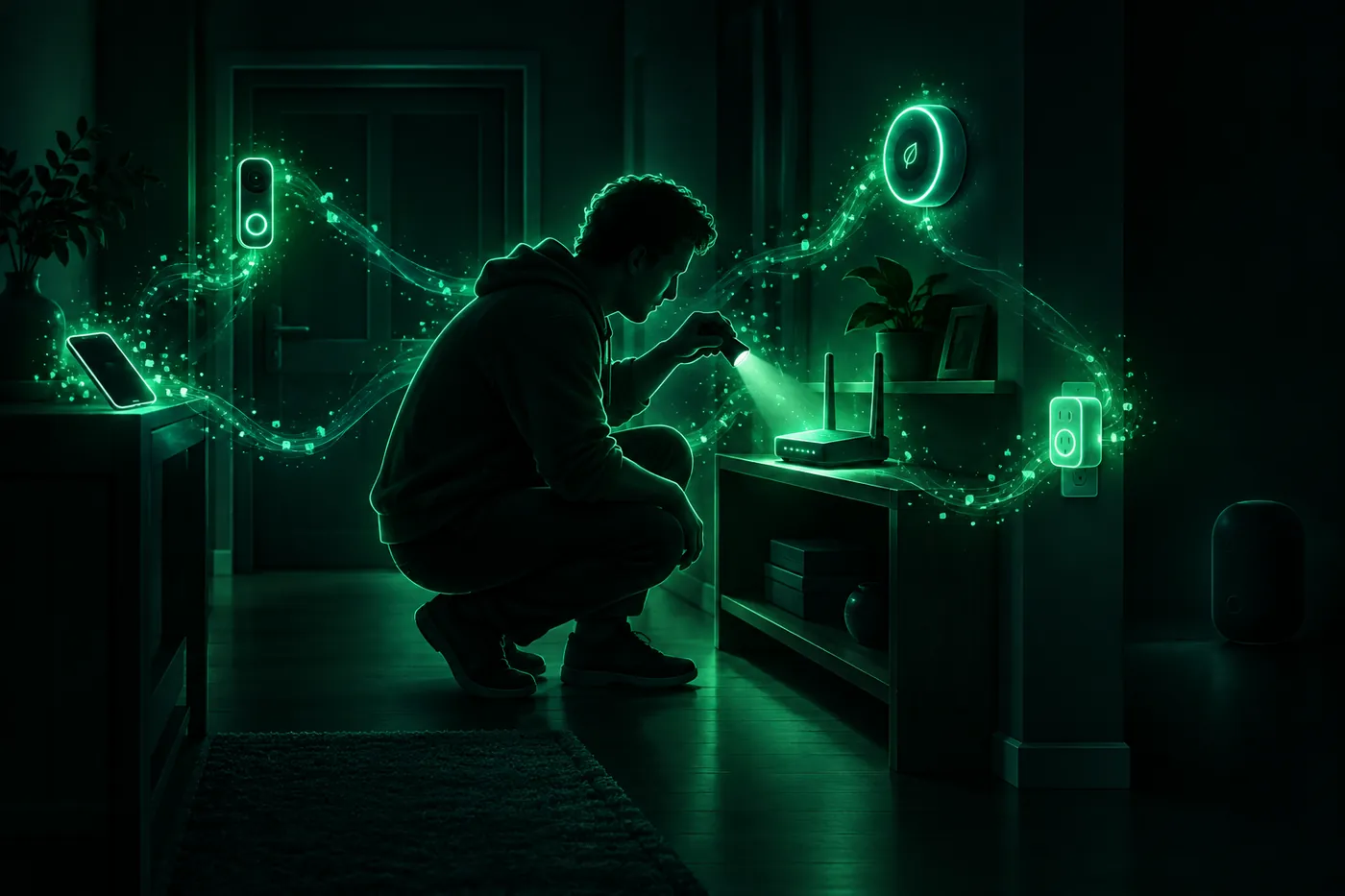
An unknown device on your Wi-Fi is often your own phone or a smart gadget. Look up its maker, spot private addresses, and know when to change the password.
 Marco Lee
An unknown device on your network is any entry in your router’s device list that you can’t match to something you own. It’s often your own: a phone or laptop using a private address with no maker attached, or a smart plug, thermostat or appliance listed under the company that made its Wi-Fi chip. Look up each address, turn your devices off one at a time, and if an entry is still left over, I’d change the Wi-Fi password.
Where to see the devices on your Wi-Fi
The list lives on your router. Open the router’s settings page in Safari (how to find your router’s address on iPhone), or the app for your router, mesh system or internet provider, and look for a page called something like Connected Devices. How to tell if someone is using your Wi-Fi has the exact taps for eero, Google Nest Wifi and AT&T.
Two things to know before you start counting:
- Lists keep old devices. The Google Home app “displays devices that used the network within the last 30 days, including ones not currently connected” (Google Nest Help). An entry you don’t know can be a visitor from three weeks ago.
- “Unknown” is often just the router’s label. AT&T says that if its Smart Home Manager app “can’t identify your device type, it will show it as Other or Unknown” (AT&T).
How to identify an unknown device on your Wi-Fi
Each entry usually shows a name, a local IP address and a MAC address. I’d work through them in this order.
1. Read the name
Some names are obvious. Others aren’t: eero says some products “display a familiar name, while others may show a name assigned by the manufacturer” (eero). Google gives an example of how odd it gets: “a phone or computer might be shown as ‘a738b00002’” (Google Nest Help). A meaningless name doesn’t make a device a stranger.
2. Look up who made it
The first part of a MAC address is a prefix that IEEE assigns, and it identifies “a company, organization, entity, manufacturer, vendor, etc.” (IEEE). Looking it up names the maker.
Paste the whole device list, or just the addresses, into the free MAC address lookup. It names the maker of each address and flags the private ones. It runs in your browser and nothing you paste is uploaded. No website can see the devices on your network by itself, so the list has to come from your router.
3. Turn your devices off one at a time
This settles whatever the lookup can’t. Google’s version: “Disconnect the device in question from the Wi-Fi network, then wait a couple of minutes. If a device name disappears from the list, you’ll know it was the device you disconnected” (Google Nest Help).
- Note the entries you can’t place.
- Turn off Wi-Fi on one of your devices, or unplug it.
- Wait a couple of minutes and refresh the router’s list.
- See which entry went offline, then move on to the next device.
Include things that don’t look like computers. The FTC notes a home network can hold everything “from computers and phones to IP cameras, voice assistants, smart TVs, and connected appliances” (FTC).
Once you’ve matched an entry, give it a name you’ll recognize if your router allows it. In eero, tapping a device’s name opens a page “where you can assign a nickname” (eero). Next time, only the real unknowns stand out.
Unknown Android device or iPhone? Check for a private address
Phones and computers hide their maker on purpose. An iPhone uses “a different MAC address for each Wi-Fi network” by default. It picks Fixed on networks with WPA2 or stronger security, and Rotating, which changes the address “every 2 weeks,” on networks with weak or no security (Apple Support). Android 10 and later use “a randomized MAC address by default,” and from Android 12 some networks use “non-persistent” randomization, which can give the phone a new address on a later connection (Android Open Source Project).
A private address has no maker to look up, and it can make your own phone look new. Apple says that after you erase your iPhone or reset network settings, “it uses a different private address the next time it joins the network,” and if your router alerts you to new devices, “you are notified when a device first joins with a private address” (Apple Support).
You can often spot one by eye. Android marks its randomized addresses by setting the “locally administered bit” (Android Open Source Project), which is the second-lowest bit of the first byte (IEEE). In practice, that puts a 2, 6, A or E in the address’s second character, as in an address starting DA: or F6:. The lookup flags these for you.
To match a private address to a phone:
- iPhone: open Settings > Wi-Fi and tap the More Info button next to your network (Apple Support). The Wi-Fi Address line is the address it uses on that network (University of Iowa ITS).
- Android: open the network’s details screen in Settings, which is where Android keeps the randomized address option (Android Open Source Project). If you can’t find the address, just turn the phone’s Wi-Fi off and watch the list.
Unknown Texas Instruments device on your network
Texas Instruments makes Wi-Fi chips that other companies build into their products. On its Wi-Fi page, TI lists thermostats, electronic smart locks, video doorbells, and smoke and heat detectors, and offers to “Add cloud connectivity to large and small home appliances” such as air conditioners, refrigerators, air purifiers, and washers and dryers (Texas Instruments).
So a “Texas Instruments” entry is most likely one of those. I’d unplug the thermostat, doorbell, smart lock and any appliance with an app, one at a time, and watch for it to drop off.
The same goes for other chip makers you may see:
- Espressif: its products “are used in smart homes, industrial automation, health monitoring, and more” (Espressif).
- Murata: it sells Wi-Fi and Bluetooth modules and calls Wi-Fi plus Bluetooth “the most flexible wireless technology for your IoT products” (Murata).
The maker name can be the company whose network chip is inside rather than the brand on the box. If nothing like that is in your home, treat the entry like any other device you can’t place.
Why is there an unknown device on my network?
The usual reasons, in the order I’d check them:
- The router can’t name it. It shows a code instead of a name, or “Other or Unknown.”
- It’s your phone or computer under a private address, possibly a new one after a reset.
- It’s a smart-home gadget or appliance listed under its chip maker.
- It’s already gone. Some lists show devices from the last 30 days.
- Someone has your password, like a past guest, or the network has none. Unless your network is password protected, the FTC says “any device within range” can “pull the signal from the air and use your internet connection” (FTC).
Should you worry about an unknown device on your Wi-Fi?
Not before you’ve tried to match it. I’d only treat it as an intruder if it stays online after all your own devices are off, or if your network has no password or uses old security.
If it does turn out to be someone else, it’s worth fixing. The FTC warns that people on an unprotected network “might be able to see what you do online,” and that if anyone uses your network to commit a crime, “the activity could be traced back to you” (FTC). A MAC address won’t tell you who they are, though. It identifies the company behind the device (IEEE), not its owner.
What I’d do:
- Change the Wi-Fi password. “A unique and secure Wi-Fi network password prevents strangers from getting onto your network” (FTC).
- Check the security setting. Apple recommends WPA3 Personal, or WPA2/WPA3 Transitional for older devices (Apple Support). The FTC calls WPA and WEP “outdated and not secure” (FTC). If your iPhone says Weak Security, here’s how to fix it.
- Change the router’s admin password. That’s the one that lets you into the router’s settings, and the FTC warns that a hacker who gets in “could change the settings” (FTC).
For the step-by-step version, including blocking one device and doing it from an iPhone, see how to kick someone off your Wi-Fi.
What Mistero can and can’t do here
Mistero doesn’t list or identify the devices on your Wi-Fi, and it can’t kick anyone off your router. It doesn’t measure speed either, so if you’re here because the Wi-Fi got slow, start with why is my internet so slow on iPhone.
What it covers is your iPhone’s own connection. It can “Check Wi-Fi for visible connection or DNS anomalies,” “Connect to available VPN locations in one tap,” “Mask your IP address while the VPN is active” and “Turn on Kill Switch to help stop network traffic if the VPN disconnects” (App Store listing, read Nov 6, 2026). That matters most on networks you don’t control. On your own, the new password is what keeps others out. More on Mistero security.
Sources
- Apple Support, Use private Wi-Fi addresses on Apple devices: https://support.apple.com/en-us/102509 (read Nov 6, 2026)
- Apple Support, Recommended settings for Wi-Fi routers and access points: https://support.apple.com/en-us/102766 (read Nov 6, 2026)
- Android Open Source Project, MAC randomization behavior: https://source.android.com/docs/core/connect/wifi-mac-randomization-behavior (read Nov 6, 2026)
- IEEE Standards Association, Guidelines for Use of Extended Unique Identifier (EUI), Organizationally Unique Identifier (OUI), and Company ID (CID): https://standards.ieee.org/wp-content/uploads/import/documents/tutorials/eui.pdf (read Nov 6, 2026)
- University of Iowa ITS, How to find your Wi-Fi MAC address on an iPhone or iPad: https://its.uiowa.edu/services/eduroam/how-find-your-wi-fi-mac-address-iphone-or-ipad (read Nov 6, 2026)
- eero, What device information can I see with eero?: https://eero.com/support/articles/what-device-information-can-i-see-with-eero (read Nov 6, 2026)
- Google Nest Help, View devices connected to your network and review data usage: https://support.google.com/googlehome/answer/6263633?hl=en (read Nov 6, 2026)
- Google Nest Help, Can’t find or identify device in Family Wi-Fi: https://support.google.com/googlehome/answer/7194445?hl=en (read Nov 6, 2026)
- AT&T, Manage Wi-Fi devices with Smart Home Manager: https://www.att.com/support/article/internet/KM1207642/ (read Nov 6, 2026)
- Texas Instruments, Wi-Fi products: https://www.ti.com/product-category/wireless-connectivity/wi-fi/overview.html (read Nov 6, 2026)
- Espressif Systems, About Espressif: https://www.espressif.com/en/company/about-espressif (read Nov 6, 2026)
- Murata, Wi-Fi Modules / Wi-Fi+Bluetooth Modules: https://www.murata.com/en-us/products/connectivitymodule/wi-fi-bluetooth (read Nov 6, 2026)
- Federal Trade Commission, How To Secure Your Home Wi-Fi Network: https://consumer.ftc.gov/articles/how-secure-your-home-wi-fi-network (read Nov 6, 2026)
- App Store, Mistero VPN: Privacy & Proxy: https://apps.apple.com/app/id1583175414 (read Nov 6, 2026)
Pricing New subscribers can start a 3-day free trial. After the trial, the subscription renews automatically at $12.99 per week unless you cancel at least 24 hours before the trial ends, in Settings > [your name] > Subscriptions (Apple Support). There's also a one-time Lifetime purchase for $99.99. These are US App Store prices as of October 2026; the purchase screen shows the current price before you confirm.
Frequently asked questions
How do I identify an unknown device on my Wi-Fi?
Why is there an unknown device on my network?
What is a Texas Instruments device on my network?
Should I worry about an unknown device on my Wi-Fi?
 iOS 27 Parental Controls: What's New and Why They're MissingiOS 27 redesigned Screen Time for kids: App Limits became Time Allowances, Downtime moved into schedules, Ask to Browse is new. Why it may not show up.
 Website Not Allowed on iPhone: What It Means and How to FixWebsite Not Allowed is Screen Time's web filter. Why it appears, including the UK and Australia age check, and the right fix for adults, kids and work phones.
 How to Kick Someone Off Your Wi-Fi (Even From an iPhone)Change your Wi-Fi password and anyone who only had the old one is out. Then lock the router, block single devices, and do it from an iPhone, Xfinity or AT&T.