Website Not Allowed on iPhone: What It Means and How to Fix
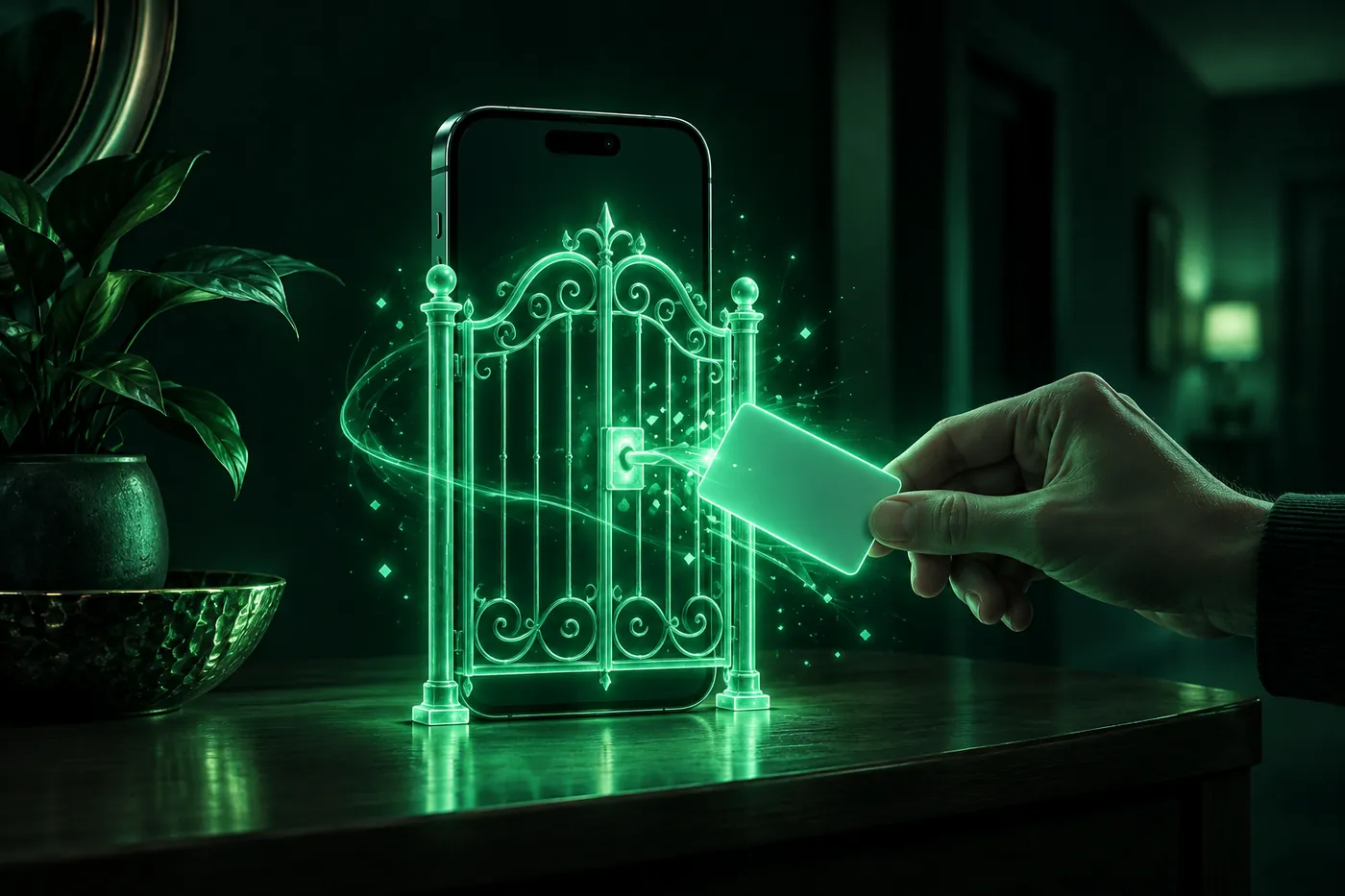
Website Not Allowed is Screen Time's web filter. Why it appears, including the UK and Australia age check, and the right fix for adults, kids and work phones.
 Marco Lee
“Website Not Allowed” is the block page from the web filter built into Screen Time, not a problem with the site. It usually shows up for one of four reasons: you haven’t confirmed you’re an adult in a place where the law requires it (the UK and Australia, for example), a parent set limits on a Child Account, website limits are set in this iPhone’s own Screen Time, or a school or employer manages the phone. The line under the title tells you which, and each one has its own fix.
If the page is red and says Deceptive Website Warning, that’s Safari’s phishing warning, a different thing: see what to do about a deceptive website warning.
What the message on the block page means
In iOS 27.1, the block page’s title can be Website Not Allowed, This Website is Blocked or Sensitive Website. iOS doesn’t say which title goes with which case, so read the line under it:
- “This device is required to restrict adult content for anyone who hasn’t confirmed they are an adult.” An age check, for adults in places like the UK and Australia who haven’t confirmed their age. See the next section.
- “You will need a parent or guardian’s permission to browse:” A Child Account with Ask to Browse or Limit Adult Websites on.
- “Your parent or guardian has blocked:” A parent or guardian blocked that site.
- “[site] is a restricted website.” or “You do not have permission to browse [site].” A website restriction on this iPhone. The wording doesn’t say who set it, so I’d check your own Screen Time first, then ask whoever manages the phone.
The buttons follow the same split. Ask Permission and Ask to Browse Website are for asking a parent or guardian. Add Website to Allow List and Change Restriction are for whoever can change the setting.
“This device is required to restrict adult content”: the UK, Australia and other places
Apple says confirming that you’re an adult “is required by law in some states, countries and regions” (Apple Support). Its list, where required by law: Australia, Brazil, Singapore, South Korea, the UK and the United States (Texas) (Apple Support). The rules differ by place.
In the UK, “Web Content Filter and Communication Safety are turned on automatically for children and teens as well as adults who haven’t confirmed their age” (Apple Support UK). Apple’s pages for Australia and Brazil say the same for adults “who haven’t confirmed that they’re 18 or older” (Apple Support Australia, Apple Support).
You might be asked to confirm “when you create a new Apple Account, update the software on your device, try to change certain safety settings, or try to download or purchase apps with an age rating of 18+.” You can skip it and keep using your iPhone, but “you need to confirm before you can turn off certain safety settings or download apps that are rated 18+” (Apple Support). So the filter stays on until you confirm.
How to confirm you’re an adult
- Check your status. Open Settings, tap your name, then Personal Information > Age Confirmation (Apple Support).
- Pick a method. Apple accepts “a credit card that belongs to you,” a scan of your driver’s license, government-issued ID or (in some places) passport, or a selfie where that’s offered. “Debit cards and gift cards aren’t supported” (Apple Support). In the UK you can also use a PASS-accredited Proof of Age card: “CitizenCard, My ID Card, TOTUM ID card, or Young Scot National Entitlement Card” (Apple Support UK).
- For a selfie, Apple lists Australia, Brazil, Singapore and the UK (Apple Support), and the selfie needs “Version 27.2 or later of iOS or iPadOS” (Apple Support UK).
- If it won’t go through, update the iPhone, use a supported method, or try on an iPhone or iPad, since “Some confirmation methods are available only on iPhone and iPad” (Apple Support).
On privacy: Apple says the image of your ID “is kept for a short period of time to complete this process, after which it’s deleted” (Apple Support), and a selfie “is deleted and isn’t retained in any form” once your age is confirmed (Apple Support UK). Once confirmed, “You don’t have to confirm again” (Apple Support).
Apple describes confirming as what lets you “adjust these safety settings” (Apple Support UK), so after that, change the filter yourself as described below.
A child or teen on a Child Account
Here the block is working as designed. Apple’s defaults: “Ask to Browse is on by default for children with a Child Account under 13. Limit Adult Websites is on by default for children with a Child Account under 18.” Children under 13 “need to request to browse new websites, and children under 18 need permission to browse all blocked websites,” and ages vary by country or region (Apple Support).
If you’re the child: tap Ask Permission to ask your parent or guardian.
If you’re the parent: open the request in Messages and approve or decline it. In person, tap Ask Permission on your child’s iPhone, then Enter Screen Time passcode. “If you don’t respond within 24 hours, the child will need to make the request again.” Apple also says a parent or guardian should be in the child’s contacts “so their requests can be sent for approval” (Apple Support).
To allow a site ahead of time, go to Settings > Family, tap your child’s name, tap Apps & Websites, then the Add button. To change the filter itself, tap Apps & Websites > Restrictions > Filtering and choose Approved Websites Only, Limit Adult Websites or Unrestricted (Apple Support). In some places, Apple notes, “settings like Screen Time, Ask to Buy, Ask to Browse, and content restrictions for apps can’t be turned off” (Apple Support). The rest of the new settings are in what’s new in iOS 27 parental controls.
Your own Screen Time: how to turn off content restrictions
On your own iPhone in iOS 27.1, the website filter is here:
- Go to Settings > Screen Time > Apps & Websites.
- Tap Restrictions, scroll down and tap Filtering.
- Choose Unrestricted to turn the filter off, Limit Adult Websites, or Approved Websites Only.
I checked those steps on iOS 27.1. If older instructions send you to Content & Privacy Restrictions, in iOS 27 that page covers things like Books, Movies, TV Shows and Music (iPhone User Guide); the website filter is under Apps & Websites.
If the Filtering page says “To change these restrictions, your country or region requires you to confirm you’re an adult,” go back to the section above. Under Limit Adult Websites, iOS 27.1 adds: “Known adult websites are blocked, as are web proxies.”
To unblock one site and keep the filter, tap Add Website to Allow List on the block page if it’s there, or tap Add App or Website in Apps & Websites.
A school or work iPhone
Organizations can set the same kind of filter remotely. Apple says devices “can restrict Safari and third-party apps to specific websites,” and a device management service can set options such as “Limit adult content” or “Specific websites only” (Apple Platform Deployment). Installed profiles show in Settings > General > VPN & Device Management (iPhone User Guide). If you see your school’s or employer’s name there, ask their IT team to allow the site.
Can a VPN fix Website Not Allowed?
No. The filter is a setting on the iPhone, and in the UK Apple says the age rules “apply to Apple Accounts in the UK” (Apple Support UK). They follow your account, not the network you’re on. The fix is to confirm your age, change the setting, or ask the parent or organization that set it. A VPN changes the route your traffic takes, not what’s set on your phone or account: what a VPN actually changes.
If you don’t get this page and the site just won’t load, that’s a different problem: is my ISP blocking a website?
Does it apply in Chrome too?
For Child Accounts, Apple says Ask to Browse works in “Safari and other supported browser apps” (Apple Support). It doesn’t list which apps those are.
Where Mistero fits
Mistero can’t get around an age check, Screen Time or a school’s filter, and it isn’t meant to. Its ad blocker is a Safari content blocker that can “Reduce ads, pop-ups, and common tracking content in Safari” (App Store listing, read Nov 9, 2026); it has no say over which sites Screen Time allows.
Sources
- Apple Support, If you’re asked to confirm that you’re an adult: https://support.apple.com/en-us/125662 (read Nov 9, 2026)
- Apple Support, Region-specific rules for managing an Apple Account: https://support.apple.com/en-us/125666 (read Nov 9, 2026)
- Apple Support (UK), Age requirements for managing an Apple Account in the UK: https://support.apple.com/en-gb/126788 (read Nov 9, 2026)
- Apple Support (Australia), Age requirements for managing an Apple Account in Australia: https://support.apple.com/en-au/126781 (read Nov 9, 2026)
- Apple Support, Age requirements for managing an Apple Account in Brazil: https://support.apple.com/en-us/126783 (read Nov 9, 2026)
- Apple Support (UK), Confirm that you’re an adult with a selfie: https://support.apple.com/en-gb/149095 (read Nov 9, 2026)
- Apple Support, What’s new with parental controls in Screen Time and Family Sharing (Apple Devices for Kids and Families): https://support.apple.com/guide/child-safety/whats-new-with-parental-controls-k6zl0kw9zbgr/web (read Nov 9, 2026)
- Apple Support, Block or allow access to apps and websites on your child’s device (Apple Devices for Kids and Families): https://support.apple.com/guide/child-safety/block-or-allow-access-to-apps-and-websites-jymj24zqwaek/web (read Nov 9, 2026)
- Apple Support, Use Ask to Browse to approve the websites your child can access: https://support.apple.com/en-us/127512 (read Nov 9, 2026)
- Apple Support, Set up parental controls to manage your child’s iPhone or iPad: https://support.apple.com/en-us/105121 (read Nov 9, 2026)
- Apple Support, Block features or content with Screen Time on iPhone (iPhone User Guide): https://support.apple.com/guide/iphone/block-features-or-content-with-screen-time-iph3ff83f3b1/ios (read Nov 9, 2026)
- Apple Platform Deployment, Filter content for Apple devices: https://support.apple.com/guide/deployment/filter-content-dep1129ff8d2/web (read Nov 9, 2026)
- Apple Support, Install or remove configuration profiles on iPhone (iPhone User Guide): https://support.apple.com/guide/iphone/install-or-remove-configuration-profiles-iph6c493b19/ios (read Nov 9, 2026)
- App Store, Mistero VPN: Privacy & Proxy: https://apps.apple.com/app/id1583175414 (read Nov 9, 2026)
Pricing New subscribers can start a 3-day free trial. After the trial, the subscription renews automatically at $12.99 per week unless you cancel at least 24 hours before the trial ends, in Settings > [your name] > Subscriptions (Apple Support). There's also a one-time Lifetime purchase for $99.99. These are US App Store prices as of October 2026; the purchase screen shows the current price before you confirm.
Frequently asked questions
Why does my iPhone say Website Not Allowed?
Why does my iPhone say this device is required to restrict adult content?
How do I turn off content restrictions on my iPhone?
Can a VPN fix Website Not Allowed on iPhone?
 iOS 27 Parental Controls: What's New and Why They're MissingiOS 27 redesigned Screen Time for kids: App Limits became Time Allowances, Downtime moved into schedules, Ask to Browse is new. Why it may not show up.
 Unknown Device on My Network? How to Identify ItAn unknown device on your Wi-Fi is often your own phone or a smart gadget. Look up its maker, spot private addresses, and know when to change the password.
 How to Kick Someone Off Your Wi-Fi (Even From an iPhone)Change your Wi-Fi password and anyone who only had the old one is out. Then lock the router, block single devices, and do it from an iPhone, Xfinity or AT&T.