Deceptive Website Warning on iPhone: What to Do
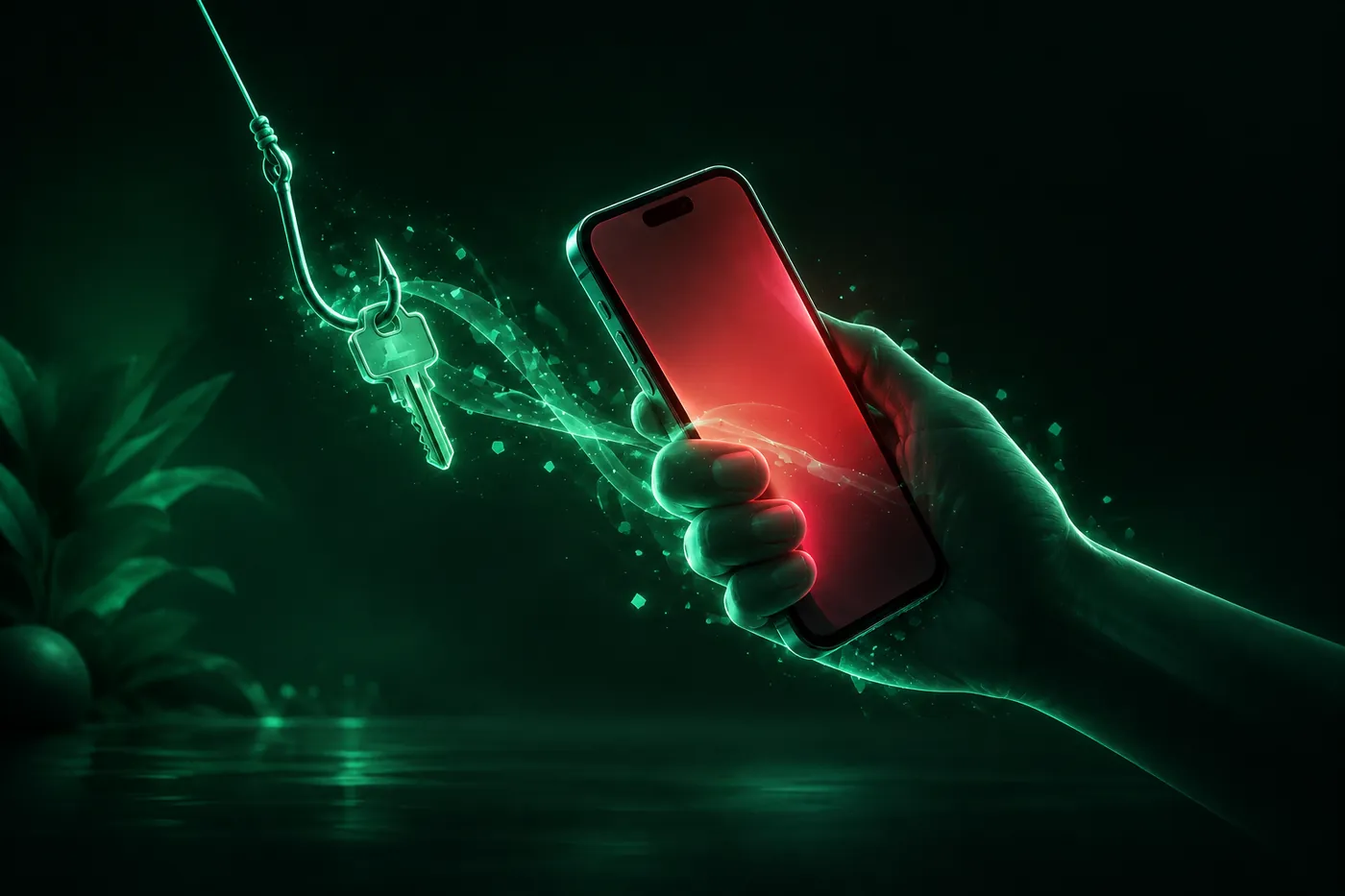
Safari's red Deceptive Website Warning means a site was reported for phishing. Tap Go Back. What to do if you typed a password, and if the warning is wrong.
 Marco Lee
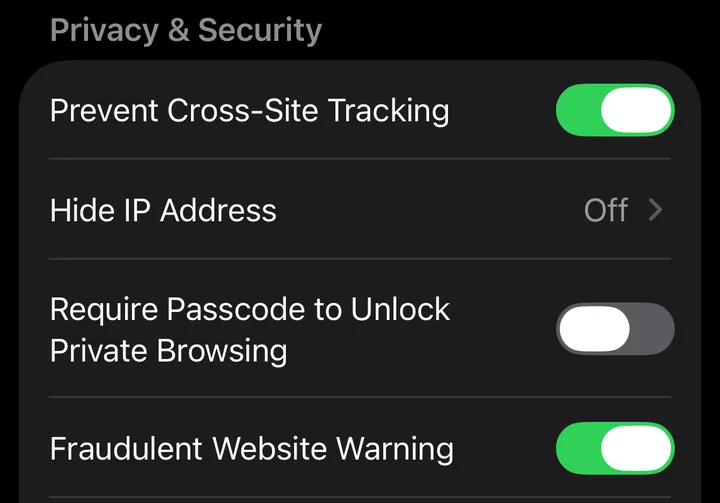
Safari’s red Deceptive Website Warning means the site you’re opening was reported as a phishing site, one built to trick you into giving away passwords or card details. Tap Go Back. The warning comes from the Fraudulent Website Warning setting in Settings > Apps > Safari, and I’d leave it on.
What the deceptive website warning means
When Fraudulent Website Warning is on, Safari “will display a warning if the website you are visiting is a suspected phishing or malware website.” Apple describes phishing as “a fraudulent attempt to steal your personal data, such as user names, passwords, and other account information,” and a fraudulent website as one that “masquerades as a legitimate one, such as a bank, financial institution, or email service provider” (Apple Safari & Privacy).
On iPhone the warning fills the page with red. For a suspected phishing site, it’s titled Deceptive Website Warning and says: “This website may try to trick you into doing something dangerous, like installing software or disclosing personal or financial information, like passwords, phone numbers, or credit cards.” Below that are two buttons, Go Back and Show Details. Sites suspected of malware get a Malware Website Warning title instead (WebKit source). The same text ships in iOS 27’s Safari.
Is it real?
If it looks like that, yes. It’s Safari’s own page, and it doesn’t ask you to call anyone, install anything or pay. Don’t confuse it with a pop-up inside a web page claiming your iPhone has a problem: Apple lists “misleading pop-ups and ads that say your device has a security problem” as a scam tactic (Apple Support). If that’s what you’re seeing, how to stop pop-up ads on iPhone covers it.
What to tap
- Tap Go Back, or close the tab.
- If you meant to visit a real site, like your bank, type its address yourself or use a bookmark.
- If a text or email sent you there, treat the message as phishing too. Don’t follow its links or open its attachments, and forward fake Apple emails to [email protected] (Apple Support).
I’d go back even when the page looks exactly like a site you use every day. Looking legitimate is the whole point of a phishing page. If the message claimed your Apple Account is locked, see Apple Account locked? How to tell if it’s real.
Already typed a password or card number?
Safari runs its check before visiting the website (Apple Safari & Privacy). So if you tapped Go Back, you never typed anything into the page. If you went past the warning and entered something, act on what you shared (NCSC):
- A password: change it, and change it on any other account that uses the same password. If it was your Apple Account password, Apple says to change it immediately and make sure two-factor authentication is on (Apple Support).
- Card or bank details: contact your bank and let them know.
- Money: if you lost money, tell your bank and report it as a crime where you live.
If the page also had you install something or add a profile, check your iPhone with how to check if your iPhone is hacked.
How Safari decides a site is deceptive
Safari doesn’t judge pages on its own. Apple says: “Before visiting a website, Safari may send information calculated from the website address to Google Safe Browsing and Apple to check whether the website is fraudulent or malware has been detected.” If your region in Settings > General > Language and Region is China mainland or Hong Kong, Safari may also use Tencent Safe Browsing (Apple Safari & Privacy).
On privacy, Apple’s wording is: “The actual website address is never shared with the safe browsing provider.” Google (or Tencent) “may also log your IP address when information is sent to them” (Apple Safari & Privacy). The feature isn’t available in all countries or regions (iPhone User Guide).
Where to find Fraudulent Website Warning
- Open Settings, tap Apps, then tap Safari (Apple Support). On iOS 17 and earlier, go to Settings > Safari instead (iPhone User Guide, iOS 17).
- Scroll down to Privacy & Security.
- Make sure Fraudulent Website Warning is on.
Why turning it off isn’t a good fix
Apple’s User Guide is plain about what the switch does: “Turn this option off if you don’t want to be warned about fraudulent websites” (iPhone User Guide). That’s every site, not only the one that annoyed you. If one site you trust is flagged, the warning itself lets you continue to that site (below), so there’s no reason to give up the warning everywhere else. I’d keep it on, together with Block Pop-ups on the same screen.
Think the warning is wrong?
Start with the address. Fake sites copy real ones, so look for an extra word, a swapped letter or an odd ending before you decide Safari is mistaken.
A site you trust can also be flagged for real. Google says pages on a site that was hacked, or that could harm visitors, “can appear with a warning label in search results or an interstitial warning page in the browser” (Google Search Console Help).
If you’re sure, tap Show Details. Safari says the site “was reported as deceptive” by its safe browsing provider and gives two links: report an error, which goes to that provider, and visit this unsafe website, which opens the page at your own risk (WebKit source). You can also look the site up in Google’s Transparency Report, whose Site Status tool shows whether Safe Browsing currently considers it dangerous (Google Safe Browsing). If I did go through, I wouldn’t sign in or pay on that site until the warning is gone.
The real fix belongs to the site’s owner. They see the problem in the Security Issues report in Google Search Console, fix it and select Request Review. Google says a review “can take from a few days to a few weeks to complete” (Google Search Console Help). If you know the owner, tell them.
What Mistero can and can’t do here
Mistero doesn’t replace Safari’s warning. It can’t tell you whether a flagged site is safe, and it can’t remove a warning from one.
Mistero Adblock, a Safari content blocker that comes with the app, can “Help block known phishing pages and malicious domains” (App Store listing, read Nov 2, 2026). That’s an extra layer, not a substitute: it covers pages already known to be bad, and only in Safari, not in other browsers or inside apps. I’d run it alongside Fraudulent Website Warning, not instead of it. More on Mistero security.
Sources
- Apple, Legal - Safari & Privacy: https://www.apple.com/legal/privacy/data/en/safari/ (read Nov 2, 2026)
- Apple Support, Browse the web privately in Safari on iPhone (iPhone User Guide): https://support.apple.com/guide/iphone/browse-the-web-privately-iphb01fc3c85/ios (read Nov 2, 2026)
- Apple Support, Browse the web privately in Safari on iPhone (iPhone User Guide, iOS 17): https://support.apple.com/guide/iphone/browse-the-web-privately-iphb01fc3c85/17.0/ios/17.0 (read Nov 2, 2026)
- Apple Support, Block pop-up ads and windows in Safari: https://support.apple.com/en-us/102524 (read Nov 2, 2026)
- Apple Support, Recognize and avoid social engineering schemes including phishing messages, phony support calls, and other scams: https://support.apple.com/en-us/102568 (read Nov 2, 2026)
- WebKit, BrowsingWarningCocoa.mm (Safari’s warning text): https://github.com/WebKit/WebKit/blob/main/Source/WebKit/UIProcess/Cocoa/BrowsingWarningCocoa.mm (read Nov 2, 2026)
- Google Search Console Help, Security issues report: https://support.google.com/webmasters/answer/9044101?hl=en (read Nov 2, 2026)
- Google, Safe Browsing: https://safebrowsing.google.com/ (read Nov 2, 2026)
- National Cyber Security Centre, Phishing scams: If you’ve shared sensitive information: https://www.ncsc.gov.uk/collection/phishing-scams/what-to-do (read Nov 2, 2026)
- App Store, Mistero VPN: Privacy & Proxy: https://apps.apple.com/app/id1583175414 (read Nov 2, 2026)
Pricing New subscribers can start a 3-day free trial. After the trial, the subscription renews automatically at $12.99 per week unless you cancel at least 24 hours before the trial ends, in Settings > [your name] > Subscriptions (Apple Support). There's also a one-time Lifetime purchase for $99.99. These are US App Store prices as of October 2026; the purchase screen shows the current price before you confirm.
Frequently asked questions
Is the deceptive website warning on iPhone real?
How do I turn off the deceptive website warning on iPhone?
I visited a deceptive website on my iPhone. What should I do?
Why does Safari say a site I trust is deceptive?
 How to Block Spam Calls and Texts on iPhoneStop spam calls on iPhone with Screen Unknown Callers, the Spam filter, number blocking and your carrier's free tools. Plus how to filter and report spam texts.
 Apple Account Locked? How to Tell If It's Real and Unlock ItApple Account locked for security reasons? Check it yourself instead of tapping the link, then unlock it at iforgot.apple.com or start account recovery.
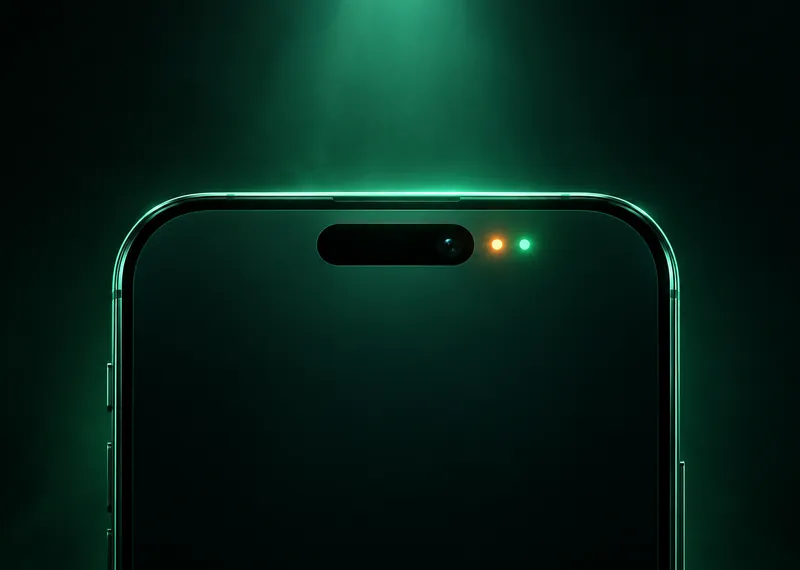 Orange Dot on iPhone and Green Dot: What They MeanAn orange dot on iPhone means an app is using the microphone. Green means the camera. Find out which app it was, what's normal and how to cut off access.