Impersonation Risk Detection on iPhone: Should It Be On?
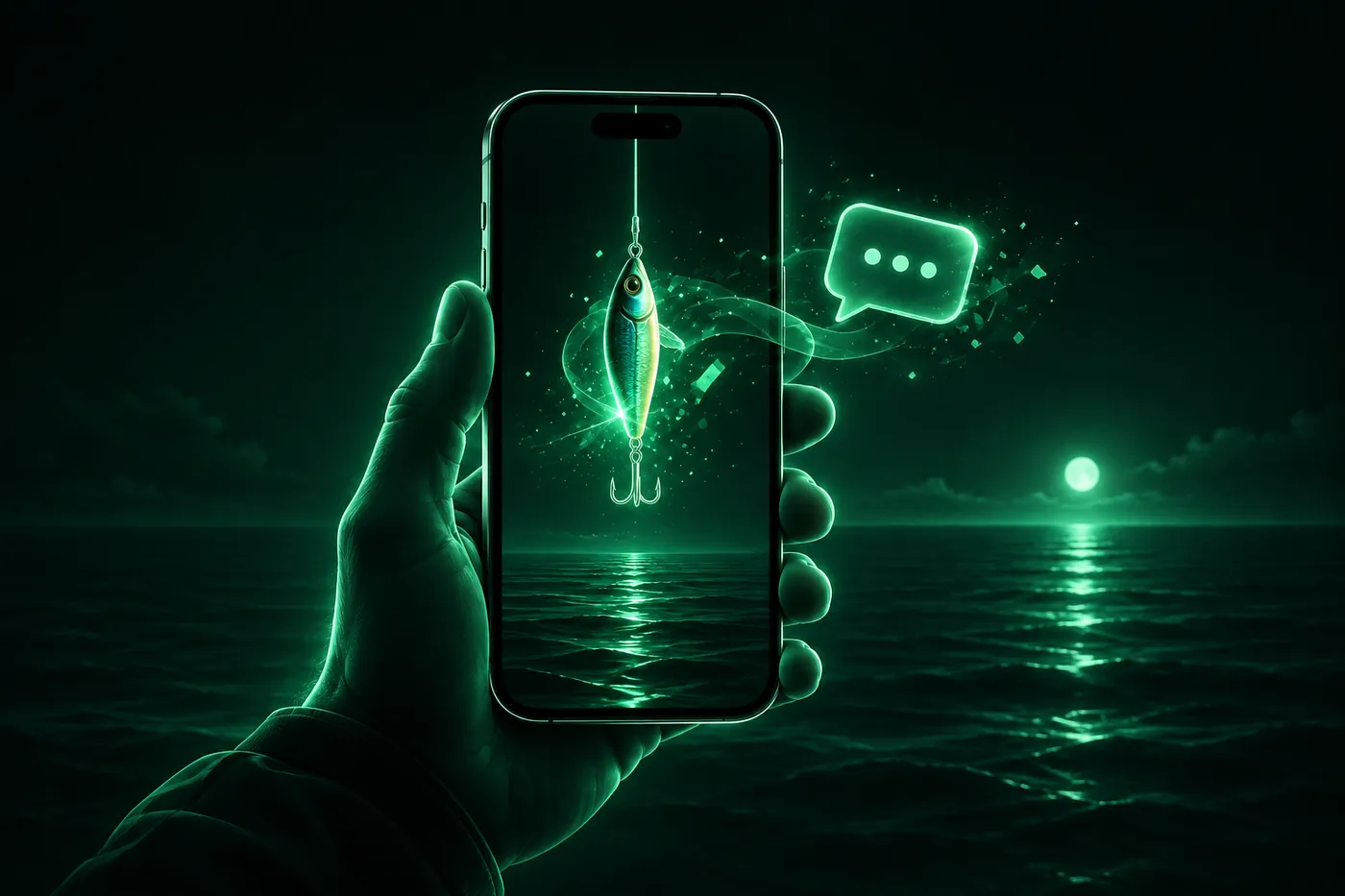
Impersonation Risk Detection in iOS 27 lets supported apps ask your iPhone for a scam risk level. What it shares, what it can't do, and how to turn it on.
 Marco Lee
Impersonation Risk Detection is an iOS 27 setting that lets apps that support it ask your iPhone whether you might be in the middle of a scam before you make a payment or change a password. The app gets a risk level and nothing else. I’d turn it on: go to Settings > Privacy & Security > Impersonation Risk Detection and turn on Share with App Developers.
What is Impersonation Risk Detection on iPhone?
Apple says it “helps protect against active social engineering scams.” These are the scams where “an attacker might pose as a bank, government agency, or someone you trust to pressure or guide you into making a payment or changing your account details” (Apple Support).
The reason it exists is in the next two sentences on Apple’s page: “Traditional security measures like two-factor authentication can’t always detect this kind of scam. That’s because you’re taking the action, even though you’ve been tricked or pressured” (Apple Support). A code sent to your phone proves it’s you. It can’t tell that a stranger on a call is reading you the steps.
Two limits come first. It’s “available starting with iOS 27 and iPadOS 27,” and it’s “available only in apps that support it” (Apple Support). The iPhone User Guide repeats the second point: “This feature is only available in third-party apps that support Impersonation Risk Detection” (Apple Support).
How Impersonation Risk Detection works
A supported app “can request a risk assessment when you take actions that might be especially risky during a scam.” Apple’s examples are “making a payment or changing critical security information for your account, like your password” (Apple Support).
Your iPhone answers with one of three risk levels, in Apple’s words:
- Unknown: “No evidence of suspicious activity was detected. This doesn’t mean that the action was confirmed as safe.”
- Medium: “Some signs of suspicious activity were detected.”
- High: “Significant signs of suspicious activity were detected.”
What happens next is up to the app. “For example, it might ask you to verify your identity, add a delay, or show a warning,” and “Apple doesn’t determine or control the action that the app takes” (Apple Support). From your side, the User Guide says “you may see a warning message or be asked to verify your identity before you continue” (Apple Support).
What your iPhone shares, and what it doesn’t
The switch is called Share with App Developers, so it’s fair to ask what is shared. Apple’s privacy section answers in four lines (Apple Support):
- “Apple analyzes interaction patterns, timing, context, and basic sensor data to generate the risk level. This information is analyzed on-device, so Apple never receives the data used to generate the risk level.”
- “Apple never analyzes the content of your Photos, Messages, or Mail.”
- “Apple learns the type of action you attempted in the app when the app requests the risk assessment.”
- “Apps receive only the risk level, not the underlying information used to generate it.”
So the app learns one word: Unknown, Medium or High. Apple learns what kind of action you were attempting. Apple’s page doesn’t spell out what “interaction patterns” or “context” cover, and I won’t guess.
How to turn Impersonation Risk Detection on or off
- Open Settings on your iPhone.
- Tap Privacy & Security, then scroll down and tap Impersonation Risk Detection.
- Turn Share with App Developers on or off.
Apple adds: “To turn this feature on, you might need to sign in to the App Store with your Apple Account” (Apple Support). Apple’s pages give the steps but don’t say whether the switch starts on or off, so open the setting and look.
Don’t expect the change to apply at once: “changes to this setting might take up to 24 hours to take effect” (Apple Support).
For one app: the same screen shows who has been asking. “Under Recent Activity, find which apps have requested a risk assessment.” Then: “Under Reasons for Access, review the actions that prompted the request.” To cut off one app, “tap it and turn off the toggle for that app.” That change can also take up to 24 hours (Apple Support).
Should Impersonation Risk Detection be on or off?
I’d turn it on. The app gets a risk level and nothing behind it, the analysis runs on the iPhone, and the one thing it can do is make an app stop and check with you before money moves or a password changes.
Keep three limits in mind:
- It only helps in apps that support it. Apple’s page doesn’t list them. Recent Activity in the setting shows which of your apps have asked.
- Unknown isn’t a green light. Apple says it “doesn’t mean that the action was confirmed as safe.”
- The app decides. One app might add a delay, another might do nothing with the same level.
If you’d rather a specific app didn’t ask, turn that app off in the list and leave the main switch on.
What Impersonation Risk Detection doesn’t do
It doesn’t filter your calls or sort your texts. Everything on Apple’s page happens inside a supported app, at the moment you take a risky action there.
For the rest, iOS has other tools, and I’ve written them up:
- Unknown callers and spam calls: how to block spam calls on iPhone.
- A text that wants you to tap a link: what smishing is and how to spot it, with the two I see most, the USPS text and the unpaid toll text.
- A QR code on a parking meter or a flyer: QR code scams. Our free QR code scanner shows the real link before you open it.
- A message that your Apple Account is locked: how to check and unlock it.
If someone tells you to turn it off
Apple puts this on the support page itself: “If someone directs you to turn this feature off, you might be the victim of a scam. To help protect you, changes to this setting might take up to 24 hours to take effect” (Apple Support).
It matches what Apple says about these scams in general: “Sometimes, scammers will ask you to disable security features like two-factor authentication or Stolen Device Protection. They will claim that this is necessary to help stop an attack or to allow you to regain control of your account” (Apple Support).
If a caller asks me to change a security setting, I end the call and contact the company through its app or a number I already have. Real support doesn’t need my protections off. Apple’s own rule: “never share your Apple Account password or verification codes with anyone. Apple never asks for this information to provide support” (Apple Support).
Where Mistero fits
It doesn’t, and I’d rather say so. Impersonation Risk Detection is part of iOS and works between your iPhone and the apps that support it. Apple’s page doesn’t mention VPNs. Mistero VPN can’t see or change this setting, and it can’t tell you whether a caller or a message is who they claim to be.
What we do have for scam links is free and on this site: the QR code scanner and the scam guides above. More on Mistero VPN.
Sources
- Apple Support, About Impersonation Risk Detection (published September 14, 2026): https://support.apple.com/en-us/127906 (read Nov 16, 2026)
- Apple Support, Use Impersonation Risk Detection (iPhone User Guide): https://support.apple.com/guide/iphone/use-impersonation-risk-detection-je2kvy9nls19/ios (read Nov 16, 2026)
- Apple Support, Recognize and avoid social engineering schemes including phishing messages, phony support calls, and other scams: https://support.apple.com/en-us/102568 (read Nov 16, 2026)
Pricing New subscribers can start a 3-day free trial. After the trial, the subscription renews automatically at $12.99 per week unless you cancel at least 24 hours before the trial ends, in Settings > [your name] > Subscriptions (Apple Support). There's also a one-time Lifetime purchase for $99.99. These are US App Store prices as of October 2026; the purchase screen shows the current price before you confirm.
Frequently asked questions
What is Impersonation Risk Detection on iPhone?
Should Impersonation Risk Detection be on or off?
Does Impersonation Risk Detection read my messages?
Why didn't Impersonation Risk Detection turn off right away?
Does Impersonation Risk Detection block scam calls or texts?
 "This Password Has Appeared in a Data Leak" on iPhone: What to DoThe iPhone alert is real when it shows in the Passwords app. It means a saved password matches one in a known data leak. How to check it and change it.How to Check If Your iPhone Is HackedMost iPhones that feel hacked aren't. Learn to tell noise from evidence: check signed-in devices, profiles, apps and Safety Check, then act in the right order if you find something.
 iPhone Virus Scan: Why No App Can Do OneNo app can virus-scan an iPhone, because iOS walls each app off from the rest. Here's what a virus warning really is, what to check instead, and a short clean-up routine for when something looks wrong.