What Is Connectivity Assist on iPhone? Should It Be On?
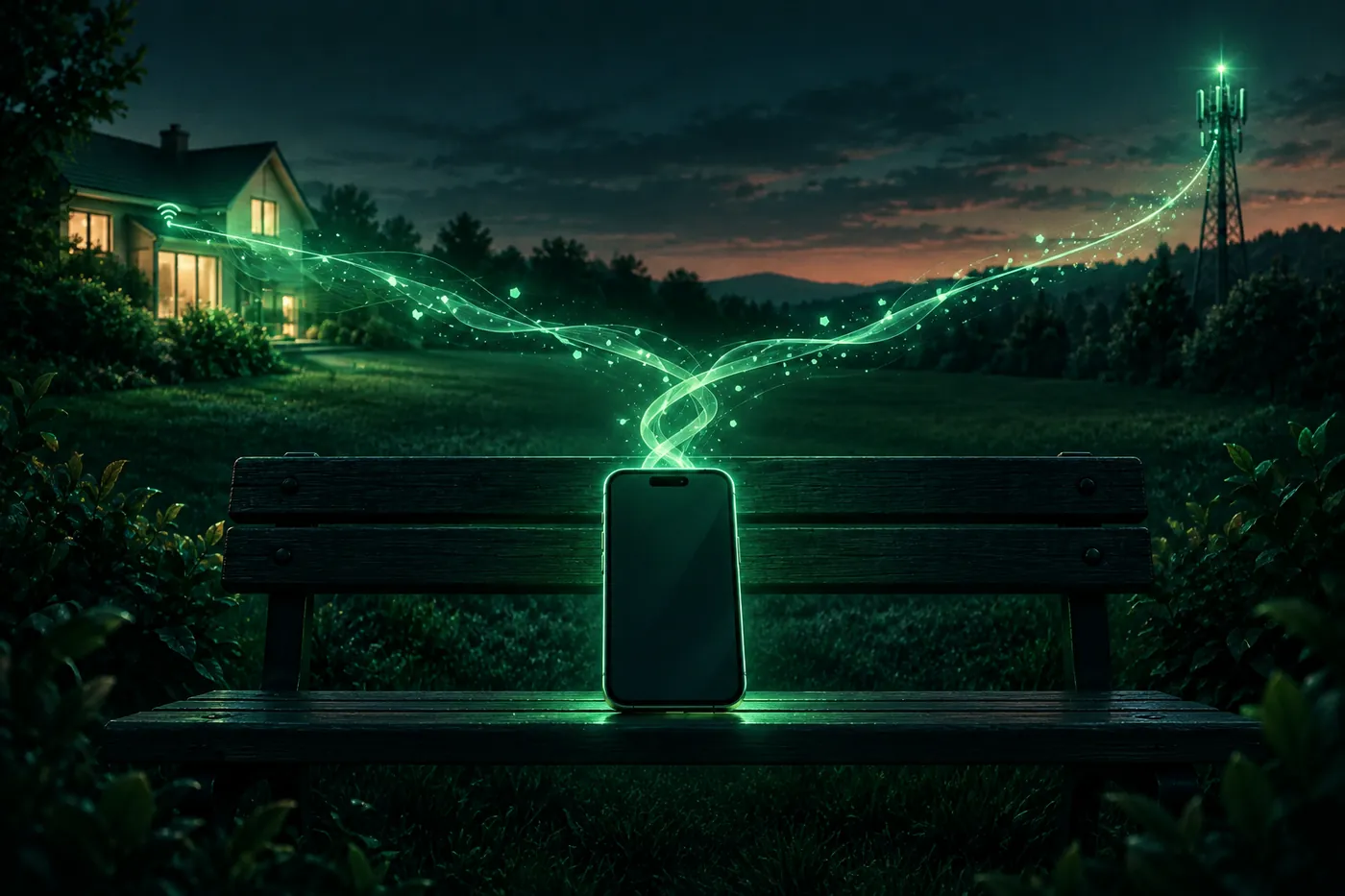
In iOS 27, Connectivity Assist replaced Wi-Fi Assist and moved to Settings > Wi-Fi. What it does, what it costs, and when to turn it off.
 Marco Lee
Connectivity Assist is the iOS 27 setting that lets your iPhone use cellular data alongside Wi-Fi when the Wi-Fi is slow or unusable. It replaced Wi-Fi Assist and now sits in Settings > Wi-Fi. I’d leave it on if you have plenty of data, and turn it off, at least for your home network, if your data is limited or you run an ad blocker on your router.
What is Connectivity Assist on iPhone?
Apple’s summary: “Connectivity Assist uses cellular data to improve your connection when Wi-Fi is slow or unusable,” with examples such as “your backyard or driveway, or at coffee shops, airports, sports venues” (Apple Support). The iPhone User Guide is more specific: with it on, “iPhone uses cellular data along with Wi-Fi to keep your internet connection reliable when Wi-Fi is weak, busy, or not connected to the internet” (Apple Support).
It stays out of the way in three cases. Apple says it “isn’t used when your iPhone is international roaming, in cellular Low Data Mode, or with some third-party apps that stream audio and video” (Apple Support).
The cost is data. “With Connectivity Assist turned on, you might use more cellular data” (Apple Support), and Apple’s cellular data page adds that this “could incur additional charges depending on your data plan” (Apple Support). On an iPhone set to UK English, the same settings say “mobile data” instead of “cellular data”.
Where did Wi-Fi Assist go in iOS 27?
Connectivity Assist “replaces and supersedes Wi-Fi Assist, previously found in Cellular settings” (Apple Support). So if you look for Wi-Fi Assist at the bottom of Cellular settings in iOS 27, you won’t find it. Even Apple’s old Wi-Fi Assist article now opens the Connectivity Assist page (Apple Support).
Your old choice carried over: “If Wi-Fi Assist was on when you updated your software, Connectivity Assist is on by default. If Wi-Fi Assist was off, you can turn Connectivity Assist on manually” (Apple Support). Apple’s steps don’t change by model: on any iPhone running iOS 27, look in Settings > Wi-Fi.
How to turn Connectivity Assist on or off
There are two switches: one for every network, and one for each network you’ve joined.
For every network:
- Open Settings, tap Wi-Fi, and make sure Wi-Fi is on.
- Scroll down and turn Connectivity Assist on or off (Apple Support).
Apple says your iPhone “shows the amount of cellular data Connectivity Assist has used. To start a new count, tap Reset Data Usage” (Apple Support). In iOS 27.1, the text there says your iPhone “keeps track of how much cellular data is used for Connectivity Assist,” and resetting that count “will not affect your overall cellular data usage or usage per app.” Your total cellular use is still in Settings > Cellular (Apple Support).
For one network:
- In Settings > Wi-Fi, tap the Info button next to the network you’re connected to.
- Turn Use Connectivity Assist off (Apple Support).
In iOS 27.1 the text under the switch reads: “Connectivity Assist improves your connection by using cellular data when this Wi-Fi network is unreliable or slow. If you’re concerned about cellular data usage or you use an ad blocker, you may want to turn this off.”
Should you turn Connectivity Assist off?
First, what off means: “iPhone uses Wi-Fi only when connected to Wi-Fi networks, even when the Wi-Fi connection is weak or busy” (Apple Support). On a bad network, pages may stall instead of getting help from cellular.
- I’d keep it on if your plan has plenty of data and you often end up on weak Wi-Fi: the far end of the house, a café, an airport.
- I’d turn it off everywhere if your data allowance is small or extra data costs you money. Cellular Low Data Mode also stops it, but that’s a bigger change: it’s built “to restrict background network use.” It’s in Settings > Cellular > Cellular Data Options (on 5G, tap Data Mode first) (Apple Support).
- I’d turn it off for one network if you run an ad blocker on your router at home, or if you’re troubleshooting problems on that one network.
If your home Wi-Fi is always slow, Connectivity Assist only papers over it. Why is my internet so slow on my iPhone? goes through the checks in order.
Connectivity Assist with Pi-hole, AdGuard Home and other router ad blockers
This is why Apple names ad blockers. A router-level blocker works for your whole network. Pi-hole’s docs tell you to “configure your router to have DHCP clients use Pi-hole as their DNS server,” which “ensures all devices connected to your network will have content blocked” (Pi-hole). AdGuard Home calls itself “network-wide software” that will “cover ALL your home devices” (AdGuard Home).
That only works for traffic that goes through your Wi-Fi router. Whatever Connectivity Assist sends over cellular goes out through your carrier instead, so your home blocker never sees it, and ads it normally stops can load. Apple’s advice: “If you want to always stay on Wi-Fi for a specific router configuration (for example, your ad blocker), you can turn off Connectivity Assist for that particular network” (Apple Support).
So turn off Use Connectivity Assist on your home network only, and your iPhone keeps the help everywhere else. Apple’s wording is “a specific router configuration,” so I’d do the same for anything else that only works on your router, such as a DNS filter. To check the result, run our free ad blocker test in Safari on your home Wi-Fi; it shows which ads and trackers get blocked.
An ad blocker that runs on the iPhone itself is a different thing. A Safari content blocker gives Safari “a set of rules to use to block content in the browser window” (Apple Developer), so the blocking happens in Safari on your iPhone, not at your router. Apple’s Connectivity Assist page doesn’t mention this kind of blocker. For what DNS filters and Safari blockers can and can’t reach, see ad blockers for iPhone games and apps.
Does Connectivity Assist drain the battery?
Apple’s Connectivity Assist page doesn’t mention battery life at all. The cost it documents is cellular data (Apple Support). So I wouldn’t blame it for a bad battery day without checking.
To check, open Settings > Battery. It compares today’s use with previous days, and further down it lists “the percentage of battery used by each app and system task.” Tap View All Battery Usage, then a day, to look further back (Apple Support). If you still suspect Connectivity Assist, turn it off for a day of normal use and compare.
Why does Connectivity Assist keep turning on?
Two things explain most cases:
- You turned it off for one network only. The Use Connectivity Assist switch on a network’s info page applies to “that particular network” (Apple Support). On every other network it’s still on. To turn it off everywhere, use the Connectivity Assist switch in Settings > Wi-Fi.
- The update carried over your old setting. If Wi-Fi Assist was on before you updated to iOS 27, Connectivity Assist starts on (Apple Support). If you never touched Wi-Fi Assist, it can look as if the new feature switched itself on.
Connectivity Assist and a VPN
Apple’s Connectivity Assist page doesn’t say how it works with a VPN (Apple Support). So I’d treat it as one more thing to test, the same advice as in why your VPN keeps disconnecting on iPhone: if the VPN drops only on one weak Wi-Fi network, turn off Use Connectivity Assist for that network and see whether the drops stop.
To see what a website sees at any moment, the free VPN test shows your IP address and network, with WebRTC and IPv6 leak checks.
Where Mistero fits
Mistero can’t change how Connectivity Assist works or make a router ad blocker like Pi-hole cover traffic that goes over cellular. Both switches live in Settings.
What it does have: a Safari ad blocker to “Reduce ads, pop-ups, and common tracking content in Safari,” turned on in Safari (“Enable protection through Safari Extensions”), so it works in Safari, not in other apps. It also lets you “Connect to available VPN locations in one tap” and can “Check Wi-Fi for visible connection or DNS anomalies” (App Store listing, read Nov 9, 2026). More on Mistero VPN.
Sources
- Apple Support, About Connectivity Assist: https://support.apple.com/en-us/127686 (read Nov 9, 2026)
- Apple Support, old Wi-Fi Assist article address, now serving About Connectivity Assist: https://support.apple.com/en-us/102228 (read Nov 9, 2026)
- Apple Support, Connect iPhone to the internet (iPhone User Guide): https://support.apple.com/guide/iphone/connect-to-the-internet-iphd1cf4268/ios (read Nov 9, 2026)
- Apple Support, Manage Wi-Fi settings on iPhone (iPhone User Guide): https://support.apple.com/guide/iphone/manage-wi-fi-settings-iphw5gjwl8k2/ios (read Nov 9, 2026)
- Apple Support, Use cellular data on your iPhone or iPad: https://support.apple.com/en-us/109323 (read Nov 9, 2026)
- Apple Support, Use Low Data Mode on your iPhone and iPad: https://support.apple.com/en-us/102433 (read Nov 9, 2026)
- Apple Support, Understand your iPhone battery usage and health (iPhone User Guide): https://support.apple.com/guide/iphone/understand-iphone-battery-usage-health-iphd453d043a/ios (read Nov 9, 2026)
- Apple Developer, Creating a content blocker: https://developer.apple.com/documentation/safariservices/creating-a-content-blocker (read Nov 9, 2026)
- Pi-hole documentation, Post-Install: https://docs.pi-hole.net/main/post-install/ (read Nov 9, 2026)
- AdGuard Home, README: https://raw.githubusercontent.com/AdguardTeam/AdGuardHome/master/README.md (read Nov 9, 2026)
- App Store, Mistero VPN: Privacy & Proxy: https://apps.apple.com/app/id1583175414 (read Nov 9, 2026)
Pricing New subscribers can start a 3-day free trial. After the trial, the subscription renews automatically at $12.99 per week unless you cancel at least 24 hours before the trial ends, in Settings > [your name] > Subscriptions (Apple Support). There's also a one-time Lifetime purchase for $99.99. These are US App Store prices as of October 2026; the purchase screen shows the current price before you confirm.
Frequently asked questions
What is Connectivity Assist on iPhone?
Should I turn Connectivity Assist on or off?
Where is Wi-Fi Assist on iPhone in iOS 27?
Does Connectivity Assist drain the battery?
 VPN in Brazil: Is It a Crime, and Do You Need One?As of November 2026, no Brazilian law makes using a VPN a crime. What the 2024 STF fine over X covered, what the lei Felca says, and when a VPN helps.
 Do You Need a VPN in Japan? Legal, and When It HelpsMost people in Japan don't need a VPN at home. No law I found bans one, and it helps most on public Wi-Fi. What it changes, and what Japan-only apps say.
 Is a VPN Illegal in South Korea? And Do You Need One?I found no Korean law that bans using a VPN. What stays illegal with one, why some sites show warning.or.kr, and when a VPN actually helps in Korea.