How to Compress a Video on iPhone
A minute of 1080p iPhone video is about 70–105 MB; at 720 it's 19–27 MB. How to make that cut with iMovie, Shortcuts or a trim, which method fits which job, and the one camera setting to change.
 Marco Lee
Photos has no compress button, so you make the smaller copy elsewhere. For a single video, export it from Apple’s free iMovie app at 720. If you do this often, set up a shortcut once and reuse it. If you only need part of the clip, trim it in Photos. To keep future videos smaller, adjust Settings > Camera.
Size vs. quality: the trade you’re making
Every way of shrinking a video spends detail to buy back megabytes. So the first question isn’t which app to use. It’s how much you actually save. Here is what one minute of video takes at each resolution (Apple Support):
| Resolution | About 1 minute of video |
|---|---|
| 1080p (default) | 70–105 MB |
| 720 | 19–27 MB |
| 540 | 12–16 MB |
| 360 | 6–9 MB |
Read it top to bottom and one step stands out. The default 1080p costs 70–105 MB a minute. Drop to 720 and the same minute is 19–27 MB, roughly a quarter of the size. Each step below that saves only a few more megabytes, and each one throws away more detail. These are estimates, and how much you save depends on the video.
Start with 720 and stop there. Go lower only if 720 still isn’t small enough.
What you give up is detail, and fast motion, low light and fine text lose it first. A 720 copy can still look fine on a phone, but it may look soft on a TV.
Which method for which situation
- One video you want to share or keep smaller: export it from iMovie (Method 1).
- The same job, again and again: build a shortcut once (Method 2).
- A long video where you only need part: trim it in Photos (Method 3). This changes the length, not the resolution.
- Many videos at once: a compression app. The cost varies, and it changes resolution and quality.
- Videos you haven’t shot yet: lower the camera settings.
Everything on that list except a compression app is free. None of it frees space by itself, because each method saves a new, smaller copy and keeps the original in your library.
Method 1: Export a smaller copy with iMovie
This is Apple’s documented method (Apple Support). You need the latest iMovie from the App Store, which is free. The steps are written for iPhone 12 or later with iOS 26 or later; on older models the options may differ.
- Open iMovie, tap Start New Project, then Movie.
- Tap Media, then Video, and select the video.
- Tap Create Movie, then Done.
- Tap the Share button, then Save or Share Video.
- Tap Options and choose a lower resolution: 720, 540 or 360.
- Tap Done, then Save Video to put the smaller copy in Photos.
To check the new size, open the copy in Photos and tap the Info button.
Method 2: Build a reusable “compress video” shortcut
The Shortcuts app’s Encode Media action “re-encodes the media passed as input at the specified size” (Matthew Cassinelli). Set it up once:
- Open Shortcuts and tap + to make a new shortcut.
- Add the Select Photos action. Tap the arrow on it and turn on Select Multiple if you want to do several videos at once.
- Add the Encode Media action. Tap the arrow on it and change Size from Passthrough to a smaller size, such as 1280 × 720.
- Add the Save to Photo Album action.
- Name the shortcut, for example “Compress video”, and tap Done.
From then on it’s tap, choose the videos, wait. I haven’t checked the option names on the newest iOS, so they may look slightly different.
Method 3: Trim the video in Photos
Length is the other lever: a shorter video is a smaller file (Apple Support).
- Open the video in Photos and tap Edit.
- Drag the sliders at both ends of the timeline to set the new start and end.
- Tap Done, then Save Video as New Clip to keep the original and add the trimmed copy. Save Video keeps only the trimmed version.
Make future videos smaller
Compressing after the fact is cleanup. These settings keep files smaller from the start (Apple Support):
- Settings > Camera > Record Video: choose a resolution lower than 1080p HD, and turn off HDR Video if you don’t need it.
- Settings > Camera > Formats: choose High Efficiency. Apple says HEIF and HEVC “use less storage space” than JPEG and H.264 (Apple Support).
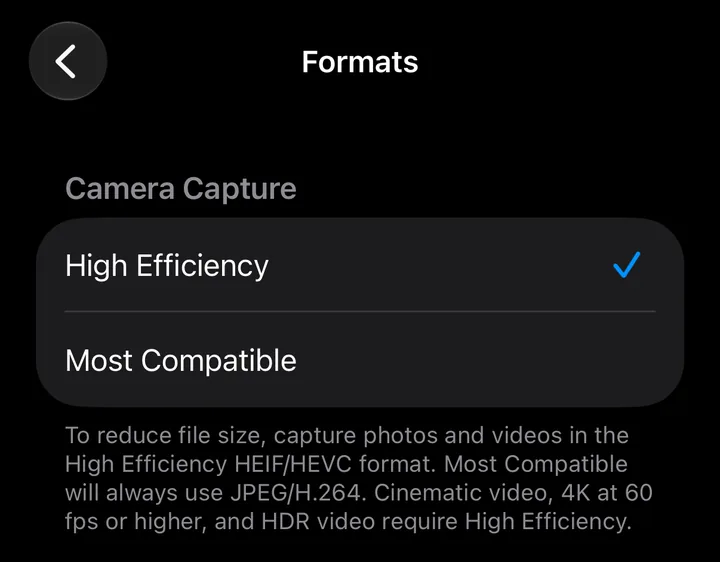
If I could change only one setting, it would be High Efficiency: set it once and forget it. Lowering the recording resolution is a bigger decision, because it takes detail out of every clip you shoot from then on, including the ones you’ll wish you had kept sharp. Keep 4K for videos you plan to edit or watch on a big screen.
How to compress photos on iPhone
A photo is smaller than a video, but you have far more of them. A few ways to make them smaller:
- High Efficiency for new photos: Settings > Camera > Formats > High Efficiency saves photos as HEIF, which uses less space than JPEG (Apple Support).
- Smaller copies in Messages: in Settings > Apps > Messages, turn on Send Photo Previews or Low Quality Image Mode (the name depends on your version) to send lower-quality images (Apple Support).
- Resize with Shortcuts: the Resize Image and Convert Image actions can save a smaller copy of a photo (Matthew Cassinelli).
For photos you might want in full quality later, read when to compress photos and videos instead of deleting them.
Before you delete the original
The savings in that table stay on paper until the original is gone, and even then a deleted video sits in Recently Deleted for 30 days unless you empty that album. So check the copy first:
- Watch the compressed copy all the way through, with sound.
- Check the parts that matter most, such as faces or text.
- Delete the original only when you’re happy with the copy, then empty Recently Deleted to get the space back.
Where Mistero Cleaner fits
The methods above are hands-on: you pick the videos and check each result. With a lot of large videos, that gets slow. Mistero Cleaner, part of the Mistero VPN app, finds large videos and lets you compress them. The App Store listing says you can “Find similar photos, screenshots, and large videos,” “Review items before removing them,” and “Compress large photos and videos to save storage space” (App Store listing, read Oct 29, 2026). It scans your library on your iPhone. Whatever does the compressing, the check above still applies: watch the copies that matter before the originals go.
More about the feature: Mistero Cleaner. If your storage is already full, start with what to do when iPhone storage is full.
Sources
- Apple Support, Compress a video on iPhone: https://support.apple.com/en-us/127765 (read Oct 29, 2026)
- Apple Support, How to edit videos on your iPhone, iPad, or Mac: https://support.apple.com/en-us/104968 (read Oct 29, 2026)
- Apple Support, Using HEIF or HEVC media on Apple devices: https://support.apple.com/en-us/116944 (read Oct 29, 2026)
- Apple Support, If you can’t send or receive messages on your iPhone or iPad (Low Quality Image Mode): https://support.apple.com/en-us/118433 (read Oct 29, 2026)
- Matthew Cassinelli, Encode Media (Shortcuts action reference): https://matthewcassinelli.com/actions/encode-media/ (read Oct 29, 2026)
- Matthew Cassinelli, Resize Image (Shortcuts action reference): https://matthewcassinelli.com/actions/resize-image/ (read Oct 29, 2026)
- App Store, Mistero VPN: Privacy & Proxy: https://apps.apple.com/app/id1583175414 (read Oct 29, 2026)
Pricing New subscribers can start a 3-day free trial. After the trial, the subscription renews automatically at $12.99 per week unless you cancel at least 24 hours before the trial ends, in Settings > [your name] > Subscriptions (Apple Support). There's also a one-time Lifetime purchase for $99.99. These are US App Store prices as of October 2026; the purchase screen shows the current price before you confirm.
Frequently asked questions
Can I compress a video in the iPhone Photos app?
How much smaller will my video be?
Does compressing a video lower the quality?
Will compressing videos free up iPhone storage?
Does Mistero Cleaner compress videos?
 iPhone Storage Full? How to Free Up Space FastiPhone storage full? Start with three quick fixes: empty Recently Deleted, offload apps you don't use, clear big message attachments. Then the deeper fixes, plus what System Data is and why iCloud doesn't help.
 A Safer Way to Clean Up Your Photo LibraryPhoto libraries become crowded one ordinary moment at a time. A review-first cleanup helps you remove images you no longer want while protecting the photos and videos that still matter.
 When to Compress Photos and Videos Instead of Deleting ThemDeleting is final; compression offers a different choice for media you still value. The right decision depends on whether the content matters, how you expect to use it, and whether the compressed result remains suitable.