How to Block Spam Calls and Texts on iPhone

Stop spam calls on iPhone with Screen Unknown Callers, the Spam filter, number blocking and your carrier's free tools. Plus how to filter and report spam texts.
 Marco Lee
To block spam calls on iPhone, go to Settings > Apps > Phone, set Screen Unknown Callers to Ask Reason for Calling or Silence, and turn on the Spam filter under Call Filtering. Block single numbers from your call history, add your carrier’s free spam blocking, and filter texts with Screen Unknown Senders in Messages.
These steps follow Apple’s iPhone User Guide for current iOS. They depend on your iOS version, not your model, so they’re the same on an iPhone 17 or iPhone 16 running the same update. On older iOS without Apps in Settings, tap Phone directly in Settings.
Screen or silence unknown callers
- Open Settings, tap Apps, then tap Phone.
- Scroll to Screen Unknown Callers.
- Choose Never, Ask Reason for Calling or Silence (Apple Support).
Ask Reason for Calling is Call Screening. Apple describes it this way: it “automatically answers calls from unknown numbers without interrupting you. After the caller shares their name and reason for their call, your iPhone rings and shares their response so you can decide if you want to pick up.” Siri speaks to the caller in your iPhone’s default language (iPhone User Guide).
Silence sends calls from unsaved numbers straight to voicemail. They still appear in your Recents list (iPhone User Guide).
A few limits from Apple: standard calling and data rates may apply to screening, calls aren’t screened while you’re roaming, and if you call emergency services, call screening turns off for 24 hours (Apple Support).
I’d pick Ask Reason for Calling if real people reach you from unknown numbers, like a doctor’s office or a delivery driver. Pick Silence if they don’t. Either way, Apple’s advice is to add important numbers, such as family, your child’s school and your doctor, to Contacts first (Apple Support).
What “Silence Unknown Callers” does
In the Phone app, Silence Unknown Callers is now the Silence option above. FaceTime still has a Silence Unknown Callers switch in Settings > Apps > FaceTime. There, “Incoming calls will continue to ring from people in your contacts, recent outgoing calls, and Siri Suggestions” (iPhone User Guide).
Silencing isn’t blocking. The caller can still leave a voicemail, and a spammer using a number you’ve saved still rings through.
Turn on the Spam and Unknown Callers filters
- Go to Settings > Apps > Phone.
- Scroll to Call Filtering.
- Turn on Spam. Calls “identified by your carrier as potential spam or fraud are silenced, sent to voicemail, and moved to the Spam list.”
- Turn on Unknown Callers if you want calls from unknown numbers removed from Recents and moved to their own list (iPhone User Guide).
So the Spam filter is only as good as your carrier’s labels. To check what was caught, open the Phone app, tap Calls (or Recents in the Classic layout), tap the Filter button, then Unknown Callers or Spam. If a real caller lands there, tap Mark as Known (iPhone User Guide).
How to block a specific number
From your call history:
- Open the Phone app and tap Recents (or Calls).
- Tap the number, or the Info button in the Classic layout.
- Scroll down and tap Block Caller (Apple Support).
From a text, open the conversation, tap the person’s icon at the top, tap Info, then Block Contact. Blocking in Messages also blocks that contact in Phone, FaceTime, Mail, Calendar and other apps (iPhone User Guide).
To add a number by hand or see everyone you’ve blocked, go to Settings > Privacy & Security > Blocked Contacts and tap Add Blocked Contact. Unblock from the same list (iPhone User Guide).
A blocked caller can still leave a voicemail, but you won’t get a notification, and they aren’t told they’ve been blocked (Apple Support). Scammers often spoof phone numbers (Verizon), so blocking one at a time only goes so far. The filters above and your carrier’s tools cover the rest.
Call-blocking apps: Call Blocking & Identification
Go to Settings > Apps > Phone > Call Blocking & Identification. This is where you turn on Business Call Identification, which uses Apple Business Connect or your carrier, and any supported caller ID apps you’ve installed (iPhone User Guide).
Your carrier’s spam call blocking
The iPhone Spam filter already depends on your carrier’s labels. AT&T, Verizon and T-Mobile also have their own blocking apps.
- AT&T ActiveArmor is free with every AT&T wireless plan and lets you “block unwanted calls or have them sent to voicemail.” Fraud calls are set to Block automatically, spam calls are labeled when possible, and you can block private callers. You need an active voice mailbox to send callers to voicemail. AT&T notes it “May not detect all threats and may inadvertently block wanted calls” (AT&T, AT&T Support).
- Verizon Call Filter is free on standard monthly and prepaid plans with a compatible phone, and “blocks high-risk spam calls by forwarding to voicemail.” You manage it in the Verizon Protect app, which needs iOS 16.6 or later. A personal block list is part of the paid Call Filter Plus. Verizon “doesn’t guarantee that all spam calls will be detected” (Verizon).
- T-Mobile Scam Shield is T-Mobile’s version. T-Mobile’s ScamShield page lists what it includes.
To keep wanted calls from being caught, turn on Always allow contacts in AT&T’s app (AT&T Support). Verizon suggests saving numbers you want to your contacts (Verizon).
How to report a spam call
If you answer one, hang up. Verizon warns that talking, reacting or following prompts like “press 1” can mark your number as live and bring more calls (Verizon). Then:
- Report it in your carrier’s app. Both AT&T’s and Verizon’s apps have a report option (AT&T Support, Verizon).
- In the US, report scam calls to the FTC at reportfraud.ftc.gov (Apple Support).
- For an unwanted FaceTime call, touch and hold it in your call history and tap Report Spam (iPhone User Guide).
If a caller claiming to be Apple or your bank seems off, hang up and dial the company’s number yourself (Apple Support).
How to block spam texts on iPhone
- Open Messages. In the conversation list, tap the Filter button, then Manage Filtering.
- Turn on Screen Unknown Senders. Texts from people you don’t know go to a separate folder, and you aren’t notified unless you choose to be.
- To still get time-sensitive texts like verification codes, tap Allow Notifications and pick the categories you want.
- For more sorting, go back, tap Text Message Filter and turn it on, along with any message filter app you’ve installed (iPhone User Guide).
Spam filtering is on by default, with its Filter Spam switch on the same screen. To find a real text caught by mistake, tap the Filter button, then Spam (iPhone User Guide). Text message filtering doesn’t apply to anyone you’ve replied to three or more times, so block or report those senders instead (iPhone User Guide).
Report a junk text
- Not opened yet: swipe left on it, tap the Delete button, then Delete and Report Spam.
- Already opened: tap Report Spam at the bottom, then Delete and Report Spam.
You can’t report a message after you’ve replied to it. Reporting doesn’t stop the sender, so block them too. For SMS, MMS or RCS texts, where the report goes depends on your carrier and country. If you don’t see the option, contact your carrier (iPhone User Guide).
Don’t tap links in texts you weren’t expecting (Apple Support). A text saying your Apple Account is locked is a common one; here’s how to tell if it’s real. If you already tapped a link and typed something in, see how to check if your iPhone is hacked.
What Mistero can and can’t do here
Mistero doesn’t replace the settings above. Its listing doesn’t claim to screen calls like Ask Reason for Calling or to catch every spam call or text, so I’d keep Apple’s filters on.
What the listing does say is that on iPhone you can “enable caller identification, spam call blocking, and SMS filtering,” and that “Call identification, call blocking, and SMS filtering are available on iPhone only” (App Store listing, read Nov 2, 2026). Any third-party blocker, Mistero included, has to be switched on in iOS too. For calls, that’s Settings > Apps > Phone > Call Blocking & Identification (iPhone User Guide). For texts, open Messages, tap the Filter button, then Manage Filtering > Text Message Filter, and turn on the app’s filter (iPhone User Guide). Text filter apps only see SMS and MMS from unknown senders, never texts from your contacts or iMessages (Apple Developer).
For a scam text that gets through, Mistero Adblock in Safari can “Help block known phishing pages and malicious domains” (App Store listing, read Nov 2, 2026). That works only in Safari and only for pages already known to be bad, so a new scam page can still load. More on Mistero security.
Sources
- Apple Support, Manage unknown callers on iPhone: https://support.apple.com/en-us/111106 (read Nov 2, 2026)
- Apple Support, Block phone numbers, contacts, and emails on your iPhone or iPad: https://support.apple.com/en-us/111104 (read Nov 2, 2026)
- Apple Support, Screen and block calls on iPhone (iPhone User Guide): https://support.apple.com/guide/iphone/screen-and-block-calls-iphe4b3f7823/ios (read Nov 2, 2026)
- Apple Support, Screen and filter FaceTime calls on iPhone (iPhone User Guide): https://support.apple.com/guide/iphone/screen-and-filter-calls-iph37ef91d5e/ios (read Nov 2, 2026)
- Apple Support, Prevent contacts from communicating with you on iPhone (iPhone User Guide): https://support.apple.com/guide/iphone/block-contacts-iph2527f620e/ios (read Nov 2, 2026)
- Apple Support, Block a FaceTime call and report it as spam on iPhone (iPhone User Guide): https://support.apple.com/guide/iphone/block-a-facetime-call-and-report-it-as-spam-iphcd8d3c813/ios (read Nov 2, 2026)
- Apple Support, Screen and filter text messages on iPhone (iPhone User Guide): https://support.apple.com/guide/iphone/screen-and-filter-texts-iph203ab0be4/ios (read Nov 2, 2026)
- Apple Support, Report spam and block senders in Messages on iPhone (iPhone User Guide): https://support.apple.com/guide/iphone/report-spam-and-block-senders-iph3f94d910d/ios (read Nov 2, 2026)
- Apple Support, Recognize and avoid social engineering schemes including phishing messages, phony support calls, and other scams: https://support.apple.com/en-us/102568 (read Nov 2, 2026)
- AT&T, AT&T ActiveArmor Mobile Security App & Phone Protection: https://www.att.com/security/active-armor/ (read Nov 2, 2026)
- AT&T Support, Use the AT&T ActiveArmor app: https://www.att.com/support/article/wireless/KM1147710/ (read Nov 2, 2026)
- Verizon Support, Avoid unwanted calls with Verizon Call Filter FAQs: https://www.verizon.com/support/call-filter-faqs/ (read Nov 2, 2026)
- Verizon, How to Block Spam Calls & Robocalls: https://www.verizon.com/about/account-security/robocalls (read Nov 2, 2026)
- Apple Developer, SMS and MMS Message Filtering: https://developer.apple.com/documentation/identitylookup/sms-and-mms-message-filtering (read Nov 2, 2026)
- App Store, Mistero VPN: Privacy & Proxy: https://apps.apple.com/app/id1583175414 (read Nov 2, 2026)
Pricing New subscribers can start a 3-day free trial. After the trial, the subscription renews automatically at $12.99 per week unless you cancel at least 24 hours before the trial ends, in Settings > [your name] > Subscriptions (Apple Support). There's also a one-time Lifetime purchase for $99.99. These are US App Store prices as of October 2026; the purchase screen shows the current price before you confirm.
Frequently asked questions
Does Silence Unknown Callers block all spam calls?
Why am I suddenly getting so many spam calls?
Can I block calls with no caller ID on iPhone?
Do blocked callers know they're blocked on iPhone?
 Deceptive Website Warning on iPhone: What to DoSafari's red Deceptive Website Warning means a site was reported for phishing. Tap Go Back. What to do if you typed a password, and if the warning is wrong.
 Apple Account Locked? How to Tell If It's Real and Unlock ItApple Account locked for security reasons? Check it yourself instead of tapping the link, then unlock it at iforgot.apple.com or start account recovery.
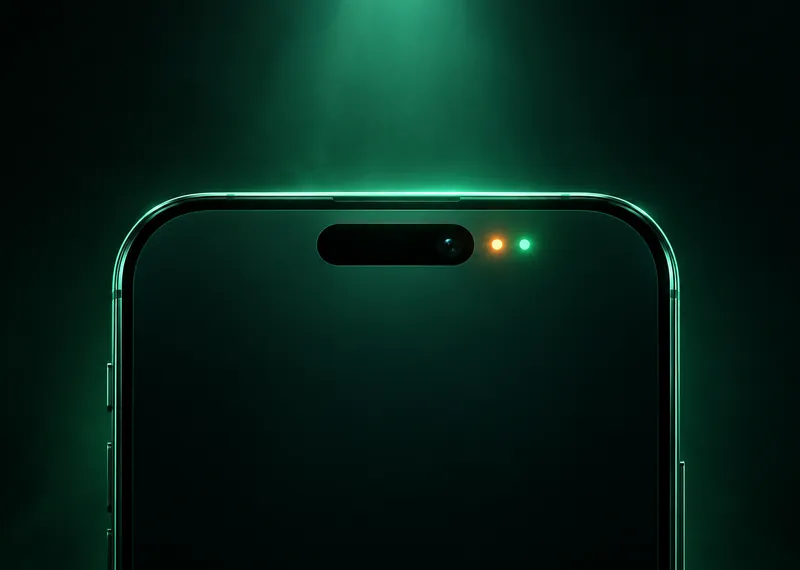 Orange Dot on iPhone and Green Dot: What They MeanAn orange dot on iPhone means an app is using the microphone. Green means the camera. Find out which app it was, what's normal and how to cut off access.