iPhone Virus Scan: Why No App Can Do One
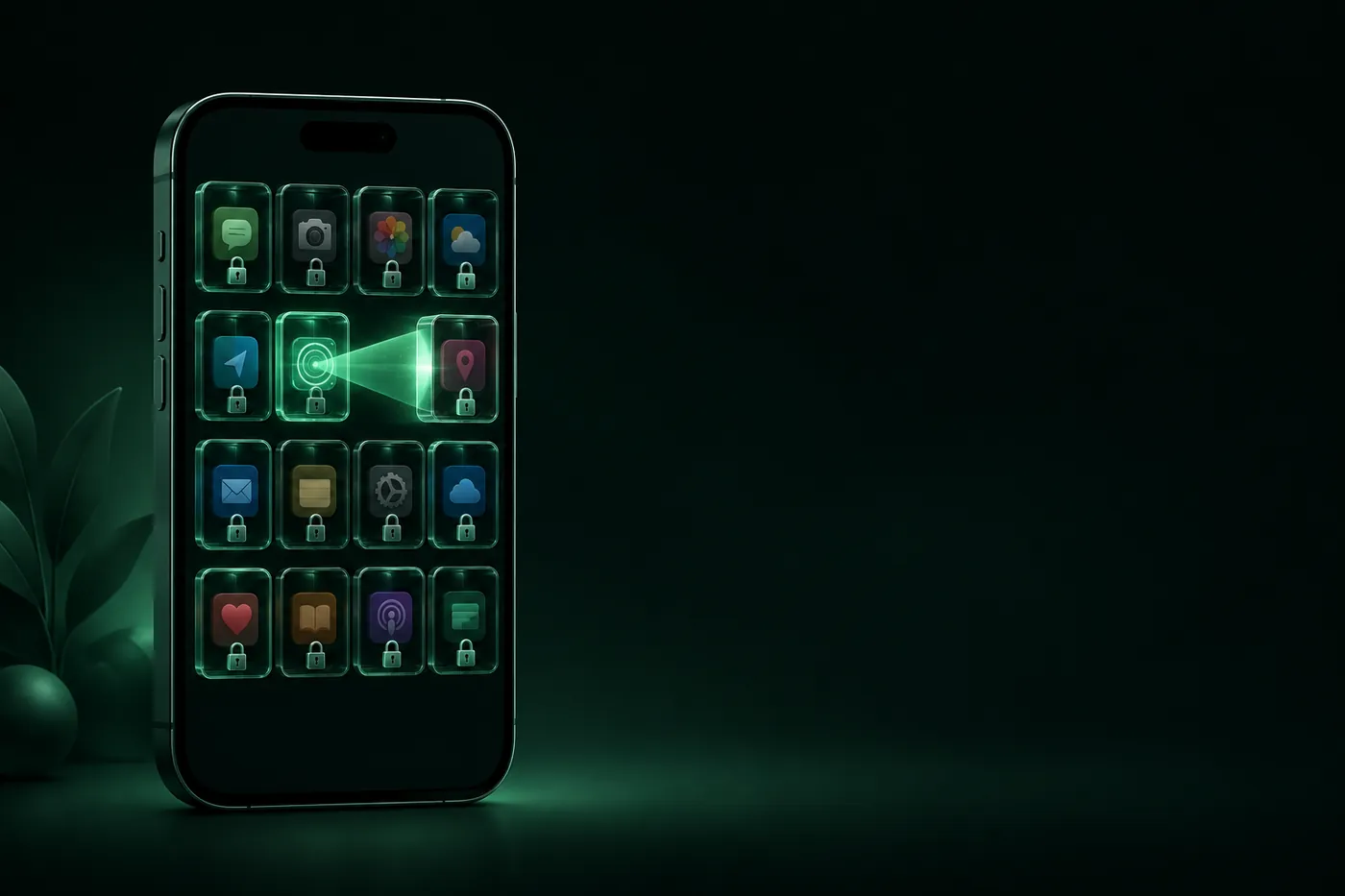
No app can virus-scan an iPhone, because iOS walls each app off from the rest. Here's what a virus warning really is, what to check instead, and a short clean-up routine for when something looks wrong.
 Marco Lee
You can’t virus-scan an iPhone, and no app can do it for you. iOS seals each app off from the others, so a scanner can’t look inside the rest. What you can do is a security check: update iOS, look for unknown profiles and apps, and clear Safari data. That “virus detected” pop-up? Almost always a scam.
Why no app can scan your iPhone
The myth goes like this: install the right app, tap Scan, and it sweeps your phone for viruses the way antivirus does on a PC. On a computer that works, because antivirus software can read files across the whole system. iOS is built the other way around.
Picture an apartment building. On a PC, antivirus is the building manager with a master key: it can walk into every unit and look around. On an iPhone, every app gets its own apartment, and every door stays locked. A “virus scanner” from the App Store is just another tenant. It can look around its own apartment and read a few notices in the lobby, meaning some of your settings. It can’t open the door next to it, so it can’t tell you whether another app is clean or infected.
That locked door is the sandbox. All third-party apps are sandboxed, and sandboxing is designed to prevent apps from gathering or modifying information stored by other apps (Apple Platform Security).
The opposite myth: nothing can get in
Locked doors aren’t a promise that nothing ever goes wrong. Apple provides layers of protection to help ensure apps are free of known malware (Apple Platform Security), which is not the same as zero risk. At the far end, Apple sends threat notifications to a very small number of people it believes were individually targeted by mercenary spyware, and the vast majority of users will never be targeted (Apple Support).
For most people, the real problems are duller: scam pages, bad profiles, risky apps and old software. You can check all of those yourself, no scanner required.
That virus warning is a web page
A message in Safari that says “Your iPhone has a virus” is not iOS talking. It’s a web page, and these pages are scams or ads. Apple’s guidance says it directly: if a pop-up or alert warns you about security problems or viruses on your device, don’t believe it (Apple Support).
When one shows up:
- Don’t tap anything inside it. Don’t call the number or follow its links.
- Close the tab. If it keeps coming back, close Safari.
- Clear Safari data (step 1 of the clean-up below) and see if it returns.
Pop-ups have other common sources too, such as calendar spam and website notifications. Our guide to stopping pop-up ads on iPhone covers those.
What to check instead
Swap the word “scan” for “check” and the job becomes possible. Four things are worth a look:
| What to check | Where | What you’re looking for |
|---|---|---|
| iOS version | Settings > General > Software Update | An update waiting to install |
| Profiles | Settings > General > VPN & Device Management | A profile you didn’t install |
| Apps | Home Screen and App Library | Apps you don’t remember installing |
| Safari data and ad behavior | Settings > Apps > Safari | Pop-ups, redirects and prompts that keep coming back |
If all four look normal and the phone behaves normally, there is no sign of a problem.
How to remove an iPhone “virus”: the clean-up routine
Work through these in order. Stop when the problem goes away.
- Clear Safari history and website data. Open Settings > Apps > Safari, scroll down, tap Clear History and Website Data, choose a timeframe, then tap Clear History. This removes the data websites keep on your iPhone, so you may need to sign in to sites again (Apple Support).
- Delete profiles you don’t recognize. Open Settings > General > VPN & Device Management, tap the profile, tap Delete Profile, follow the prompts and restart your iPhone. Deleting a profile also removes its settings, apps and data. If the iPhone belongs to a school or business, check with your administrator first (Apple Support).
- Delete apps you don’t recognize. Touch and hold the app, tap Remove App, then tap Delete App and confirm. That removes the app and its data from the iPhone (Apple Support). If Delete is missing, check Screen Time restrictions or whether a profile manages the device (Apple Support).
- Update iOS. Back up your iPhone, plug it in and connect to Wi-Fi. Then open Settings > General > Software Update and tap Download and Install. While you’re there, tap Automatic Updates and turn on Automatically Install (Apple Support).
- Last resort: erase and start fresh. If none of that helps and you still believe the phone was tampered with, back up first, then open Settings > General > Transfer or Reset iPhone > Erase All Content and Settings (Apple Support). One catch: Apple’s personal safety guide warns that if you erase because you think malicious software was installed, restoring from a backup may bring that software back (Apple Support). Set the phone up as new, then add your apps again from the App Store.
About “virus cleaner” apps
Be careful with any app that promises to find and remove viruses on an iPhone. Go back to the apartment building: it has no master key, so it has no way to inspect other apps. Some of these apps are ads that use a fake warning to sell you a subscription. I’d skip the whole category.
What does protect an iPhone is mostly basic: a current iOS, a passcode, installing apps only from the App Store, and not opening links or attachments from unknown senders. Apple lists these in its threat-notification guidance (Apple Support). My view: that boring list does more for you than any scanner app could.
If what worries you is someone getting into the phone or your accounts, that’s a different question with different evidence. See how to tell if your iPhone is hacked.
Mistero checks settings, not viruses
After all that, it would be odd for us to sell you a virus scan. Mistero VPN doesn’t scan for viruses, and no iPhone app can. The App Store listing does use the word “scan,” so here is exactly what it covers: you can “Run one Smart Scan across key protection settings” and “Review iOS version, passcode, and Face ID status.” That is a settings check. The listing also includes checks of Wi-Fi for visible connection or DNS anomalies, and the ability to “Scan QR codes and review their links before opening them” (App Store listing).
In Safari, the Adblock extension is described as helping to “Reduce ads, pop-ups, and common tracking content in Safari” and “Help block known phishing pages and malicious domains.” That is prevention, not cleanup. It works only in Safari, not in other browsers or apps, and it won’t remove a profile or an app for you, so the clean-up routine above comes first. More on both: Mistero Security and Mistero Adblock.
Sources
- Apple Platform Security, Security of runtime process in iOS, iPadOS, and visionOS: https://support.apple.com/guide/security/security-of-runtime-process-sec15bfe098e/web (read Oct 29, 2026)
- Apple Platform Security, App security overview: https://support.apple.com/guide/security/app-security-overview-sec35dd877d0/web (read Oct 29, 2026)
- Apple Support, About Apple threat notifications and protecting against mercenary spyware: https://support.apple.com/en-us/102174 (read Oct 29, 2026)
- Apple Support, Recognize and avoid social engineering schemes: https://support.apple.com/en-us/102568 (read Oct 29, 2026)
- Apple Support, Delete your Safari history, cache, and cookies on iPhone: https://support.apple.com/en-us/105082 (read Oct 29, 2026)
- Apple Support, Review and delete configuration profiles: https://support.apple.com/guide/personal-safety/review-and-delete-configuration-profiles-ips327569a75/web (read Oct 29, 2026)
- Apple Support, Delete apps on your iPhone or iPad: https://support.apple.com/en-us/101550 (read Oct 29, 2026)
- Apple Support, If you can’t delete an app on your iPhone: https://support.apple.com/en-us/126807 (read Oct 29, 2026)
- Apple Support, Update your iPhone or iPad: https://support.apple.com/en-us/118575 (read Oct 29, 2026)
- Apple Support, How to factory reset your iPhone: https://support.apple.com/en-us/108931 (read Oct 29, 2026)
- Apple Support, Restore device to factory settings (Personal Safety guide): https://support.apple.com/guide/personal-safety/ips4603248a8/web (read Oct 29, 2026)
- App Store, Mistero VPN: Privacy & Proxy: https://apps.apple.com/app/id1583175414 (read Oct 29, 2026)
Pricing New subscribers can start a 3-day free trial. After the trial, the subscription renews automatically at $12.99 per week unless you cancel at least 24 hours before the trial ends, in Settings > [your name] > Subscriptions (Apple Support). There's also a one-time Lifetime purchase for $99.99. These are US App Store prices as of October 2026; the purchase screen shows the current price before you confirm.
Frequently asked questions
Can a virus scan be done on an iPhone?
Is an iPhone virus warning real?
How do I remove a virus from my iPhone?
Does an iPhone need antivirus?
 How to Check If Your iPhone Is HackedMost iPhones that feel hacked aren't. Learn to tell noise from evidence: check signed-in devices, profiles, apps and Safety Check, then act in the right order if you find something.
 How to Find Your Router (Gateway) IP on iPhoneYour IP gateway is your router's local address. On iPhone, open Settings > Wi-Fi, tap the (i) next to your network and read the Router line. How it differs from your public IP, and how to open the router page.
 Hotel Wi-Fi Login Page Not Showing on iPhone?Hotel or airport Wi-Fi sign-in page won't load on your iPhone? Turn off your VPN first, then rejoin the network or open a plain http site in Safari. A short checklist, plus the safety habits that matter.