Does a VPN Change Your Location on iPhone?
A VPN changes the location websites guess from your IP address, not your iPhone's GPS. Why Find My and Snap Map still show where you are, and what to check.
 Marco Lee
Yes, but only one kind of location. A VPN changes your IP address, so websites and apps that estimate your location from that address see the VPN server’s area instead of yours. It doesn’t change your iPhone’s own location. Apps that use Location Services, like Find My and Snap Map, still see where you really are.
Does a VPN change your location? Your iPhone has two
Your iPhone gives away its location in two separate ways, and a VPN only touches one of them.
| IP-based location | Location Services | |
|---|---|---|
| Where it comes from | The public IP address of your connection | GPS, Bluetooth, nearby Wi-Fi networks, cellular network |
| Who gets it | Any website or app you connect to | Only apps and websites you’ve given permission |
| How exact | Your general area | Can be precise |
| Does a VPN change it? | Yes, while the VPN is connected | No |
IP-based location is a guess. Your internet provider assigns your IP address, and IP addresses are roughly based on geography, so any website you use may get some information about your general area (Google Search Help). Sites and apps turn an address into a place with geo-IP mappings (Apple, iCloud Private Relay Overview). With a VPN on, your traffic leaves through the VPN’s server, so the address they look up belongs to the server, not to your home Wi-Fi or carrier. What that address reveals is covered in what your IP address shows.
Location Services is your iPhone working out where it physically is. It uses information from GPS, your Bluetooth connections, your local Wi-Fi networks and your cellular network (Apple Support). Your IP address isn’t on that list. Apps and websites can use Location Services only with your permission, and while an app is using it, an arrow icon appears in the status bar or in Control Center (Apple Support).
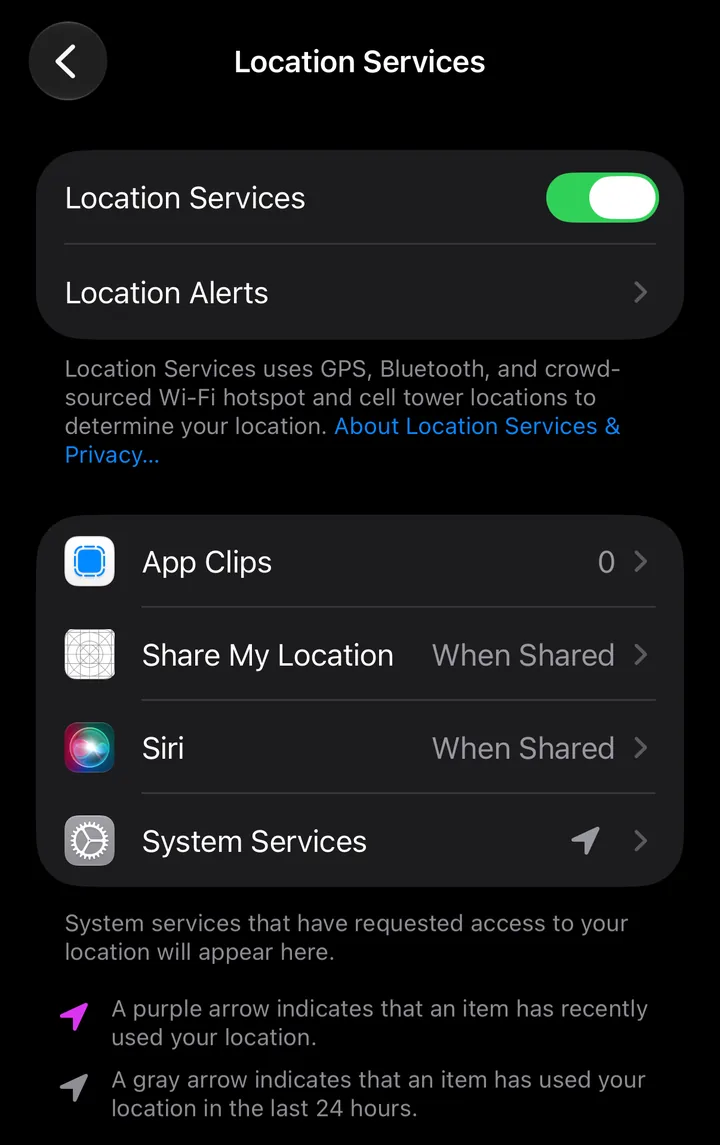
A VPN changes where your internet traffic goes. It doesn’t change which satellites, Wi-Fi networks and cell towers are around you. Apple’s own design paper for iCloud Private Relay describes the same split: websites can map an IP address to a location, and apps that need a precise one can request it from you with explicit permission (Apple, iCloud Private Relay Overview).
Location-sharing apps: Find My, Snapchat and Life360
Find My
Find My shares the location of a device, not of an internet connection. If friends can’t see your location, the fix is to make sure Location Services is on for Find My, in Settings > Privacy & Security > Location Services > Find My (Apple Support). A VPN won’t move you on a friend’s map.
If friends see you somewhere you aren’t, check which device is doing the sharing. Open Find My and tap Me. The device sharing your location is shown next to Sharing From. If it’s an iPad or another device, tap Use This iPhone as My Location. To hide your location from everyone, turn off Share My Location on the same screen (Apple Support).
Snapchat’s Snap Map
Location sharing on Snap Map is off by default. You choose which friends see you, and Ghost Mode hides your location from everyone (Snapchat Support).
How it updates depends on the location permission you give Snapchat in your iPhone’s settings. With “Only while using,” Snap Map updates your location only while Snapchat is open. After you close it, the map shows the last location you were at (Snapchat Support), and that location expires after 24 hours (Snapchat Support). With “Always,” friends you share with can see your real-time location even after you close the app.
Every control Snapchat describes for this is either a Snap Map setting or your iPhone’s location permission. A VPN is neither.
Life360
The same rule applies to Life360 and other family-locator apps. On iPhone, an app gets your device’s location through Location Services, and only with your permission (Apple Support). A VPN doesn’t change what that permission hands over. To see what Life360 has access to, find it in Settings > Privacy & Security > Location Services. An app appears there only after it has asked for your location, and you can change its access there (Apple Support).
VPN on but location didn’t change? Check these
If a website still shows your home city with the VPN on, go through these in order.
- Make sure your IP address actually changed. Open What Is My IP with the VPN off and note the IP address and city. Connect the VPN, reload the page and compare. The VPN icon in the status bar means your iPhone is connected to a network using VPN (Apple Support), but the page is the real test. If the address is the same, websites still see your own network. I’d disconnect, reconnect and check again.
- The site asked for your device location. Websites can use Location Services too, with your permission (Apple Support). If you ever allowed a site’s location request, it can get your real position, VPN or not. To control this for every site, go to Settings > Apps > Safari > Location (on iOS 17 and earlier, Safari is directly in Settings) and choose Ask, Deny or Allow. For one site, open it in Safari, tap the Page Menu button on the left side of the search field, then tap Website Settings (Apple Support). Google Search shows its source at the bottom of the results page. “From your device” means it used your iPhone’s location, not your IP (Google Search Help).
- The site remembered where you were. Google may reuse your device location from the last time you used Google, stored in a cookie that expires after 6 hours. It can also use the home or work address in your Google Account, or your past activity, labeled “Based on your places” or “Based on your past activity” (Google Search Help). None of those come from your IP address, so a VPN doesn’t change them.
- The app reads Location Services. If the location arrow appears in the status bar while you use an app, that app is using Location Services (Apple Support). It’s getting your device’s position, and the VPN isn’t part of that.
The settings that do control your location
If what you want is fewer apps knowing where you are, the controls are in Location Services, not in a VPN.
- One app: go to Settings > Privacy & Security > Location Services and tap the app to review or change its access (Apple Support).
- Approximate instead of exact: on that app’s screen, turn off Precise Location. The app then gets only your approximate location, which may be enough for an app that doesn’t need your exact position (Apple Support). For Snapchat, Snap still receives your location, in less detail, and features like Location Stickers and Venue Filters may not be available (Snapchat Support).
- Everything: turn off Location Services at the top of the same screen. Apps can’t use your location from Location Services in the foreground or background, and many important iPhone features stop working (Apple Support). Your location may still be used when you place an emergency call (Apple Support).
I’d turn off Precise Location for any app that only needs your town, like a weather app, and keep the master switch for when you really mean it.
For the IP side, Safari’s Hide IP Address and iCloud Private Relay are built in. Private Relay needs iCloud+, and it keeps websites you browse in Safari from seeing your IP address and exact location (Apple Support). How to hide your IP address on iPhone compares them with a VPN.
What Mistero VPN changes, and what it doesn’t
Mistero VPN works on the IP side of the table above. The App Store listing says it can “Mask your IP address while the VPN is active” (App Store listing, read Oct 31, 2026). While you’re connected, websites that estimate your location from your IP see the VPN server’s address.
It doesn’t change your iPhone’s GPS location. It doesn’t hide you from Find My, Snap Map or any app you’ve allowed to use Location Services. For those, use the settings above.
There’s a trade-off. Apple describes iCloud Private Relay as built, unlike a traditional VPN, so that no single party has both your IP address and the details of your browsing (Apple, iCloud Private Relay Overview). With a VPN, you’re trusting one company. When you’re connected to Mistero VPN, we don’t store your browsing activity or DNS queries, and we keep no record linking your real IP to the IP you appear as (no-logs policy).
Sources
- Apple Support, About privacy and Location Services in iOS, iPadOS, and watchOS: https://support.apple.com/en-us/102515 (read Oct 31, 2026)
- Apple Support, Control the location information you share on iPhone (iPhone User Guide, iOS 27): https://support.apple.com/guide/iphone/control-the-location-information-you-share-iph3dd5f9be/ios (read Oct 31, 2026)
- Apple Support, Share your location in Find My on iPhone (iPhone User Guide, iOS 27): https://support.apple.com/guide/iphone/share-your-location-iph01954dc44/ios (read Oct 31, 2026)
- Apple Support, Browse the web privately in Safari on iPhone (iPhone User Guide, iOS 27): https://support.apple.com/guide/iphone/browse-the-web-privately-iphb01fc3c85/ios (read Oct 31, 2026)
- Apple Support, Learn the meaning of iPhone status icons: https://support.apple.com/en-us/118203 (read Oct 31, 2026)
- Apple, iCloud Private Relay Overview (December 2021): https://www.apple.com/icloud/docs/iCloud_Private_Relay_Overview_Dec2021.pdf (read Oct 31, 2026)
- Google Search Help, Understand & manage your location when you search on Google (iPhone & iPad): https://support.google.com/websearch/answer/179386?co=GENIE.Platform%3DiOS&hl=en (read Oct 31, 2026)
- Snapchat Support, How do I share my location on Snap Map?: https://help.snapchat.com/hc/en-us/articles/7012309470740-How-do-I-share-my-location-on-Snap-Map (read Oct 31, 2026)
- Snapchat Support, Snap Map Privacy & Safety Reminder: https://help.snapchat.com/hc/en-us/articles/24547077410580-Snap-Map-Privacy-Safety-Reminder (read Oct 31, 2026)
- Snapchat Support, How long does my location stay on Snap Map?: https://help.snapchat.com/hc/en-us/articles/7012280385684-How-long-does-my-location-stay-on-Snap-Map (read Oct 31, 2026)
- Snapchat Support, How do I change my Snapchat permissions on iOS?: https://help.snapchat.com/hc/en-us/articles/7012349781652-How-do-I-change-my-Snapchat-permissions-on-iOS (read Oct 31, 2026)
- App Store, Mistero VPN: Privacy & Proxy: https://apps.apple.com/app/id1583175414 (read Oct 31, 2026)
Pricing New subscribers can start a 3-day free trial. After the trial, the subscription renews automatically at $12.99 per week unless you cancel at least 24 hours before the trial ends, in Settings > [your name] > Subscriptions (Apple Support). There's also a one-time Lifetime purchase for $99.99. These are US App Store prices as of October 2026; the purchase screen shows the current price before you confirm.
Frequently asked questions
Does a VPN change your location on Find My iPhone?
Does a VPN change your location on Snapchat?
Why is my VPN not changing my location on iPhone?
Can a VPN hide my location from apps?
 What Is a VPN Configuration on iPhone, and Is It Safe?A VPN configuration is the saved setup your iPhone uses to connect to a VPN. Learn where yours came from, whether it's safe, and when to delete it.
 Is a VPN Safe? What to Check Before You Trust OneA VPN is usually safe to use. The real question is whether you can trust the company that runs it. Here's what a VPN can see and what to check on your iPhone.
 How to Find Your Router (Gateway) IP on iPhoneYour IP gateway is your router's local address. On iPhone, open Settings > Wi-Fi, tap the (i) next to your network and read the Router line. How it differs from your public IP, and how to open the router page.