How to Hide Your IP Address on iPhone
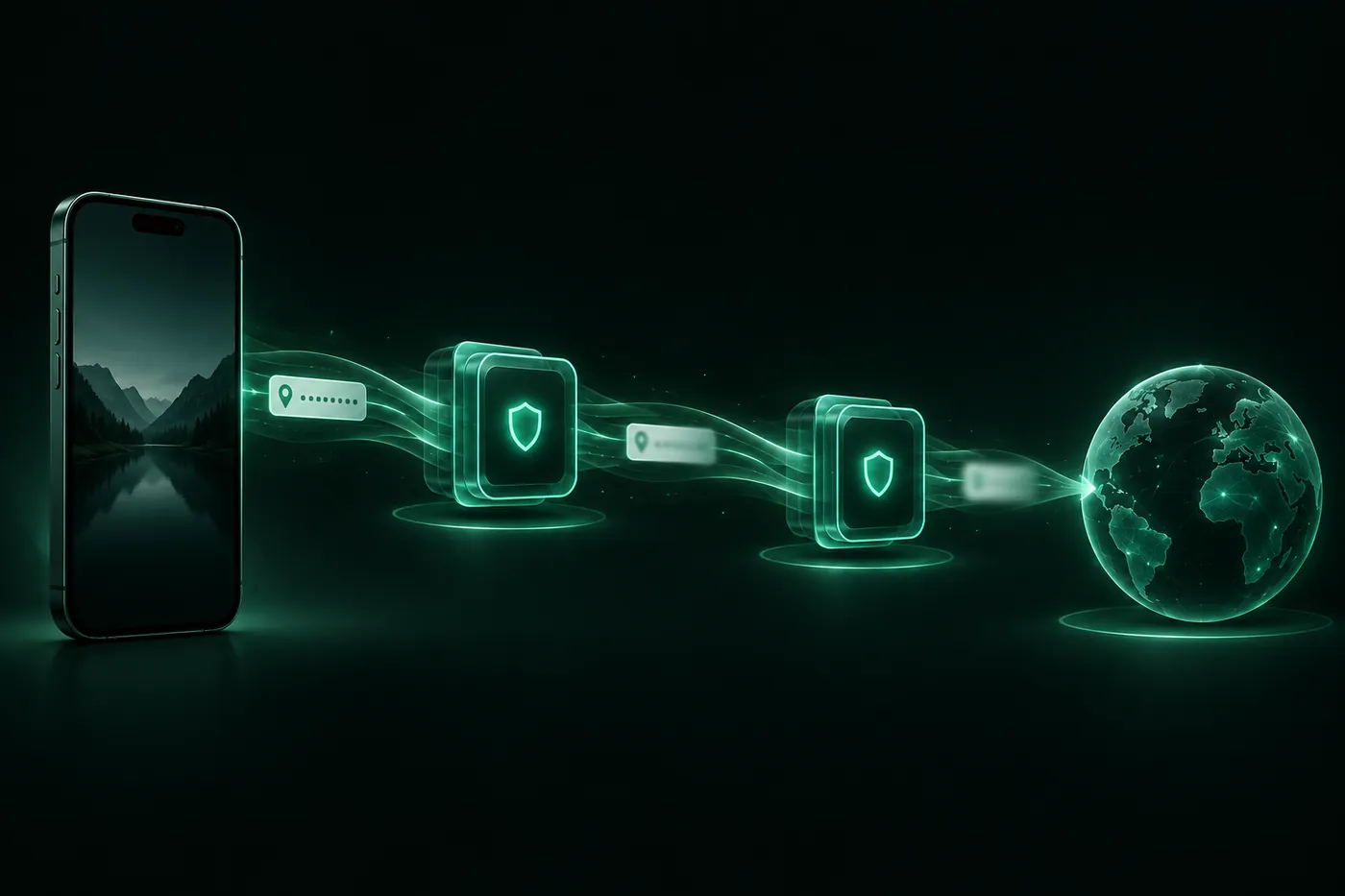
Hiding your IP address on iPhone always means handing it to someone else. Compare Safari's Hide IP Address, Limit IP Address Tracking, iCloud Private Relay and a VPN: what each hides, from whom, and what to turn on.
 Marco Lee
You can’t make your iPhone’s IP address disappear. You can only decide who sees it. Safari’s Hide IP Address and Limit IP Address Tracking keep it from known trackers, iCloud Private Relay keeps it from websites in Safari if you have iCloud+, and a VPN swaps it out for all apps while it’s connected.
An IP address is the number the internet uses to send data back to your phone. Every connection needs one, so something always gets to see it. If you want to know what it reveals, read what your IP address shows. This post is about the other question: who should see it instead of the websites you visit?
The trade-off, in one table
Hiding an IP address always means handing it to someone else. So the useful question isn’t “how do I hide it?” but “whom do I trust with it?” Here is what each option on iPhone hides, from whom, and what it needs.
| Option | What it hides your IP from | What it covers | Needs |
|---|---|---|---|
| Safari > Hide IP Address > From Trackers | Known trackers | Some of your Safari traffic | Nothing extra |
| Safari > Hide IP Address > Trackers and Websites | Known trackers and the websites you visit | Safari browsing | iCloud+ and Private Relay, which isn’t in all countries |
| Limit IP Address Tracking (Wi-Fi, cellular) | Known trackers | Set per network; also turns Private Relay on or off for it | Nothing extra |
| iCloud Private Relay | Websites and network providers (Apple says it keeps them from building a profile of you) | Safari browsing, per Apple’s iPhone guide | iCloud+; not available in all countries or regions |
| Mail Privacy Protection | Email senders | Remote content in the Mail app only | Limit IP Address Tracking turned on |
| A VPN | Websites and apps (they see the VPN server’s address) | All apps’ traffic while connected | A VPN app. The VPN provider sees your IP address |
Sources for the rows: Safari (Apple Legal), Limit IP Address Tracking (Apple Support), Private Relay (Apple Support), Mail (Apple Support).
None of these rows says “anonymous.” Every option changes who sees your address. None of them changes who you are once you sign in somewhere.
What I’d switch on today
If you do nothing else, turn on the two options that need nothing extra: Hide IP Address set to From Trackers in Safari, and Limit IP Address Tracking on each Wi-Fi network and cellular line you use. If you have iCloud+, turn on Private Relay and pick Trackers and Websites instead. If you read email in the Mail app, add Mail Privacy Protection; it needs Limit IP Address Tracking on anyway.
Save the VPN for when you actually need it: other apps showing a different address, or a different location. It’s the option where your real address goes to one company you picked, so pick carefully.
Before you start: note your current address
You’ll want something to compare against later.
- Connect to the network you normally use.
- Open Safari and go to Mistero’s What Is My IP page.
- Write down the address and the city shown.
Do this on Wi-Fi and again on cellular. Home Wi-Fi and your carrier give you different addresses.
Safari: Hide IP Address
This setting sends some of your web traffic through two separate relays run by different entities (Apple Legal). That’s the trade here: two relay operators handle your traffic, and neither of them is the website.
- Open Settings > Apps > Safari.
- Tap Hide IP Address. On iOS 17 and earlier, Safari is directly in the main Settings list, not under Apps.
- Choose From Trackers. Every user can pick it.
- With iCloud+ and Private Relay on, you’ll also see Trackers and Websites, which hides your address from the websites you visit too. On that list the trackers-only choice is called Trackers Only. If you only see From Trackers and Off, you don’t have iCloud+ or Private Relay isn’t available where you are.
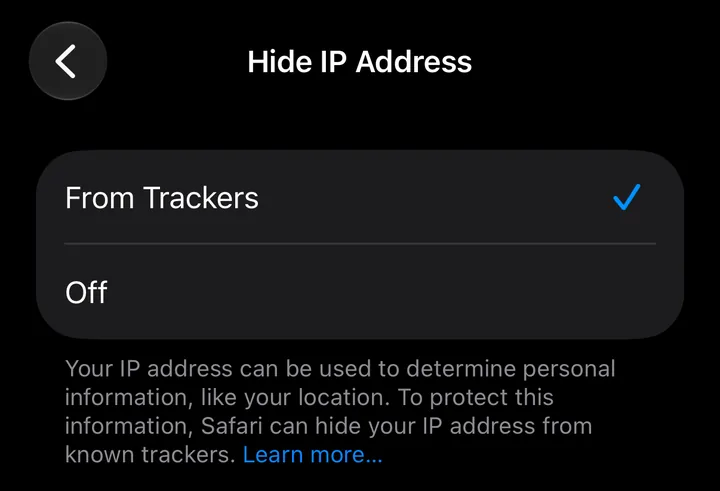
To undo it, tap Off on the same screen.
What it doesn’t do: it only affects Safari. Chrome, Instagram and other apps send your normal address.
Wi-Fi and cellular: Limit IP Address Tracking
Apple says that turning on Limit IP Address Tracking “hide[s] your IP address from known trackers” (Apple Support). It is set per network, so do it for each one.
For Wi-Fi:
- Open Settings > Wi-Fi.
- Tap the info button next to your network.
- Turn on Limit IP Address Tracking.
For cellular:
- Open Settings > Cellular.
- With one line, tap Cellular Data Options. With several lines, pick a line under SIMs.
- Turn on Limit IP Address Tracking.
The cellular setting belongs to one physical SIM or eSIM. And one catch on Wi-Fi: turning this off for a network also turns off iCloud Private Relay for that network on all your devices signed in to the same Apple Account (Apple Support).
iCloud Private Relay
Private Relay is part of iCloud+. When it’s on, the traffic leaving your iPhone is encrypted and sent through two separate relays. That keeps websites from seeing your IP address and exact location, and keeps network providers from collecting your browsing activity in Safari (Apple Support).
- Open Settings > [your name] > iCloud > Private Relay.
- Tap Private Relay to turn it on. You need to do this on each device.
- Optional: open IP Address Location and choose Maintain General Location (local content in Safari) or Use Country and Time Zone (a more obscure location).
The limits: it isn’t available in all countries or regions (Apple Support), and it covers Safari browsing. I’d plan on it covering nothing else. Some sites may need extra steps to sign in without your IP address, and speed tests may read lower while it’s on.
Mail Privacy Protection
This one is only for email. Turn it on and senders can’t link your IP address to your other online activity or see your exact location. It also stops them from seeing whether you opened the email (Apple Support).
- Open Settings > Apps > Mail.
- Tap Privacy Protection, then turn on Protect Mail Activity.
It needs Limit IP Address Tracking turned on. What it doesn’t cover: links or attachments, and it’s for the Mail app, not Gmail or Outlook. With a VPN on, Mail may say it can’t load content privately; if you tap Load Content, it loads through the VPN instead (Apple Support).
When you need a VPN
The built-in options are about Safari and Mail. If you want other apps to show a different address too, or you want a different location, you need a VPN. It sends your traffic through its server, so websites and apps see the server’s address (what a VPN actually changes).
This is where the trade-off is plainest:
- The VPN provider sees your real IP address. You are trusting it instead of your Wi-Fi network. Read its privacy policy. I’d skip any provider that doesn’t have one you can read.
- A VPN isn’t anonymity. If you sign in to an account, websites still know who you are. Cookies and device fingerprints still exist. A VPN also doesn’t hide you from the apps you sign in to.
Apple’s built-in options and a VPN don’t always combine cleanly; the Mail message above is one example.
Check that it worked
- Turn on the option you chose (or connect your VPN).
- Open What Is My IP again in Safari.
- Compare with the address you wrote down.
With a VPN, the address and city should change to the server’s. With Safari’s Hide IP Address or Private Relay, results can vary by site, and From Trackers won’t change what a normal website sees. If a VPN is on and the address is the same, disconnect, reconnect and test again.
Where Mistero VPN fits
Start with the built-in settings above. If you decide you want a VPN for the whole phone, Mistero VPN is one option. The App Store listing says you can “Connect to available VPN locations in one tap”, “Mask your IP address while the VPN is active”, “Choose WireGuard, OpenVPN, or IKEv2” and “Use Auto-Connect when Mistero launches” (App Store listing, read Oct 29, 2026).
The trade-off from the top of this post applies to us too: with a VPN, the provider is the one you’re trusting. When you’re connected to Mistero VPN, we don’t store your browsing activity or DNS queries, and we keep no record linking your real IP to the IP you appear as (no-logs policy). It still won’t make you anonymous, and it doesn’t hide your activity from the sites you sign in to.
More: Mistero VPN and what is a VPN.
Sources
- Apple Legal, Safari & Privacy (Hide IP Address): https://www.apple.com/legal/privacy/data/en/safari/ (read Oct 29, 2026)
- Apple Support, Protect your web browsing with iCloud Private Relay on iPhone: https://support.apple.com/guide/iphone/protect-web-browsing-icloud-private-relay-iph499d287c2/ios (read Oct 29, 2026)
- Apple Support, About iCloud Private Relay: https://support.apple.com/en-us/102602 (read Oct 29, 2026)
- Apple Support, Manage Wi-Fi settings on iPhone: https://support.apple.com/guide/iphone/manage-wi-fi-settings-iphw5gjwl8k2/ios (read Oct 29, 2026)
- Apple Support, Use Mail Privacy Protection on iPhone: https://support.apple.com/guide/iphone/use-mail-privacy-protection-iphf084865c7/ios (read Oct 29, 2026)
- Apple Support, If you see “Unable to load remote content privately”: https://support.apple.com/en-us/102289 (read Oct 29, 2026)
- App Store, Mistero VPN: Privacy & Proxy: https://apps.apple.com/app/id1583175414 (read Oct 29, 2026)
Pricing New subscribers can start a 3-day free trial. After the trial, the subscription renews automatically at $12.99 per week unless you cancel at least 24 hours before the trial ends, in Settings > [your name] > Subscriptions (Apple Support). There's also a one-time Lifetime purchase for $99.99. These are US App Store prices as of October 2026; the purchase screen shows the current price before you confirm.
Frequently asked questions
How do I make my IP address not visible on my iPhone?
How do I turn off IP address tracking on my iPhone?
Is hiding an IP address illegal?
Does a VPN make me anonymous?
Can I hide my IP address on iPhone without a VPN?
 How to Find Your Router (Gateway) IP on iPhoneYour IP gateway is your router's local address. On iPhone, open Settings > Wi-Fi, tap the (i) next to your network and read the Router line. How it differs from your public IP, and how to open the router page.
 Hotel Wi-Fi Login Page Not Showing on iPhone?Hotel or airport Wi-Fi sign-in page won't load on your iPhone? Turn off your VPN first, then rejoin the network or open a plain http site in Safari. A short checklist, plus the safety habits that matter.
 Why is there a VPN icon on my iPhone?The VPN icon in your iPhone's status bar is how iOS shows a VPN connection. Learn what it means, how to find which VPN it is, and how to turn it off.