Unknown Accessory Detected Near You: What to Do on iPhone
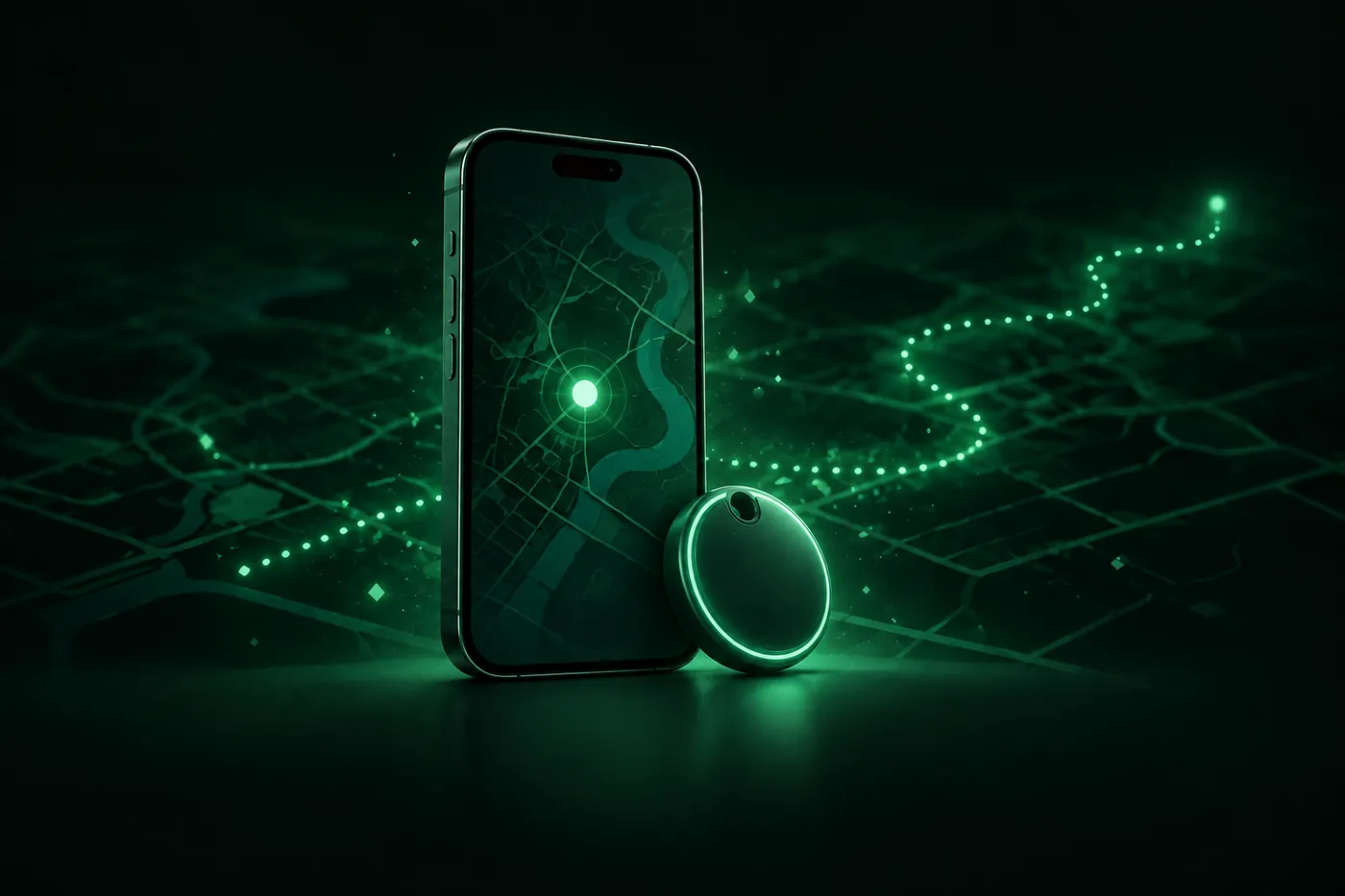
Got an Unknown Accessory Detected or AirTag Found Moving With You alert? Find, identify and disable the tracker, and check who can see your iPhone's location.
 Marco Lee
“Unknown Accessory Detected” means your iPhone spotted AirPods, a Find My accessory or another compatible Bluetooth tracker near you, but Find My had trouble connecting to it. Tap the alert, play a sound to find the item, then identify it and follow Instructions to Disable. If you feel unsafe, go somewhere public and contact local law enforcement.
If you feel unsafe, start here
Your safety comes before every step on this page. If you feel at risk, contact local law enforcement. If you can’t find the item, go to a safe public place and contact them from there. Police can work with Apple to request information about the item, and you may need to give them the device and its serial number (Apple Support). I’d hold on to anything you find rather than throw it away.
Two things to know before you change anything:
- Changes can be noticed. Changes you make to sharing or access may be noticed by others (Apple Support), so think about your safety before you disable a tracker or stop sharing (Apple Support).
- Keep a record. Take a screenshot of the item and its owner information before you disable it (Apple Support).
In the US, Apple’s article also points to the Safety Net Project and the National Center for Victims of Crime for support (Apple Support).
What “Unknown Accessory Detected Near You” means
The name of the alert tells you what your iPhone found (Apple Support):
- AirTag Found Moving With You. An AirTag that’s separated from its owner has been seen moving with you over time, or one that’s been away from its owner for a while plays a sound while your iPhone is awake.
- AirPods Detected (or AirPods Pro Detected, AirPods Max Detected). AirPods separated from their owner have been seen moving with you over time.
- “Product Name” Found Moving With You. Another Find My network accessory or compatible Bluetooth tracker is moving with you. The alert shows the product’s name.
- Unknown Accessory Detected. AirPods, a Find My network accessory or a compatible Bluetooth tracker was detected near you, but Find My had issues connecting to it or to the server at that time. This one never appears for an AirTag.
An alert doesn’t always mean someone is following you. It could be AirPods you borrowed, AirPods a friend or family member left behind, or an item with an AirTag attached that you’re borrowing. If the item belongs to someone in your Family Sharing group, you can tap the notification and turn off alerts for it for one day or indefinitely (Apple Support).
It isn’t only Apple gear. On iOS 17.5 or later, your iPhone also alerts you to other Bluetooth trackers compatible with the Detecting Unwanted Location Trackers industry specification, a standard Apple and Google created so iPhone and Android users can be notified (Apple Support).
What to do after the alert
Work through these in order (Apple Support):
- Play a sound. Tap the alert, tap Continue, then tap Play Sound. You can play it again. If there’s no option to play a sound, the item might not be with you anymore, or it’s back in range of its owner. If it was with you overnight, its identifier might have changed.
- Use Find Nearby if it’s offered. For an AirTag or an AirPods Pro 3 charging case, a supported iPhone with Ultra Wideband can use Precision Finding to show the distance and direction to the item.
- Search your things. Check your pockets, every compartment of your bags, and your car.
- Look at the map. Find My shows where the item has been seen with you. The red dots mark where your iPhone detected it. They don’t show when the owner is looking at the item’s location.
- Identify it. For an AirTag, hold the top of your iPhone near its white side until a notification appears, then tap it. A web page shows the serial number and the last four digits of the phone number of the person who registered it. If the owner marked it as lost, the page may show how to contact them. For other items, open Find My, tap Items, scroll to the bottom and tap Identify Found Item.
- Disable it. Tap Instructions to Disable and follow the onscreen steps. After that, the owner can no longer get updates on the item’s current location, and you stop getting alerts for it (Apple Support). For third-party trackers, the instructions come from that company’s finder network and aren’t certified by Apple.
Don’t count on your own settings to cut it off. Turning off Bluetooth, Location Services or the Find My network on your iPhone doesn’t stop the owner from seeing where the item is. You have to disable the item itself (Apple Support).
To see earlier alerts, open Find My, tap Items and scroll to the bottom. Apple’s pages call that list either Unknown Items Detected with You (Apple Support) or Items Detected With You (Apple Support), so the label may vary.
Make sure your iPhone can warn you
Tracking alerts need iOS 14.5 or later, and alerts for compatible third-party trackers need iOS 17.5 or later. Check these settings (Apple Support):
- Location Services on, in Settings > Privacy & Security > Location Services. Under System Services at the bottom of that screen, Apple’s support article says to turn on Significant Locations, and the Personal Safety User Guide says Find My iPhone (Apple Support). I’d check both.
- Bluetooth on, in Settings > Bluetooth.
- Tracking Notifications allowed: Settings > Notifications > Tracking Notifications, then turn on Allow Notifications.
- Airplane mode off. In airplane mode you don’t get tracking notifications.
I’d keep all of these on even if this alert turns out to be a friend’s AirPods.
How to tell if someone is tracking your iPhone location
A tracker in your bag is one way to follow you. The other is your iPhone itself: through Find My location sharing, or through your Apple Account if someone else can sign in to it.
Find My location sharing. Open Find My and tap People. To stop sharing with one person, tap their name, tap Stop Sharing My Location, then tap Stop Sharing Location. To stop sharing with everyone, tap Me and turn off Share My Location. Hide Location only pauses sharing, and it resumes automatically the next day. Family members appear in People automatically, but sharing doesn’t start until you share your locations with each other. People you stop sharing with may notice (Apple Support).
Your Apple Account. Anyone with access to your Apple Account can view information that’s synced across your devices, so don’t share it, even with family members or a partner (Apple Support).
- Open Settings, tap your name and scroll to the device list. Tap one you don’t own and choose Remove from Account. A device that’s still signed in can reappear, so sign out on that device too if you can (Apple Support).
- Change your password in Settings > your name > Sign-In & Security > Change Password (Apple Support).
Apps with your location. Go to Settings > Privacy & Security > Location Services and tap an app to review or change its access (Apple Support). When an app is using Location Services, an arrow appears in the status bar or Control Center (Apple Support).
Safety Check covers all of this in one place. Open Settings > Privacy & Security > Safety Check. It needs iOS 16 or later and an Apple Account with two-factor authentication. It reviews who has access to your information, including your location. Emergency Reset stops sharing with all people and apps at once, and Manage Sharing & Access goes through them one by one. Quick Exit closes Settings straight away and keeps your changes. It can’t change non-Apple accounts or social media sharing (Apple Support).
For other signs that someone has access to your phone, read how to check if your iPhone is hacked.
Can a VPN stop someone tracking you?
No, and that includes ours. Location Services works out where your iPhone is from cellular, Wi-Fi, GPS and Bluetooth information (Apple Support). A VPN changes your IP address, not any of those, and it can’t detect, find or disable a tracker. Does a VPN change your location explains the difference.
Mistero VPN can “Mask your IP address while the VPN is active” (App Store listing, read Nov 1, 2026). It does nothing about an AirTag in your bag, Find My location sharing or someone signed in to your Apple Account. The app’s security checks can “Review iOS version, passcode, and Face ID status” (App Store listing, read Nov 1, 2026), which is a settings check, not a tracker scan. More on Mistero security. For tracking, use the steps above.
Sources
- Apple Support, What to do if you get an alert that an AirTag, set of AirPods, Find My network accessory, or compatible Bluetooth location-tracking device is with you: https://support.apple.com/en-us/119874 (read Nov 1, 2026)
- Apple Support, Detect unwanted trackers (Personal Safety User Guide): https://support.apple.com/guide/personal-safety/detect-unwanted-trackers-ips139b15fd9/web (read Nov 1, 2026)
- Apple Support, Safety considerations (Personal Safety User Guide): https://support.apple.com/guide/personal-safety/safety-considerations-ips84b821dd3/web (read Nov 1, 2026)
- Apple Support, Find My and location sharing (Personal Safety User Guide): https://support.apple.com/guide/personal-safety/find-my-and-location-sharing-ips05ede4573/web (read Nov 1, 2026)
- Apple Support, Keep your Apple Account secure (Personal Safety User Guide): https://support.apple.com/guide/personal-safety/keep-your-apple-account-secure-ips7d5628cc5/web (read Nov 1, 2026)
- Apple Support, Review devices signed in to your Apple Account: https://support.apple.com/en-us/102649 (read Nov 1, 2026)
- Apple Support, Manage Location Services settings (Personal Safety User Guide): https://support.apple.com/guide/personal-safety/manage-location-services-settings-ips9bf20ad2f/web (read Nov 1, 2026)
- Apple Support, About privacy and Location Services in iOS, iPadOS, and watchOS: https://support.apple.com/en-us/102515 (read Nov 1, 2026)
- Apple Support, Safety Check for an iPhone with iOS 16 or later (Personal Safety User Guide): https://support.apple.com/guide/personal-safety/safety-check-iphone-ios-16-ips2aad835e1/web (read Nov 1, 2026)
- App Store, Mistero VPN: Privacy & Proxy: https://apps.apple.com/app/id1583175414 (read Nov 1, 2026)
Pricing New subscribers can start a 3-day free trial. After the trial, the subscription renews automatically at $12.99 per week unless you cancel at least 24 hours before the trial ends, in Settings > [your name] > Subscriptions (Apple Support). There's also a one-time Lifetime purchase for $99.99. These are US App Store prices as of October 2026; the purchase screen shows the current price before you confirm.
Frequently asked questions
What does Unknown Accessory Detected mean on iPhone?
Does turning off Bluetooth stop an AirTag from tracking me?
How can I tell if someone is tracking my iPhone's location?
Can a VPN stop an AirTag or Find My from tracking me?
 Apple Account Locked? How to Tell If It's Real and Unlock ItApple Account locked for security reasons? Check it yourself instead of tapping the link, then unlock it at iforgot.apple.com or start account recovery.
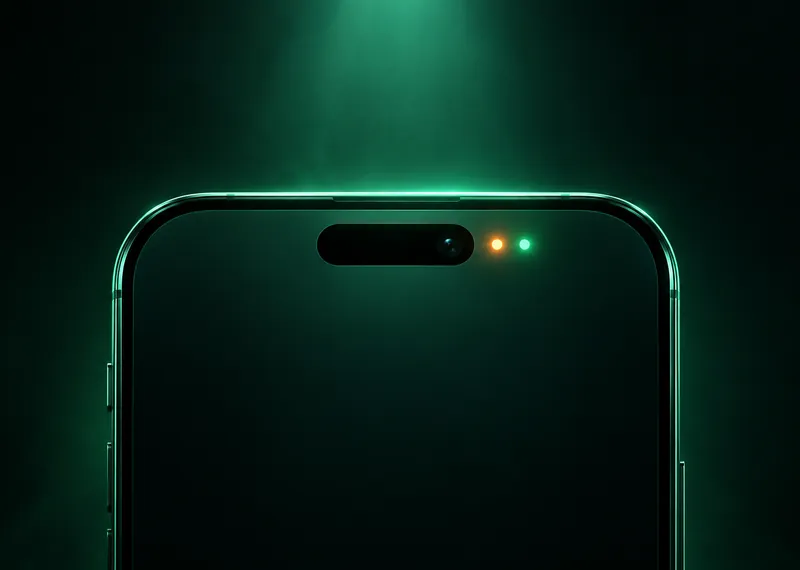 Orange Dot on iPhone and Green Dot: What They MeanAn orange dot on iPhone means an app is using the microphone. Green means the camera. Find out which app it was, what's normal and how to cut off access.
 iPhone Lockdown Mode: What It Does and Who Needs ItLockdown Mode is Apple's extreme iPhone setting for people targeted by spyware. See what it blocks, how to turn it on or off, and whether you need it.